# Workflow Outputs in Kestra: Share Data Between Tasks
Outputs let you pass data between tasks and flows.
A workflow execution can generate **outputs**. Outputs are stored in the flow’s execution context and can be accessed by all downstream tasks and flows.
Each task defines its own output attributes — see the task’s documentation for details.
You can retrieve outputs from other tasks within all [dynamic properties](../01.tasks/index.mdx#dynamic-vs-static-task-properties).
:::alert{type="warning"}
**Do not use Outputs to fetch sensitive data (such as passwords, secrets, or API tokens).**
Fetching Secrets from an external Secrets Manager via a task imposes a significant security risk. All data fetched via outputs is **stored in clear text in multiple places** (including the backend database, internal storage, logs, API requests).
For secure handling of secrets, **exclusively** use [Secrets](../../06.concepts/04.secret/index.md). [Kestra EE](../../07.enterprise/02.governance/secrets/index.md) and [Kestra Cloud](/cloud) offer reliable secrets management including native integrations with various [Secrets Managers](../../07.enterprise/02.governance/secrets-manager/index.md).
:::
## Using outputs
Below is an example of how to use the output of the `produce_output` task in the `use_output` task. We use the [Return](/plugins/core/debug/io.kestra.plugin.core.debug.return) task that has one output attribute named `value`.
```yaml
id: task_outputs_example
namespace: company.team
tasks:
- id: produce_output
type: io.kestra.plugin.core.debug.Return
format: my output {{ execution.id }}
- id: use_output
type: io.kestra.plugin.core.log.Log
message: The previous task output is {{ outputs.produce_output.value }}
```
In this example, the first task produces an output from the `format` property. This output attribute is then used in the second task `message` property.
The expression `{{ outputs.produce_output.value }}` references the previous task output attribute.
:::alert{type="info"}
In the example above, the **Return** task produces an output attribute `value`. Every task produces different output attributes. You can look at each task outputs documentation or use the **Outputs** tab of the **Executions** page to find out about specific task output attributes.
:::
The **Outputs** tab shows the output for `produce_output` task. There is no output for `use_output` task as it only logs a message.

In the next example, we can see a file is passed between an input and a task, where the task generates a new file as an output:
```yaml
id: bash_with_files
namespace: company.team
description: This flow shows how to pass files between inputs and tasks in Shell scripts.
inputs:
- id: file
type: FILE
tasks:
- id: rename
type: io.kestra.plugin.scripts.shell.Commands
commands:
- mv file.tmp output.tmp
inputFiles:
file.tmp: "{{ inputs.file }}"
outputFiles:
- "*.tmp"
```
:::alert{type="info"}
Since 0.14, Outputs are no longer rendered recursively. You can read more about this change and how to change this behavior in the [0.14 Migration guide](../../11.migration-guide/v0.14.0/recursive-rendering/index.md).
:::
## Internal storage
Each task can store data in Kestra's internal storage. If an output is stored in internal storage, it contains a URI pointing to the file location. This output attribute could be used by other tasks to access the stored data.
The following example stores the query results in internal storage, then accesses it in the `write_to_csv` task:
```yaml
id: output_sample
namespace: company.team
tasks:
- id: output_from_query
type: io.kestra.plugin.gcp.bigquery.Query
sql: |
SELECT * FROM `bigquery-public-data.wikipedia.pageviews_2023`
WHERE DATE(datehour) = current_date()
ORDER BY datehour desc, views desc
LIMIT 10
store: true
- id: write_to_csv
type: io.kestra.plugin.serdes.csv.IonToCsv
from: "{{ outputs.output_from_query.uri }}"
```
## Flow outputs
A flow can also produce strongly typed outputs. You can add them using the `outputs` attribute in the flow definition.
Here is an example of a flow that produces an output:
```yaml
id: flow_outputs
namespace: company.team
tasks:
- id: mytask
type: io.kestra.plugin.core.debug.Return
format: this is a task output used as a final flow output
outputs:
- id: final
type: STRING
value: "{{ outputs.mytask.value }}"
```
An Output can have one of the following types: `ARRAY`, `BOOLEAN`, `DATE`, `DATETIME`, `DURATION`, `EMAIL`, `ENUM`, `FILE`, `FLOAT`, `INT`, `JSON`, `MULTISELECT`, `SECRET`, `STRING`, `TIME`, `URI`, or `YAML`.
Outputs are defined as a list of key-value pairs. The `id` is the name of the output attribute (must be unique within a flow), and the `value` is the value of the output. You can also add a `description` to the output.
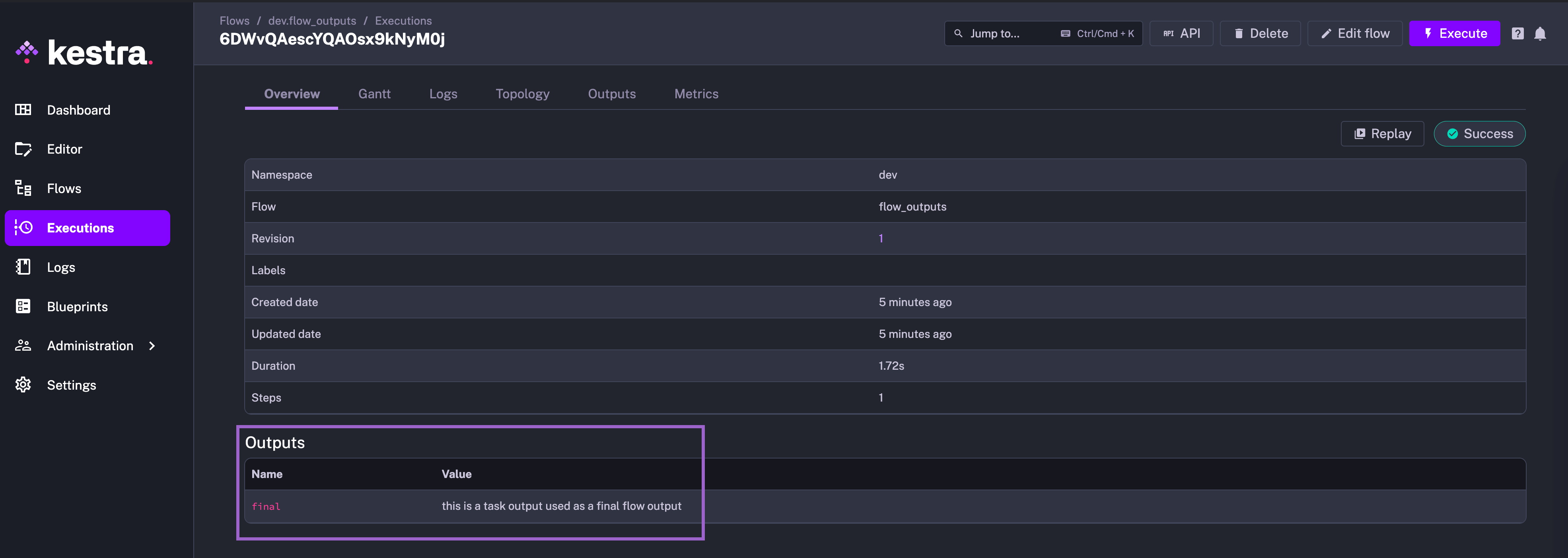
Flow outputs appear in the **Overview** tab of the **Executions** page.
### Pass data between flows using flow outputs
Here is how you can access the flow output in a parent flow:
```yaml
id: parent_flow
namespace: company.team
tasks:
- id: subflow
type: io.kestra.plugin.core.flow.Subflow
flowId: flow_outputs
namespace: company.team
wait: true
- id: log_subflow_output
type: io.kestra.plugin.core.log.Log
message: "{{ outputs.subflow.outputs.final }}"
```
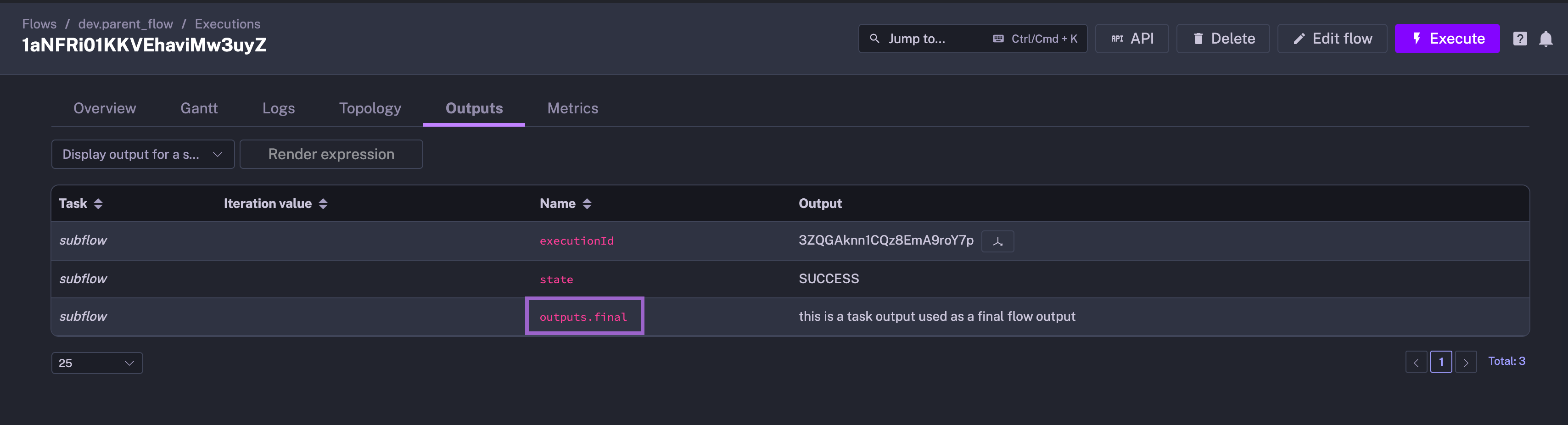
In the example above, the `subflow` task produces an output attribute `final`. This output attribute is then used in the `log_subflow_output` task.
:::alert{type="info"}
Note how the `outputs` are set twice within the `"{{outputs.subflow.outputs.final}}"`:
1. once to access outputs of the `subflow` task
2. once to access the outputs of the subflow itself — specifically, the `final` output
:::
Here is what you will see in the **Outputs** tab of the **Executions** page in the parent flow:
### Return outputs conditionally
You can return different outputs based on conditions. For instance, if a given task is skipped, you may want to return a fallback value or return the output of another task. Here is an example of how you can achieve this:
```yaml
id: conditionally_return_output
namespace: company.team
inputs:
- id: run_task
type: BOOLEAN
defaults: true
tasks:
- id: main
type: io.kestra.plugin.core.debug.Return
format: Hello World!
runIf: "{{ inputs.run_task }}"
- id: fallback
type: io.kestra.plugin.core.debug.Return
format: fallback output
outputs:
- id: flow_output
type: STRING
value: "{{ tasks.main.state != 'SKIPPED' ? outputs.main.value : outputs.fallback.value }}"
```
Note how the Ternary Operator `{{ condition ? value_if_true : value_if_false }}` is used in the output expression `{{ tasks.main.state != 'SKIPPED' ? outputs.main.value : outputs.fallback.value }}` to return the output of the `main` task if it is not skipped, otherwise, it returns the output of the `fallback` task.
## Dynamic variables (Each tasks)
### Current taskrun value
In dynamic flows (for example, with an **Each** loop), variables are passed to tasks dynamically. You can access the current taskrun value with `{{ taskrun.value }}` like this:
```yaml
id: taskrun_value_example
namespace: company.team
tasks:
- id: each
type: io.kestra.plugin.core.flow.ForEach
values: ["alpha", "beta", "gamma"]
tasks:
- id: inner
type: io.kestra.plugin.core.debug.Return
format: "{{ task.id }} > {{ taskrun.value }} > {{ taskrun.startDate }}"
```
The **Outputs** tab contains the output for each of the inner task.

### Loop over a list of JSON objects
Within the loop, the `value` is always a JSON string, so the `{{ taskrun.value }}` is the current element as JSON string. To access properties, you need to wrap it in the `fromJson()` function to have a JSON object allowing to access each property easily.
```yaml
id: loop_sequentially_over_list
namespace: company.team
tasks:
- id: each
type: io.kestra.plugin.core.flow.ForEach
values:
- {"key": "my-key", "value": "my-value"}
- {"key": "my-complex", "value": {"sub": 1, "bool": true}}
tasks:
- id: inner
type: io.kestra.plugin.core.debug.Return
format: "{{ fromJson(taskrun.value).key }} > {{ fromJson(taskrun.value).value }}"
```
### Specific outputs for dynamic tasks
Dynamic tasks are tasks that run other tasks a certain number of times. A dynamic task runs multiple iterations of a set of sub-tasks.
For example, **ForEach** produces other tasks dynamically depending on its `values` property.
It is possible to reach each iteration output of dynamic tasks by using the following syntax:
```yaml
id: output_sample
namespace: company.team
tasks:
- id: each
type: io.kestra.plugin.core.flow.ForEach
values: ["s1", "s2", "s3"]
tasks:
- id: sub
type: io.kestra.plugin.core.debug.Return
format: "{{ task.id }} > {{ taskrun.value }} > {{ taskrun.startDate }}"
- id: use
type: io.kestra.plugin.core.debug.Return
format: "Previous task produced output: {{ outputs.sub.s1.value }}"
```
The `outputs.sub.s1.value` variable reaches the `value` of the `sub` task of the `s1` iteration.
### Previous task lookup
It is also possible to locate a specific dynamic task by its `value`:
```yaml
id: dynamic_looping
namespace: company.team
tasks:
- id: each
type: io.kestra.plugin.core.flow.ForEach
values: ["alpha", "beta", "gamma"]
tasks:
- id: inner
type: io.kestra.plugin.core.debug.Return
format: "{{ taskrun.value }}"
- id: end
type: io.kestra.plugin.core.debug.Return
format: "{{ task.id }} > {{ outputs.inner['alpha'].value }}"
```
It uses the format `outputs.TASKID[VALUE].ATTRIBUTE`. The special bracket `[]` in `[VALUE]` is called the subscript notation; it enables using special chars like space or '-' in task identifiers or output attributes.
### Lookup in sibling tasks
Sometimes it is useful to access outputs from other tasks in the same task tree, known as sibling tasks.
If the task tree is static, for example when using the [Sequential](/plugins/core/flow/io.kestra.plugin.core.flow.sequential) task, you can use the `{{ outputs.task_id.value }}` notation where `task_id` is the identifier of the sibling task, as you would outside of the task tree.
For example:
```yaml
id: sibling_tasks
namespace: company.team
tasks:
- id: sequential
type: io.kestra.plugin.core.flow.Sequential
tasks:
- id: first
type: io.kestra.plugin.core.output.OutputValues
values:
data: "hello from task 1"
- id: second
type: io.kestra.plugin.core.output.OutputValues
values:
data: "{{ outputs.first.values.data }}"
- id: log_siblings
type: io.kestra.plugin.core.log.Log
message: "{{ outputs.second.values.data }}"
```
If the task tree is dynamic, for example when using the [ForEach](/plugins/core/flow/io.kestra.plugin.core.flow.foreach) task, you need to use `{{ outputs.task_id[taskrun.value] }}` to access the current tree task. `taskrun.value` is a special variable that holds the current value of the ForEach task.
For example:
```yaml
id: loop_with_sibling_tasks
namespace: company.team
tasks:
- id: foreach
type: io.kestra.plugin.core.flow.ForEach
values: ["alpha", "beta", "gamma"]
tasks:
- id: first
type: io.kestra.plugin.core.output.OutputValues
values:
data: "First value: {{ taskrun.value }}"
- id: second
type: io.kestra.plugin.core.output.OutputValues
values:
data: "{{ outputs.first[taskrun.value].values.data }}"
- id: log_output_from_foreach
type: io.kestra.plugin.core.log.Log
message: "{{ outputs.second['alpha'].values.data }}"
```
You can also use the `currentEachOutput` function to access the current tree task. See [Function Reference](../../expressions/04.functions/index.mdx) for more details.
:::alert{type="warning"}
Accessing sibling task outputs is impossible on [Parallel](/plugins/core/flow/io.kestra.plugin.core.flow.parallel) as it runs tasks in parallel.
:::
For more examples and guidance on accessing sibling outputs inside `ForEach`, including how to read them both inside and outside the loop, see [Best Practices for ForEach and ForEachItem](../../14.best-practices/11.foreach-and-foreachitem/index.md#example-use-sibling-outputs-correctly-inside-foreach).
## Outputs preview
Kestra provides a preview option for output files stored in internal storage. The following flow demonstrates this feature:
```yaml
id: get_employees
namespace: company.team
tasks:
- id: download
type: io.kestra.plugin.core.http.Download
uri: https://huggingface.co/datasets/kestra/datasets/raw/main/ion/employees.ion
```
On flow execution, the file is downloaded into the Kestra internal storage. When you go to the Outputs tab for this execution, the `uri` attribute of the `download` task contains the file location on Kestra's internal storage and has a Download and a Preview button.

On clicking the Preview button, you can preview the contents of the file in a tabular format, making it extremely easy to check the contents of the file without downloading it.

## Using debug expression
You can evaluate the output further using the **Debug Expression** functionality in the **Outputs** tab. Consider the following flow:
```yaml
id: json_values
namespace: company.team
tasks:
- id: sample_json
type: io.kestra.plugin.core.debug.Return
format: '{"data": [1, 2, 3]}'
```
When you run this flow, the **Outputs** tab will contain the output for the `sample_json` task, as shown below:

You can select the task from the drop-down menu. Here, we select "sample_json" and select **Debug Expression**:

You can now use Pebble expressions to evaluate and analyze the output data further.
:::alert{type="info"}
Note: This was previously called **Render expression**.
:::
## Encrypted outputs from script tasks
:::badge{version=">=0.23" editions="EE,Cloud"}
:::
For [script task Outputs](../../16.scripts/06.outputs-metrics/index.md) that have sensitive values, you can protect the information by using the `encryptedOutputs` syntax such as `::{"encryptedOutputs":{"encrypted":"my secret value"}}::`.
In the following flow, the `encrypted` output is not shown in plain text in the Outputs UI.
```yaml
id: encryped_output
namespace: company.team
tasks:
- id: hello
type: io.kestra.plugin.scripts.shell.Script
script: |
echo '::{"outputs":{"plaintext":"plaintext_value"}}::'
echo '::{"encryptedOutputs":{"encrypted":"my secret value"}}::'
- id: print
type: io.kestra.plugin.core.log.Log
message: "{{ outputs.hello['vars']['encrypted'] }}"
```
The `encrypted` output is displayed encoded:
