# Triggers in Kestra: Schedule, Events, Webhooks
import ChildCard from "~/components/docs/ChildCard.astro"
A trigger is a mechanism that automatically starts the execution of a flow.
Triggers can be either scheduled or event-based, giving you flexibility in how you automate workflow execution.
## Trigger types
Kestra supports both **scheduled** and **external** events.
Kestra supports five core trigger types:
- [Schedule trigger](./01.schedule-trigger/index.md) allows you to execute your flow on a regular cadence e.g. using a CRON expression and custom scheduling conditions.
- [Flow trigger](./02.flow-trigger/index.md) allows you to execute your flow when another flow finishes its execution (based on a configurable list of states).
- [Webhook trigger](./03.webhook-trigger/index.md) allows you to execute your flow based on an HTTP request emitted by a webhook.
- [Polling trigger](./04.polling-trigger/index.md) allows you to execute your flow by polling external systems for the presence of data.
- [Realtime trigger](./05.realtime-trigger/index.md) allows you to execute your flow when events happen with millisecond latency.
Many other triggers are available from the plugins, such as triggers based on file detection events, e.g. the [S3 trigger](/plugins/plugin-aws/s3/io.kestra.plugin.aws.s3.trigger), or a new message arrival in a message queue, such as the [SQS](/plugins/plugin-aws/sqs/io.kestra.plugin.aws.sqs.realtimetrigger) or [Kafka trigger](/plugins/plugin-kafka/io.kestra.plugin.kafka.trigger).
### Trigger Common Properties
The following properties are common to all triggers:
| Field | Description |
| ----------------- | ---------------------------------------------------------------------------------------- |
| `id` | The flow identifier, must be unique inside a flow. |
| `type` | The Java FQDN of the trigger. |
| `description` | The description of the trigger. |
| `disabled` | Set it to `true` to disable execution of the trigger. |
| `allowConcurrent` | Set it to `true` to allow multiple executions from this trigger to run at the same time. |
| `workerGroup.key` | To execute this trigger on a specific Worker Group (EE). |
## Trigger variables
Triggers expose metadata through expressions. For example:
– `{{ trigger.date }}` returns the current date for the [Schedule trigger](./01.schedule-trigger/index.md)
– `{{ trigger.uri }}` returns the file or message for file detection or message arrival events
– `{{ trigger.rows }}` provides query results for triggers like [PostgreSQL Query](/plugins/plugin-jdbc-postgres/io.kestra.plugin.jdbc.postgresql.trigger) trigger.
This example will log the date when the trigger executes the flow:
```yaml
id: variables
namespace: company.team
tasks:
- id: hello
type: io.kestra.plugin.core.log.Log
message: "Hello World on {{ trigger.date }}! 🚀"
triggers:
- id: schedule
type: io.kestra.plugin.core.trigger.Schedule
cron: "@hourly"
allowConcurrent: false
```
:::alert{type="warning"}
The **templated variables** above are only available when the execution is created **automatically** by the trigger. You'll get an error if you try to run a flow containing such variables **manually**.
**You don't need an extra task to consume** the file or message from the event. Kestra downloads it automatically to **internal storage** and makes it available in your flow via the `{{ trigger.uri }}` variable. Check the documentation of a specific trigger and [Blueprints](/blueprints) with the **Trigger** tag for more details and examples.
:::
Each trigger ID is limited to a single active execution at a time. If a scheduled execution is still running, the next one will be queued instead of started immediately. For instance, if an execution from a flow with a `Schedule` trigger with ID `hourly` is still in a `Running` state, another one will not be started. However, you can still trigger the same flow manually (from the UI or API), and the scheduled executions will not be affected.
```yaml
id: hourlyFlow
namespace: company.team
tasks:
- id: important-task
type: io.kestra.plugin.core.log.Log
message: If this runs for longer than 1h, next Executions will be queued rather than being started immediately
triggers:
- id: hourly
type: io.kestra.plugin.core.trigger.Schedule
cron: "@hourly"
```
## Conditions
Conditions are criteria that determine when a trigger should create a new execution. Usually, they limit the scope of a trigger to a specific set of cases.
For example, you can restrict a Flow trigger to a specific namespace prefix or execution status, and you can restrict a Schedule trigger to a specific time of the week or month.
You can pass a list of conditions; in this case, all the conditions must match to enable the current action.
Available conditions include:
- [HasRetryAttempt](/plugins/core/condition/io.kestra.plugin.core.condition.hasretryattempt)
- [MultipleCondition](/plugins/core)
- [Not](/plugins/core/condition/io.kestra.plugin.core.condition.not)
- [Or](/plugins/core/condition/io.kestra.plugin.core.condition.or)
- [ExecutionFlow](/plugins/core/condition/io.kestra.plugin.core.condition.executionflow)
- [ExecutionNamespace](/plugins/core/condition/io.kestra.plugin.core.condition.executionnamespace)
- [ExecutionLabels](/plugins/core/condition/io.kestra.plugin.core.condition.executionlabels)
- [ExecutionStatus](/plugins/core/condition/io.kestra.plugin.core.condition.executionstatus)
- [ExecutionOutputs](/plugins/core/condition/io.kestra.plugin.core.condition.executionoutputs)
- [Expression](/plugins/core/condition/io.kestra.plugin.core.condition.expression)
You can also find datetime related conditions [on the Schedule trigger page](./01.schedule-trigger/index.md#schedule-conditions).
## Unlocking, enabling, and disabling triggers
Triggers do not always need to be enabled. Disable a trigger whenever you want to pause a flow during the development phase or other instances.
### Disabling a trigger in the source code
If you want to temporarily disable a trigger, you could do so by setting the `disabled` property to `true`, as you can see in the example below:
```yaml
id: hello_world
namespace: company.team
tasks:
- id: sleep
type: io.kestra.plugin.scripts.shell.Commands
taskRunner:
type: io.kestra.plugin.core.runner.Process
commands:
- sleep 30
triggers:
- id: schedule
type: io.kestra.plugin.core.trigger.Schedule
cron: "*/1 * * * *"
disabled: true
```
However, this approach requires changing the source code. A simpler approach is to use the `Enabled` toggle in the UI.
### Disabling a trigger from the UI
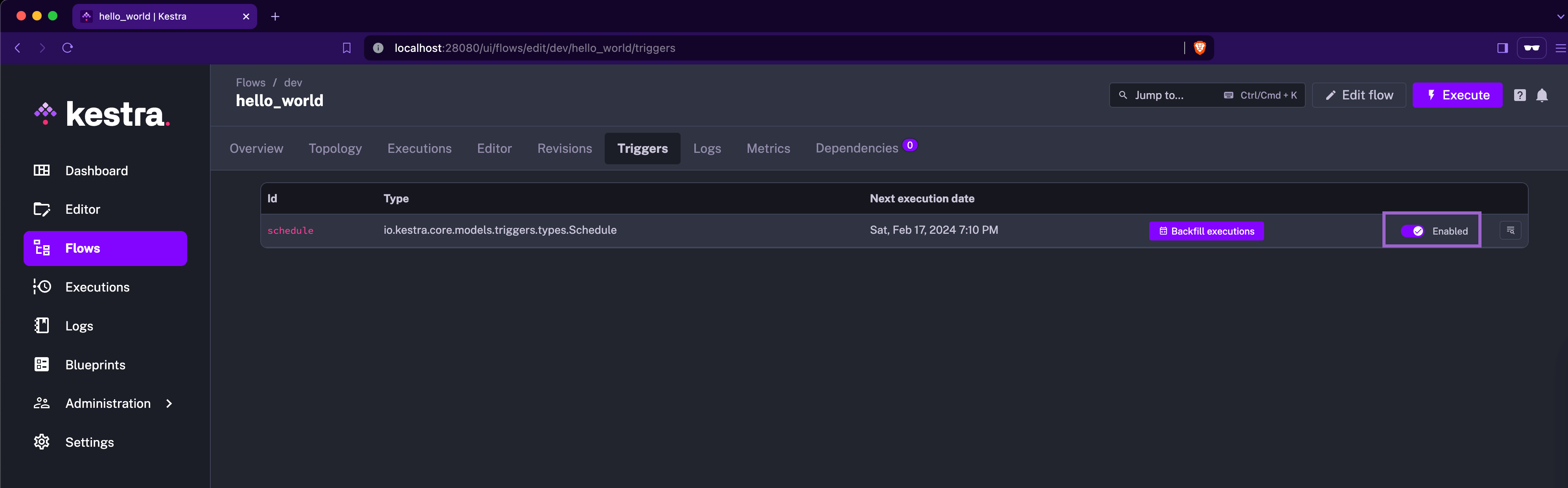
You can disable or re-enable a trigger from the UI. Here is how you can do it:
1. Go to the `Flows` page and click on the flow you want to disable the trigger for.
2. Go to the `Triggers` tab and click on the `Enabled` toggle next to the trigger you want to disable. You can re-enable it by clicking the toggle again.
If your trigger is locked due to an execution in progress, you can unlock it by clicking the `Unlock trigger` button.
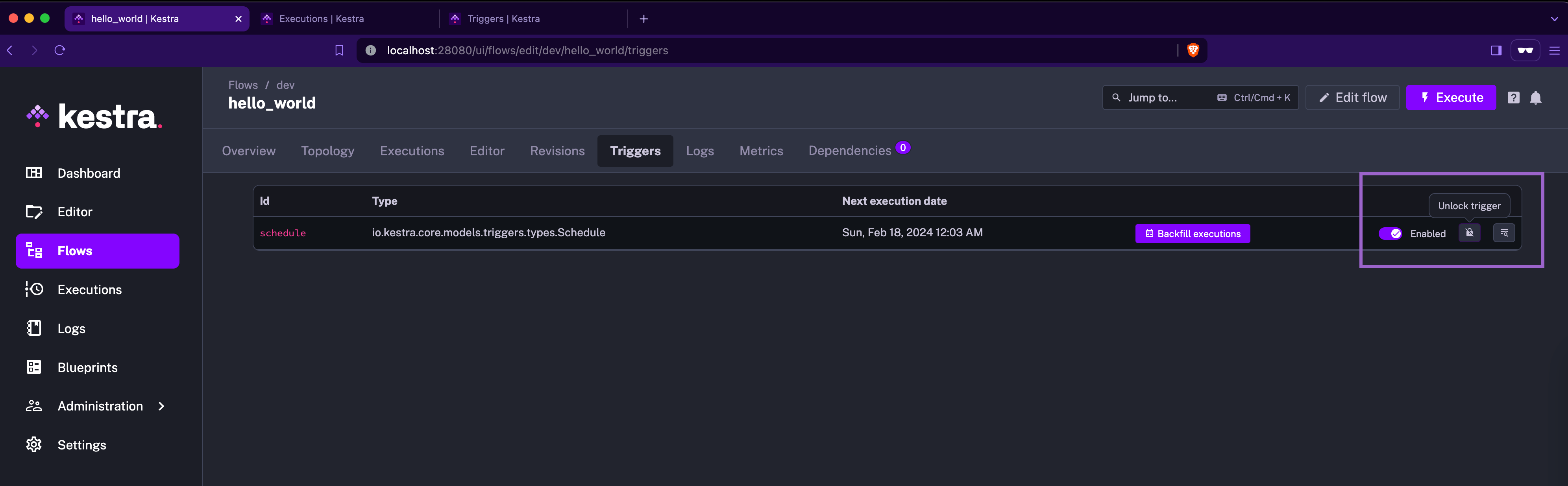
The **Unlock trigger** functionality is useful for troubleshooting, e.g. if a process is stuck due to infrastructure issues. Keep in mind that manually unlocking triggers may result in multiple concurrent (potentially duplicated) executions — use it with caution.
:::alert{type="info"}
Only scheduled-based triggers (triggers handled by the Scheduler) will be visible in the UI. Triggers handled by the Executor and Webserver will not be displayed. This also applies when fetching triggers from the API.
:::
### Toggle, unlock, or delete triggers from the Administration page
From **Administration → Triggers** you can bulk manage trigger state:
- **Toggle** — enable or disable one or more triggers without editing the flow code.
- **Unlock** — clear the “locked” state if a trigger is stuck waiting on a long-running execution (use carefully, as this may create duplicate executions).
- **Delete trigger** — remove the trigger definition so it behaves as if newly created. This is useful when you need to reset trigger state or force a fresh evaluation window.

Deleting a trigger is different from deleting a backfill: removing a backfill only cancels pending catch-up runs, while deleting a trigger resets the trigger entity itself. Use **Delete backfill** to stop scheduled replays and **Delete trigger** to rebuild the trigger state.

## Troubleshooting a trigger from the UI
If you misconfigured a trigger, and as a result, no Executions are created, take the following actions to troubleshoot.
The example flow below illustrates this scenario. Note how the `sqs_trigger` trigger is misconfigured with invalid AWS credentials:
```yaml
id: bad_trigger_example
namespace: company.team
tasks:
- id: hello
type: io.kestra.plugin.core.log.Log
message: Hello World!
triggers:
- id: sqs_trigger
type: io.kestra.plugin.aws.sqs.Trigger
accessKeyId: "nonExistingKey"
secretKeyId: "nonExistingSecret"
region: "us-east-1"
queueUrl: "https://sqs.us-east-1.amazonaws.com/123456789/testQueue"
maxRecords: 10
```
When you add that flow to Kestra, you'll see that no Executions are created. To troubleshoot this, you can go to the `Triggers` tab on the Flow's page and **expand the logs** of the trigger that is causing the issue. You'll see a detailed error message that will help you identify the problem:

## The `stopAfter` property
Kestra 0.15 introduced a generic `stopAfter` property which is a list of states that will disable the trigger after the flow execution has reached one of the states in the list.
This property is most useful with `Schedule` triggers and polling-based triggers such as HTTP, JDBC, or File Detection.
:::alert{type="info"}
Note that we don't handle any automatic trigger reenabling logic. After a trigger has been disabled due to the `stopAfter` state condition, you can take some action based on it and manually reenable the trigger.
:::
### Pause the schedule trigger after a failed execution
The `stopAfter` property can be used to pause a schedule trigger after a failed execution. Here is an example of how to use it:
```yaml
id: business_critical_flow
namespace: company.team
tasks:
- id: important_task
type: io.kestra.plugin.core.log.Log
message: if this fails, we want to stop the flow from running until we fix it
triggers:
- id: stopAfter
type: io.kestra.plugin.core.trigger.Schedule
cron: "0 9 * * *"
stopAfter:
- FAILED
```
The above flow will be triggered every day at `9:00` AM, but if it fails, the schedule will be paused so that you can manually reenable the trigger once the issue is fixed. This is useful for business-critical flows that should not continue running the next scheduled executions if a previous execution has failed.
### Disable the HTTP trigger after the first successful execution
The example below shows how to use the `stopAfter` property with the HTTP trigger condition. The use case is to poll an API endpoint and send a Slack alert if the price is below $110. If the condition is met, the trigger will be disabled so that you don't get alerted every 30 seconds about the same condition.
```yaml
id: http
namespace: company.team
tasks:
- id: slack
type: io.kestra.plugin.slack.notifications.SlackIncomingWebhook
url: "{{ secret('SLACK_WEBHOOK') }}"
messageText: "The price is now: {{ json(trigger.body).price }}"
triggers:
- id: http
type: io.kestra.plugin.core.http.Trigger
uri: https://fakestoreapi.com/products/1
responseCondition: "{{ json(response.body).price <= 110 }}"
interval: PT30S
stopAfter:
- SUCCESS
```
Let's break down the above example:
1. The HTTP trigger will poll the API endpoint every 30 seconds to check if the price of a product is below $110.
2. If the condition is met, the Execution will be created
3. Within that execution, the `slack` task will send a Slack message to notify about the price change
4. After that execution finishes successfully, the `stopAfter` property condition is met — it will disable the trigger ensuring that you don't get alerted every 30 seconds about the same condition.
## Locked triggers
[Flow](./02.flow-trigger/index.md), [Schedule](./01.schedule-trigger/index.md), and [Polling triggers](./04.polling-trigger/index.md) have locks to avoid concurrent trigger evaluation and concurrent execution of a flow for a trigger.
To see a list of triggers and inspect their current status, go to the **Administration -> Triggers** section in the Kestra UI. From here, you can unlock a trigger if it is locked. Note that doing so raises a risk of concurrent trigger evaluation or flow execution for this trigger if you unlock it manually.
## Setting inputs inside of triggers
You can easily pass inputs to triggers by using the `inputs` property and passing them as a key-value pair.
In this example, the `user` input is set to "John Smith" inside of the `schedule` trigger:
```yaml
id: myflow
namespace: company.team
inputs:
- id: user
type: STRING
defaults: Rick Astley
tasks:
- id: hello
type: io.kestra.plugin.core.log.Log
message: "Hello {{ inputs.user }}! 🚀"
triggers:
- id: schedule
type: io.kestra.plugin.core.trigger.Schedule
cron: "*/1 * * * *"
inputs:
user: John Smith
```
## Trigger errors
By default, if a trigger fails, no execution is created; this is by design to avoid excessive executions on the instance. To troubleshoot, you must [investigate the trigger logs](#troubleshooting-a-trigger-from-the-ui). If you'd prefer an execution to be created on trigger failure, set the `failOnTriggerError` property to `true` in the trigger configuration. This will cause the flow to fail and produce an execution with its own logs.
For example, take the following flow with a misconfigured trigger:
```yaml
id: bad_trigger_example
namespace: company.team
tasks:
- id: hello
type: io.kestra.plugin.core.log.Log
message: Hello World!
triggers:
- id: sqs_trigger
type: io.kestra.plugin.aws.sqs.Trigger
accessKeyId: "nonExistingKey"
secretKeyId: "nonExistingSecret"
region: "us-east-1"
queueUrl: "https://sqs.us-east-1.amazonaws.com/123456789/testQueue"
maxRecords: 10
failOnTriggerError: true
```
With this configuration, the flow will produce an execution containing logs that describe the trigger failure. This execution can be used for both troubleshooting and notification, in addition to the trigger logs.