Authors

Martin-Pierre Roset
Martin-Pierre Roset
Kestra relies on plugins to integrate with various systems and services. As workflows evolve, keeping these plugins up-to-date without breaking existing flows can become a challenge.
Plugin Versioning is a feature in Kestra (available in v0.22+ for Enterprise Edition) that tackles this. It allows you to run multiple versions of the same plugin simultaneously, giving teams the flexibility to upgrade at their own pace.
In this post, we’ll explore why plugin versioning matters, how Kestra’s implementation works, and what benefits it brings everyone, from new users to enterprise teams.
In complex data platforms, managing different plugin versions is critical. Upgrading a plugin to get new features or bug fixes can sometimes break legacy workflows that expect the old behavior. Traditionally, orchestrators force you to either freeze on older plugin versions (missing out on improvements) or upgrade everything at once (risking compatibility issues). Neither scenario is ideal for a production environment that demands stability.
It is important to be able to upgrade the orchestration platform while keeping existing workflows running on older plugin versions. For example, you might have a mission-critical flow that relies on a specific version of a database connector plugin. Upgrading that plugin could change its behavior or API. With plugin versioning, you don’t have to choose between stagnation and risky “big bang” upgrades – you can have both versions available side by side. You can maintain backward compatibility while still moving forward.
Kestra’s Plugin Versioning feature provides a safe, flexible way to manage plugin upgrades. In a nutshell, it lets you install multiple versions of any Kestra plugin on the same instance and control which workflow uses which version. This approach enables granular version management across your Kestra environment.
How does it work? Instead of replacing an old plugin when a new version arrives, Kestra can keep the old one and add the new one in tandem. You can pin specific plugin versions for certain flows (e.g., keep using v1.0.0 in an older workflow) while directing other flows to use the latest release.
Under the hood, Kestra’s plugin system loads and isolates these versions so they don’t conflict. Each versioned plugin gets its own installation directory and classloader, ensuring compatibility is preserved.
This feature required some enhancements to how Kestra stores and references plugins. In Kestra 0.22, a global internal plugin repository was introduced to support version isolation (the feature is toggled via configuration in the Enterprise Edition). Once enabled, the Kestra UI and backend offer new controls to manage plugins by version, as we’ll see next.
Plugin versioning directly addresses practical concerns in orchestrating workflows at scale. Here are the major benefits of this feature:
New Kestra users get a safety net when adopting plugins (they can adopt new features without fear of breaking examples they’re trying out), advanced users get fine-grained control to optimize and experiment, and enterprise teams gain the governance needed to operate in mission-critical, multi-environment contexts.
Plugin Versioning becomes even more powerful with Kestra’s Hot Reload feature. Traditionally, updating plugins across multiple orchestrator instances required manual file synchronization, often causing downtime or inconsistencies.
Hot Reload removes this headache entirely: whenever you install or update a plugin (or a new version of a plugin), Kestra automatically synchronizes it across all workers, schedulers, and executors—instantly.
That means plugin JAR files are not manually copied across Kubernetes pods or worker nodes. The synchronization happens automatically and transparently, ensuring all components have immediate access to the latest plugins and versions.
With Hot Reload, your workflows remain uninterrupted, updates propagate instantly, and your team saves time previously spent managing manual deployments.
One of the most convenient aspects of Kestra’s plugin versioning is its integration into the web UI. A dedicated interface manages both official Kestra and custom-developed plugins. This makes it easy for anyone, not just backend admins, to view and modify plugin versions.
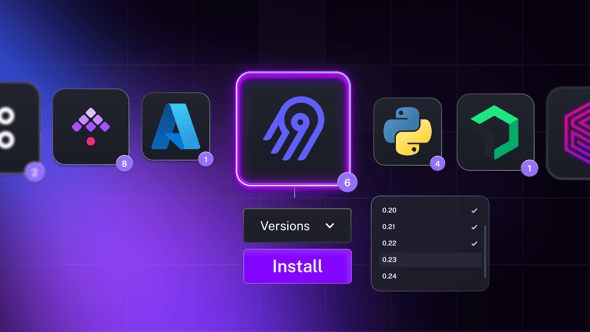
The Versioned Plugins page in Kestra’s UI allows you to install new or additional versions of existing plugins via a point-and-click interface.
To access this feature, navigate in the Kestra UI to Administration > Instance > Versioned Plugins. On this page, you’ll see a list of plugins and their installed versions. Clicking the + Install button opens a dialog with the full library of available plugins (as shown above). You can search for the integration you need – an AWS or Snowflake plugin – then select which version to install. Kestra’s plugin repository contains all release versions, so you might see a dropdown of versions (e.g., 0.16.1, 0.17.0, 0.18.0, … up to the latest) for the chosen plugin.
Once you confirm, Kestra will download and install that plugin version into its internal repository. If the plugin was not installed before, it now appears in your list with the specified version. If an older version is already present, the new one will be added alongside the old one, not replacing it. The Versioned Plugins table will show the plugin with multiple versions. Kestra even flags when an update is available: you might see a notice like “New Version Available” next to an older version, with an option to Upgrade.
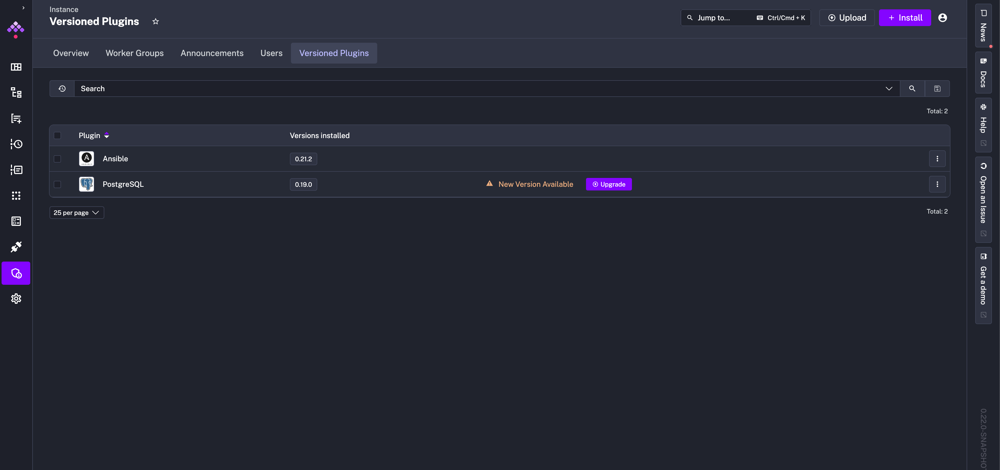
After installing multiple versions, the Versioned Plugins page lists each plugin and the versions installed. In this example, Ansible plugin v0.21.2 is installed, and the PostgreSQL plugin v0.19.0 is installed with a newer version available (hence the Upgrade prompt). Kestra preserves the old version when upgrading, adding the new version as a separate entry.
When you upgrade a plugin via the UI, Kestra doesn’t simply overwrite the old JAR. It keeps the existing version in place and adds the new version as a separate installation. This means any flows currently using the older version will continue to run unaffected. You could upgrade, for instance, the PostgreSQL plugin from 0.19.0 to 0.20.0 – and you’d see both versions listed. Then, you might update only certain flows to use 0.20.0 while others remain on 0.19.0 (until you decide to switch them). This side-by-side installation approach is key to safe transitions.
The UI also supports managing custom plugins (plugins developed in-house or by third parties). In the Install dialog, there’s a tab to switch from “Official plugin” to “Custom plugin.” There, you can input a Maven coordinate (Group ID and Artifact ID) and a version or upload a JAR file directly. Kestra will treat these just like official plugins, storing the versioned artifact in its repository. This is useful for enterprises that build their own plugin extensions – you can also maintain multiple versions of your internal plugins.
While the UI covers most needs, Kestra also provides programmatic ways to manage plugins. Advanced users can use the Kestra API or CLI to install/uninstall plugins by version (only allowed for admin users). For example, a simple HTTP POST to the /api/v1/cluster/versioned-plugins/install endpoint with the plugin coordinate will trigger an installation. This enables scripting and automation – imagine promoting a set of plugin upgrades through dev, staging, and production with a CI/CD pipeline calling the API. In short, whether through a friendly UI or via automation scripts, managing plugin versions in Kestra is straightforward.
Installing multiple versions of a plugin is only half the story – we also need a way to tell a workflow which version to use. Kestra achieves this with a simple addition to your flow definitions: a version property on tasks and triggers. This property lets you pin a task to a specific plugin version right in your YAML (or JSON) workflow specification.
For example, suppose you have two versions of the Shell Script plugin installed (v0.21.0 and v0.22.0). If an existing flow should continue using the older 0.21.0 version, you can specify that in the flow file:
id: legacy_shell_scriptnamespace: company.teamtasks: - id: script type: io.kestra.plugin.scripts.shell.Script version: "0.21.0"In the above YAML, the task of type io.kestra.plugin.scripts.shell.Script will explicitly use version 0.21.0 of the Shell Script plugin. Even though a newer 0.22.0 version might be available on the Kestra instance, this particular flow is locked to 0.21.0, ensuring it behaves as initially designed. This level of control can be applied per task or trigger in any workflow.
The version field accepts exact version numbers (as shown), but it also understands special keywords for convenience. You can write version: LATEST to always use the latest available version of that plugin or version: OLDEST to use the oldest installed version. These keywords are not case-sensitive (latest, LATEST both work). Using LATEST might be handy for non-critical or development flows where you always want to test the newest plugin features without manually updating the YAML each time a plugin is upgraded. Conversely, OLDEST could be used to intentionally stick with an older version until an explicit change is made.
If you do not specify a version in the task, Kestra will determine which plugin version to use based on a defined resolution order. The resolution goes from the most specific to the most general:
version property set, use that specific version.By default, the instance-level default is LATEST, meaning Kestra will use the latest installed version of a plugin if no other preference is stated. However, administrators can change this default. For example, you might set the global default to OLDEST to be conservative or even to NONE to force every flow to always explicitly pick a version. In fact, setting kestra.plugins.management.defaultVersion = NONE in the configuration will enforce that a version must be defined somewhere (task, flow, or namespace), or the flow will be considered invalid. This strict mode is great for avoiding any ambiguity – it ensures developers don’t accidentally rely on “whatever version happens to be latest” when deploying new flows.
Kestra’s validation will catch such issues early. When you submit or update a flow, Kestra attempts to resolve all plugin versions immediately (and again at execution time). If a task references a plugin version that isn’t installed, or if you’ve enforced explicit versioning and a task lacks a version, Kestra will flag the flow as invalid and prevent it from running. This protects you from runtime surprises – you’ll never have a job fail halfway through the night because a required plugin version wasn’t available. It’s either resolved to a concrete version, or the flow won’t activate by design.
Why does all this matter in practice? Let’s consider a few scenarios that many Kestra users (from solo developers to large enterprises) face:
version: latest (or the specific new version number) to try it out. Meanwhile, the mission-critical workflows stay on the stable old version (pinned via version: x.y.z). Once you verify the new version works as expected, you can gradually update each important flow to the new version – all within the same Kestra instance, without juggling separate test environments or risking the whole system. This phased upgrade approach is much safer than a complete switch-over.These use cases all boil down to a single theme: flexibility with stability. Kestra’s plugin versioning lets you adapt and evolve your workflow platform without compromising existing operations. It’s an insurance policy against plugin regressions and a toolkit for controlled modernization.
By giving developers control over plugin versions at the workflow level, Kestra empowers you to use new tools and new integrations without fear. At the same time, providing safety nets like side-by-side versions and explicit version pinning ensures that production workflows remain stable and predictable.
For new users discovering Kestra, plugin versioning means you can confidently adopt Kestra’s plugin ecosystem. For seasoned users running thousands of production workflows, it means easier maintenance and upgrade paths – you can keep your system up-to-date with far less risk. For enterprise teams managing multiple environments and strict uptime requirements, it provides a governance tool to roll out changes in a controlled, reversible manner.
In summary, Kestra’s Plugin Versioning feature makes plugin management a first-class citizen of the orchestration process. It acknowledges that change is constant – new plugin versions will come – but with the proper tooling, change doesn’t have to be scary.
If you have any questions, reach out via Slack or open a GitHub issue.
If you like the project, give us a GitHub star and join the community.

Stay up to date with the latest features and changes to Kestra