Authors

Dario Radecic
Dario Radecic
It’s been a year since ChatGPT, an advanced form of a large language model, has been released. And by the looks of it, AI is going only one way - forward. Many wonder how models like these can handle and process such huge volumes of data efficiently, and the answer is simple - vector databases. Well, among other things.
Large language models rely on vector embeddings, which is a type of data that’s perfectly suited for storing in vector databases. You can also store common data objects just like you would in document databases. The main benefit of a vector database is the fact you can scale virtually infinitely, provided you have the hardware prerequisites covered.
One of the most popular vector database vendors is Weaviate, and we’re happy to introduce our new Kestra Weaviate plugin that allows you to interact with this vector database with a wide array of functionalities.
Today’s article will briefly refresh your memory on vector databases, and show you hands-on how to use our new plugin to create a schema, insert, and query records stored in a Weaviate vector database.
We have relational databases to store data in tables, document databases to store, well, documents, and graph databases to store graphs. Why then do we need another type of database?
The answer is simple - modern AI problems require modern solutions.
Vector databases are designed from the ground up to store vectors, all while providing the performance, scalability, and flexibility data scientists need to get most of this type of data. This type of database provides a fast and scalable way to query vector embeddings in order to discover similarities.
Most modern AI applications rely on vector databases. For example, you can use them to build a system for finding similar images. You can also build a custom knowledge base for an internal ChatGPT-like app, but working on company-specific documents. Or you can build highly accurate recommender systems.
You get the point - there’s an infinite number of possibilities.
If you want to learn more about the basics of vector databases, here are some resources we recommend:
Think of Weaviate as of vector database vendor, similar to MongoDB in the world of NoSQL databases. Weaviate offers an open-source vector database that allows you to store common data objects and vector embeddings from machine learning models:
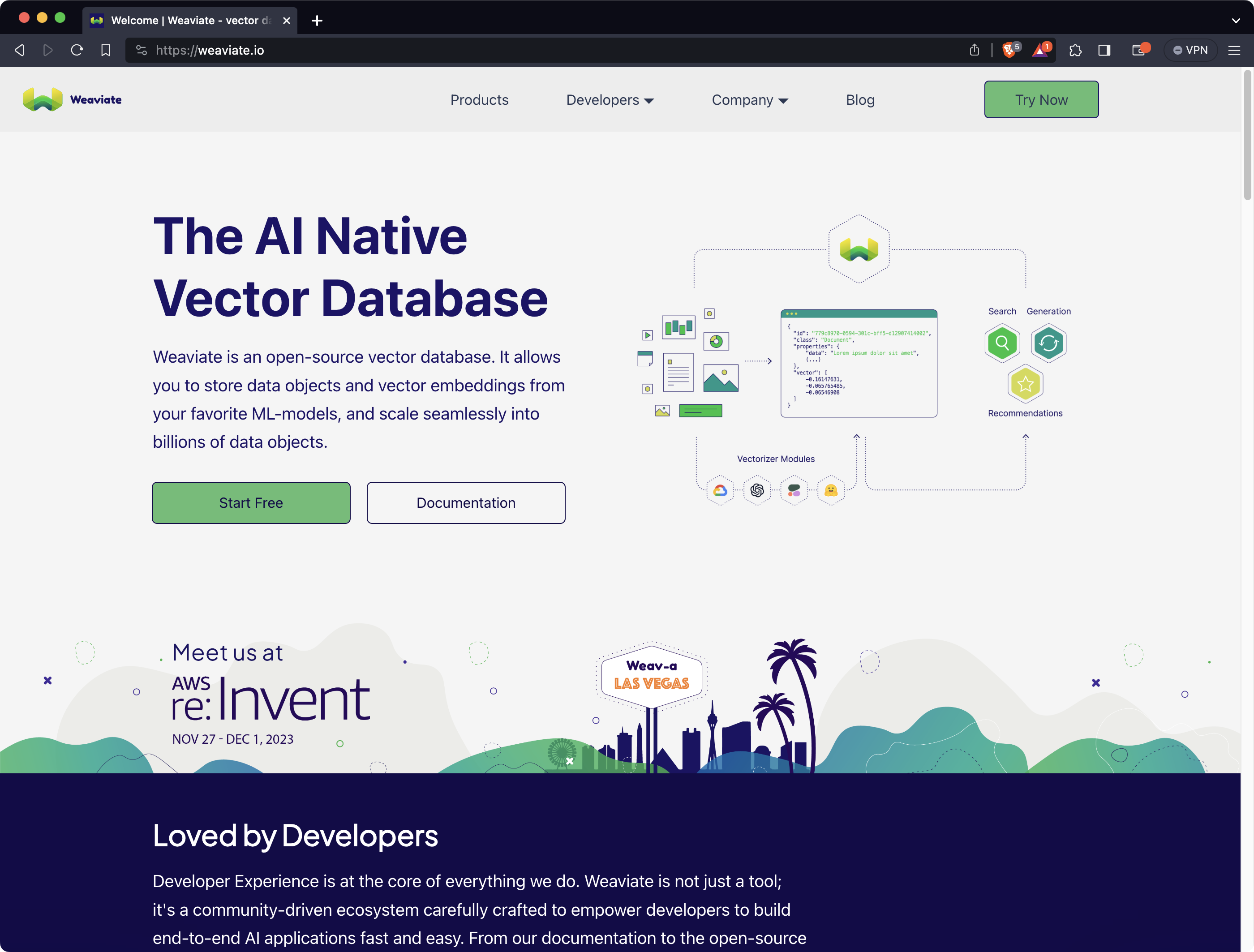
Weaviate offers client libraries for Python, JavaScript, TypeScript, Go, and Java. There’s also an online editor you’ll learn about later.
There are two options to start using Weaviate on a production level - Serverless or BYOC (Bring Your Own Cloud). The first option offers a 14-day free sandbox and goes from $25/month after. You can read more about their pricing strategy here.
The database itself is open-source, so you don’t have to pay a dime to use it. You can install it locally or start it in a Docker container, but translating that to production-level usage requires decent DevOps skills and a budget for cloud resources.
How you proceed is ultimately up to you, but you certainly don’t lack any options.
To get started with Weaviate, you can sign up for a 14-day free managed sandbox instance, run the binary on Linux, start locally with Docker, or launch a cluster directory on Google Cloud.
This article assumes you’ve opted for the first option, as all Kestra flow code will be optimized for it.
This part of the article will show you how to get started working with Weavite from Kestra. It’s assumed you have both Kestra and a Weaviate cluster up and running.
We’ll show you a couple of basic examples of creating a schema for storing movies, inserting a couple of records, and querying them - all from Kestra flows with built-in plugins.
Think of a Weavite schema as a data structure for storing objects of the same type. In the context of movies, each movie has a name, description, and category. There are other properties, sure, but let’s stick with these today.
We’ll leverage Kestra’s inputs to store default values for the Weaviate cluster URL and API key. These are the values you can obtain in the Weaviate Cloud Services (WCS) console right after you create a cluster.
As for the tasks, we only need one. The new io.kestra.plugin.weaviate.SchemaCreate is responsible for creating a new Schema in the Weaviate vector database. The schema’s name is specified by the className property, and the structure of the schema (attributes) is provided to fields in a key-value pair like syntax.
Here’s the full source code for creating a new schema:
id: weaviate-create-schemanamespace: company.team
inputs:  - id: weaviateClusterUrl    type: STRING    defaults: https://weaviate-cluster...  - id: weaviateApiKey    type: STRING    defaults: DDA4...

tasks: - id: createWeaviateSchema type: io.kestra.plugin.weaviate.SchemaCreate url: "{{ inputs.weaviateClusterUrl }}" apiKey: "{{ inputs.weaviateApiKey }}" className: Movie fields: name: - string description: - string category: - stringThis is what your Kestra UI code editor should look like:
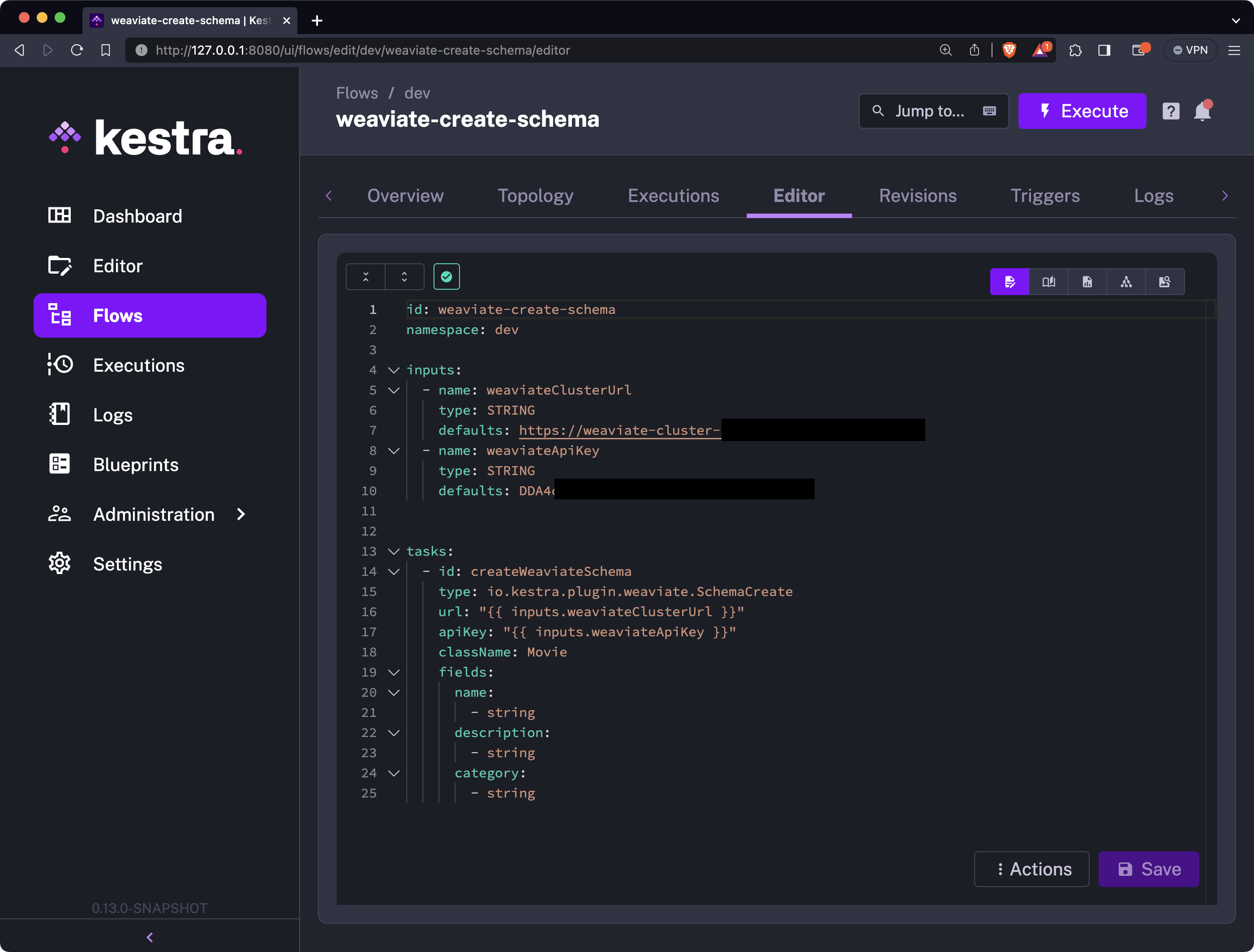
Once you’re satisfied with your schema definition, you can click on the “Save” button to save the flow code, and then click on the “Execute” button to run it.
You’ll immediately see the following window:
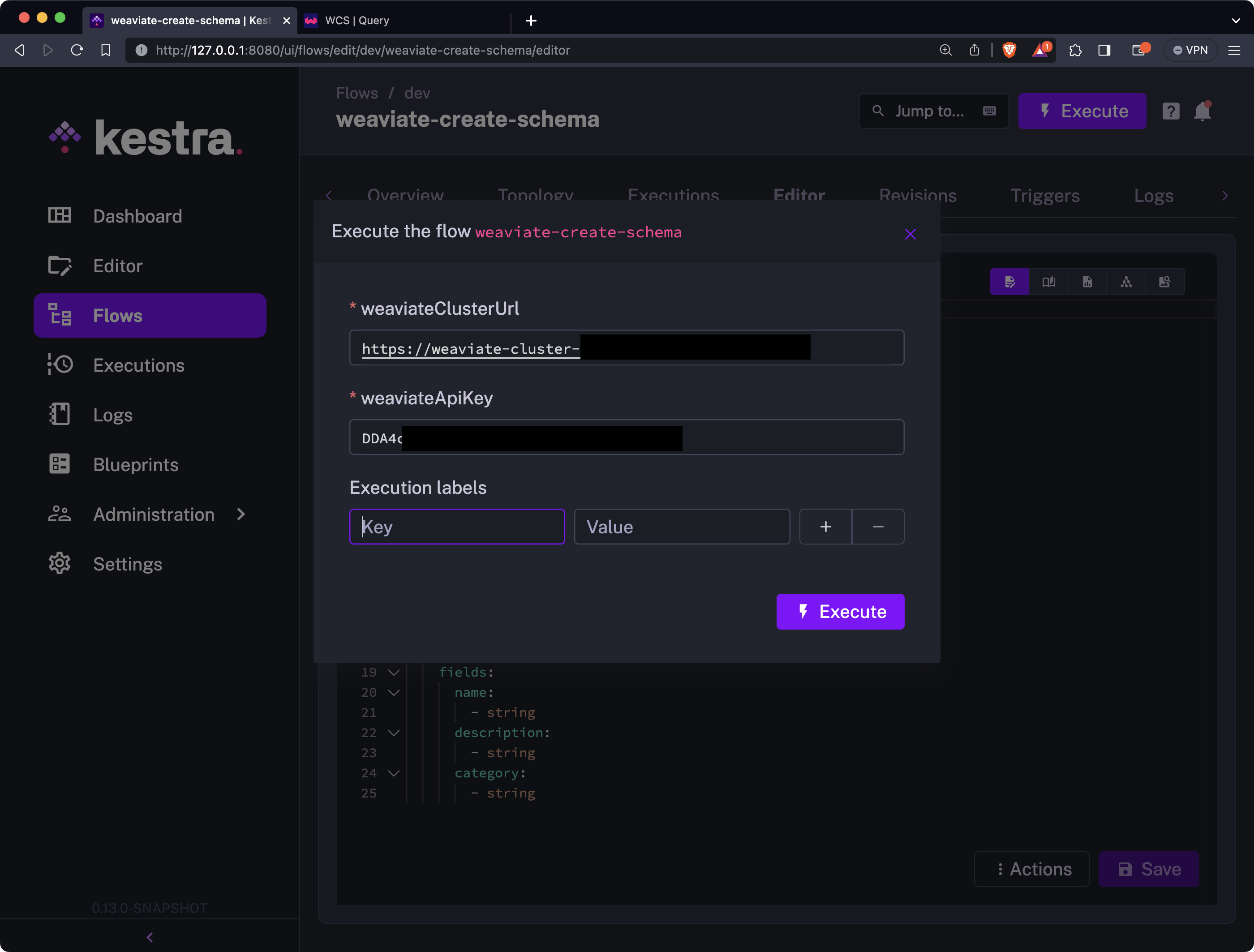
The Cluster URL and API key have default values just for convenience of not having to enter them every time, but allowing you to change them if necessary.
You can now once again click on the “Execute” button to start the flow:
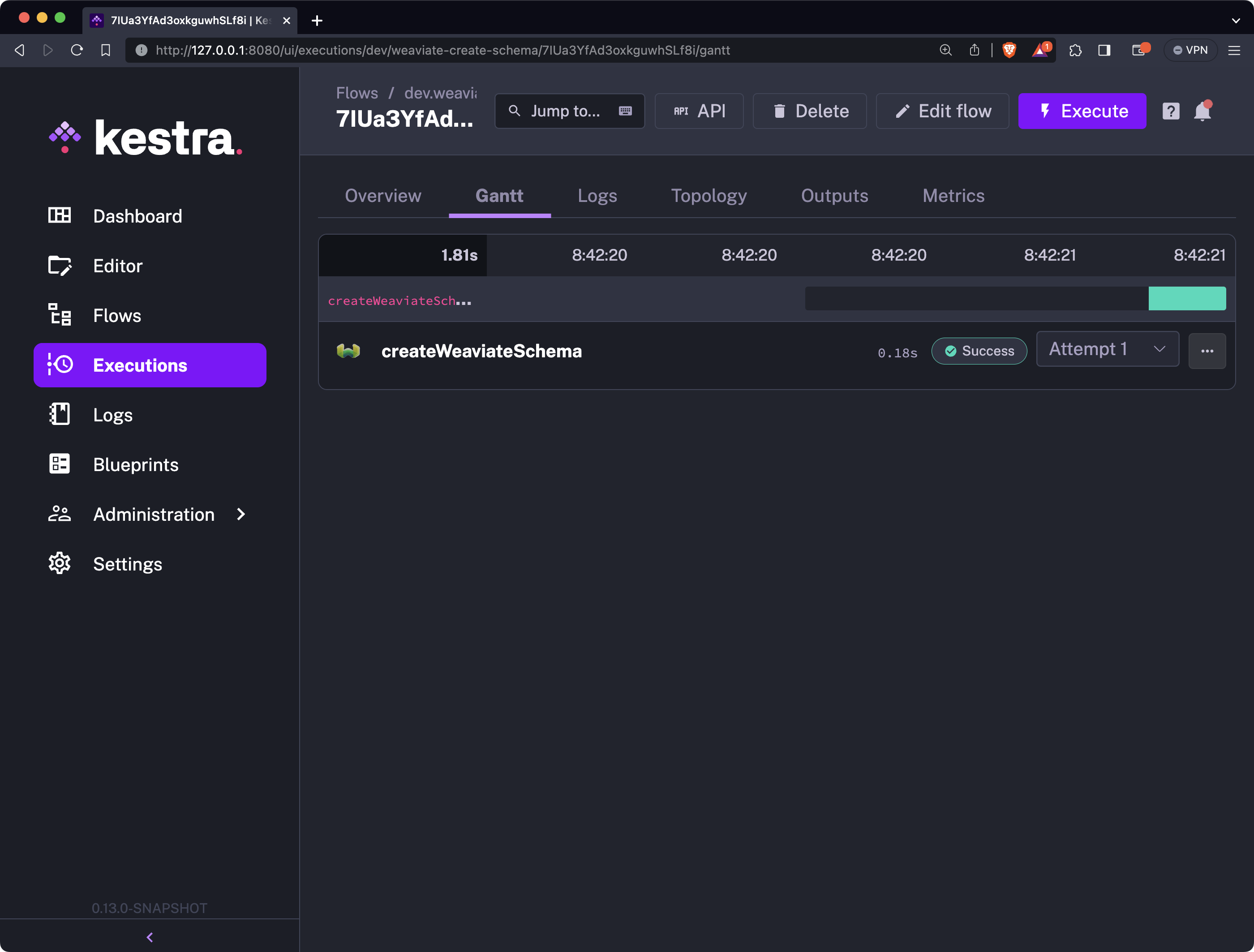
If you’ve entered Weaviate credentials correctly, you’ll see a success message. To validate the outcome, go to the Weaviate console and run the following query to get all data from the Movie schema:
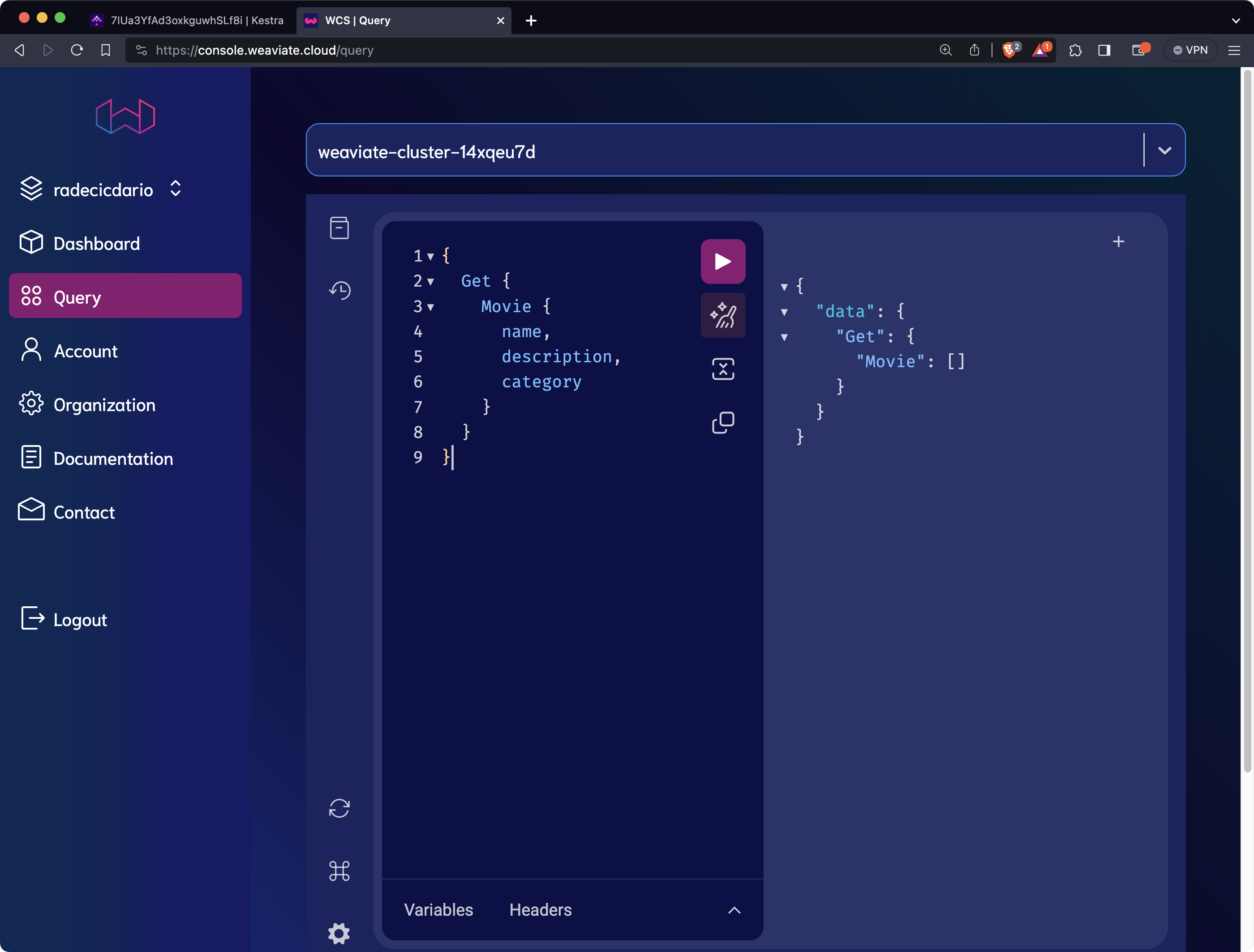
The output validates that the schema has been created successfully. Next, let’s insert some data.
The schema is now created, so you’re ready to insert some data now. The io.kestra.plugin.weaviate.BatchCreate plugin allows you to insert one or more objects to a className (schema) of your choice.
We’ll create a couple of top-rated movies of all time with their description and genre.
The objects are separated with -, and you can specify values for attributes as key-value pairs.
Here’s the full source code:
id: weaviate-insertnamespace: company.team
inputs:  - id: weaviateClusterUrl    type: STRING    defaults: https://weaviate-cluster...  - id: weaviateApiKey    type: STRING    defaults: DDA4...

tasks: - id: insertWeaviateMovies type: io.kestra.plugin.weaviate.BatchCreate url: "{{ inputs.weaviateClusterUrl }}" apiKey: "{{ inputs.weaviateApiKey }}" className: Movie objects: - name: "The Shawshank Redemption" description: "Over the course of several years, two convicts form a friendship, seeking consolation and, eventually, redemption through basic compassion." category: "Drama" - name: "The Godfather" description: "Don Vito Corleone, head of a mafia family, decides to hand over his empire to his youngest son Michael. However, his decision unintentionally puts the lives of his loved ones in grave danger." category: "Crime" - name: "The Dark Knight" description: "When the menace known as the Joker wreaks havoc and chaos on the people of Gotham, Batman must accept one of the greatest psychological and physical tests of his ability to fight injustice." category: "Action"Here’s what your editor should look like:
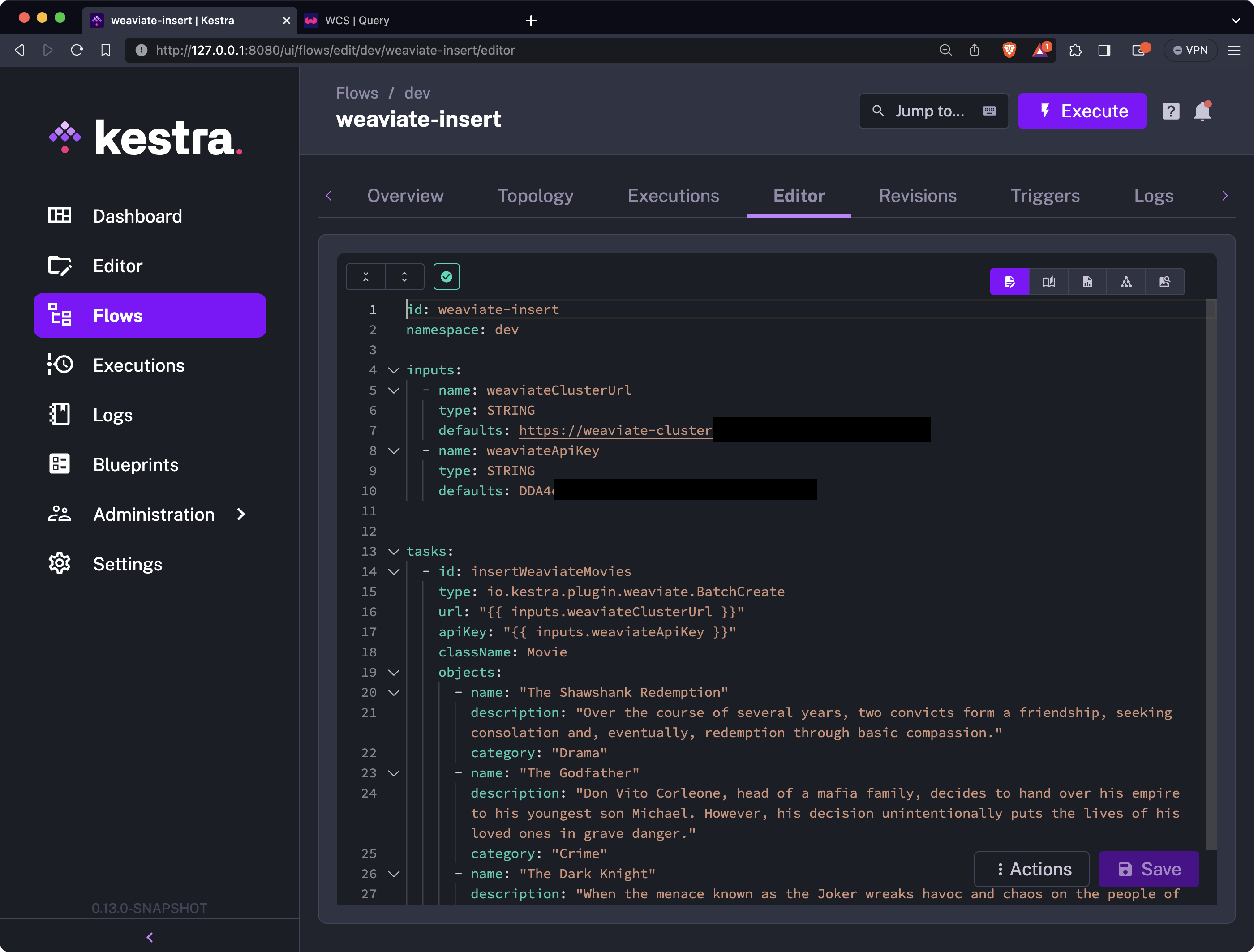
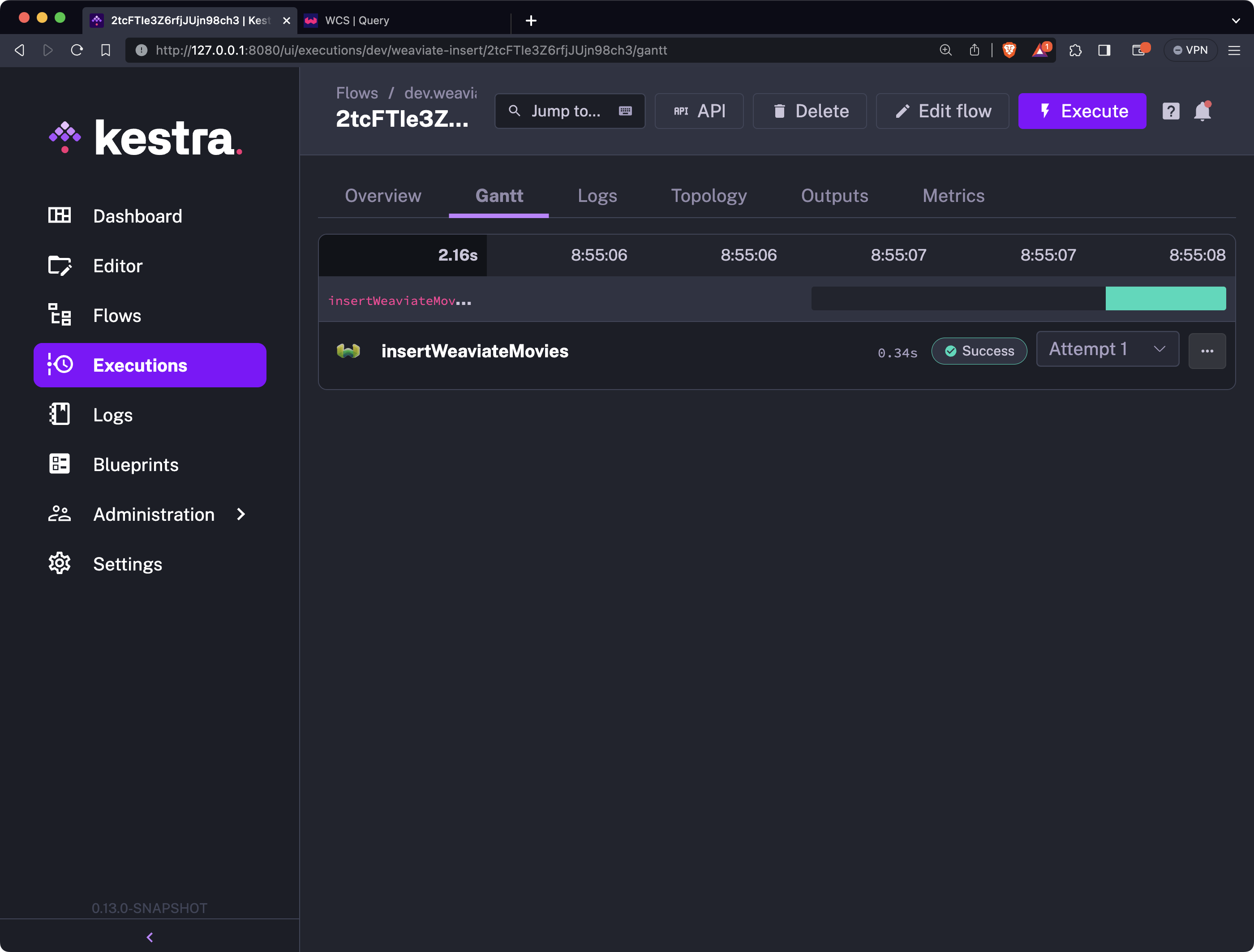
As in the previous section, save the flow and execute it - you’ll see a success message right after:
We haven’t yet shown you how to query Weaviate from Kestra, so you’ll have to turn back to WCS and run a query manually. It will be the same query you used in the previous section, but this time it will return some data:
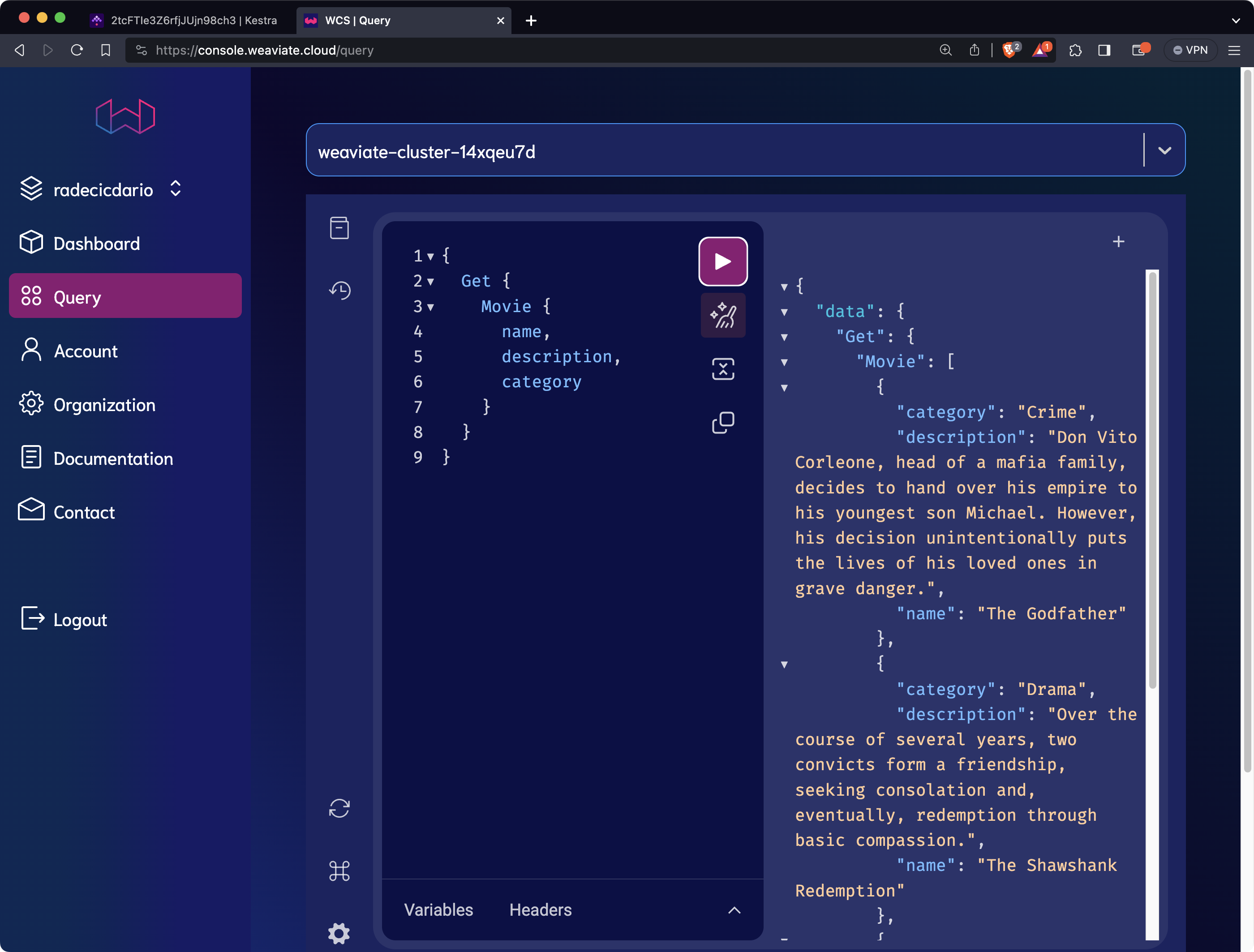
It would be nice to query a Weaviate vector database straight from Kestra, so let’s show you how to do that next.
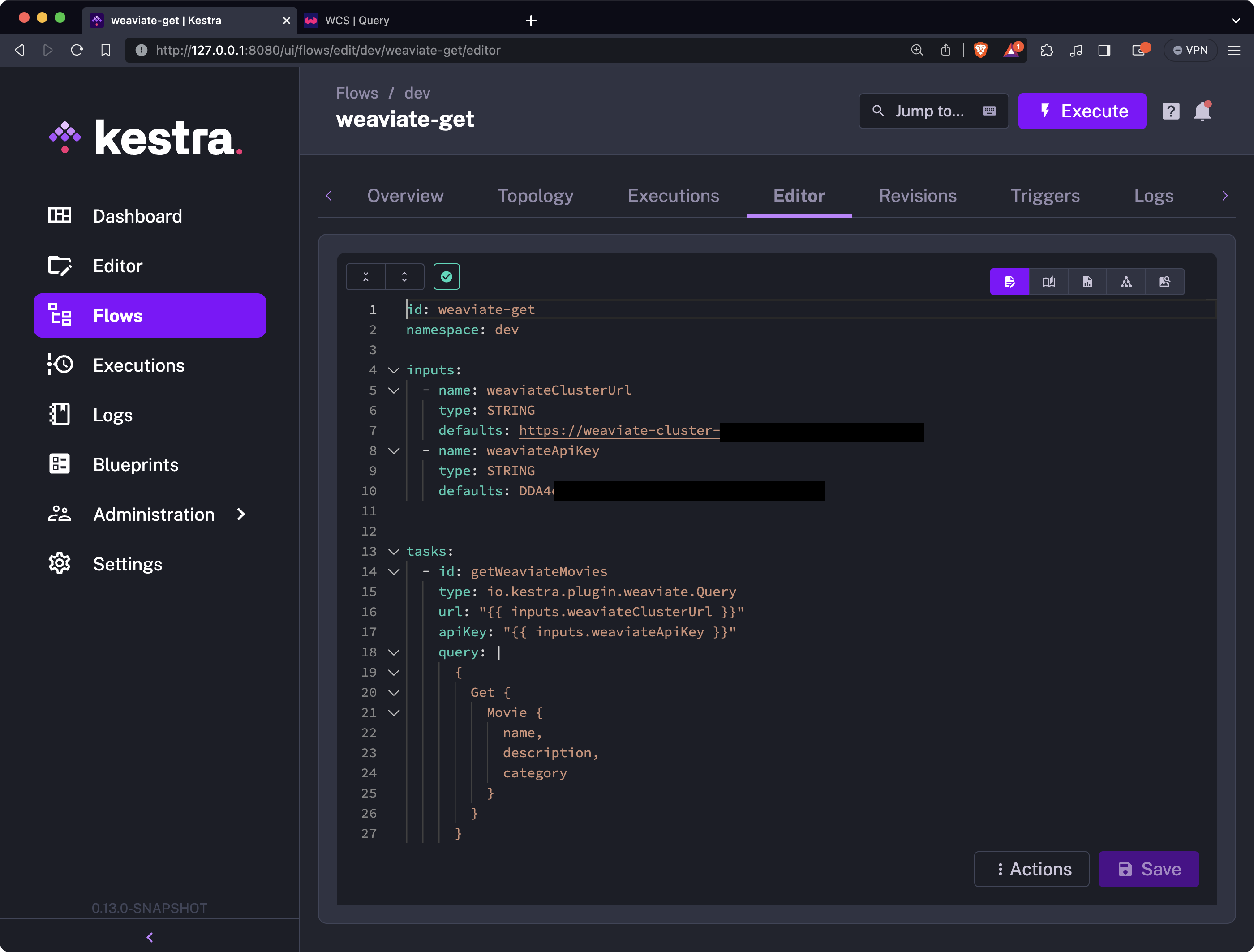
The io.kestra.plugin.weaviate.Query plugin allows you to run a query command straight from Kestra. You can copy the query you’ve been using so far in the WCS query editor and paste it as a value to the query parameter:
id: weaviate-getnamespace: company.team
inputs:  - id: weaviateClusterUrl    type: STRING    defaults: https://weaviate-cluster...  - id: weaviateApiKey    type: STRING    defaults: DDA4...

tasks: - id: getWeaviateMovies type: io.kestra.plugin.weaviate.Query url: "{{ inputs.weaviateClusterUrl }}" apiKey: "{{ inputs.weaviateApiKey }}" query: | { Get { Movie { name, description, category } } }This is what your flow code should look like:
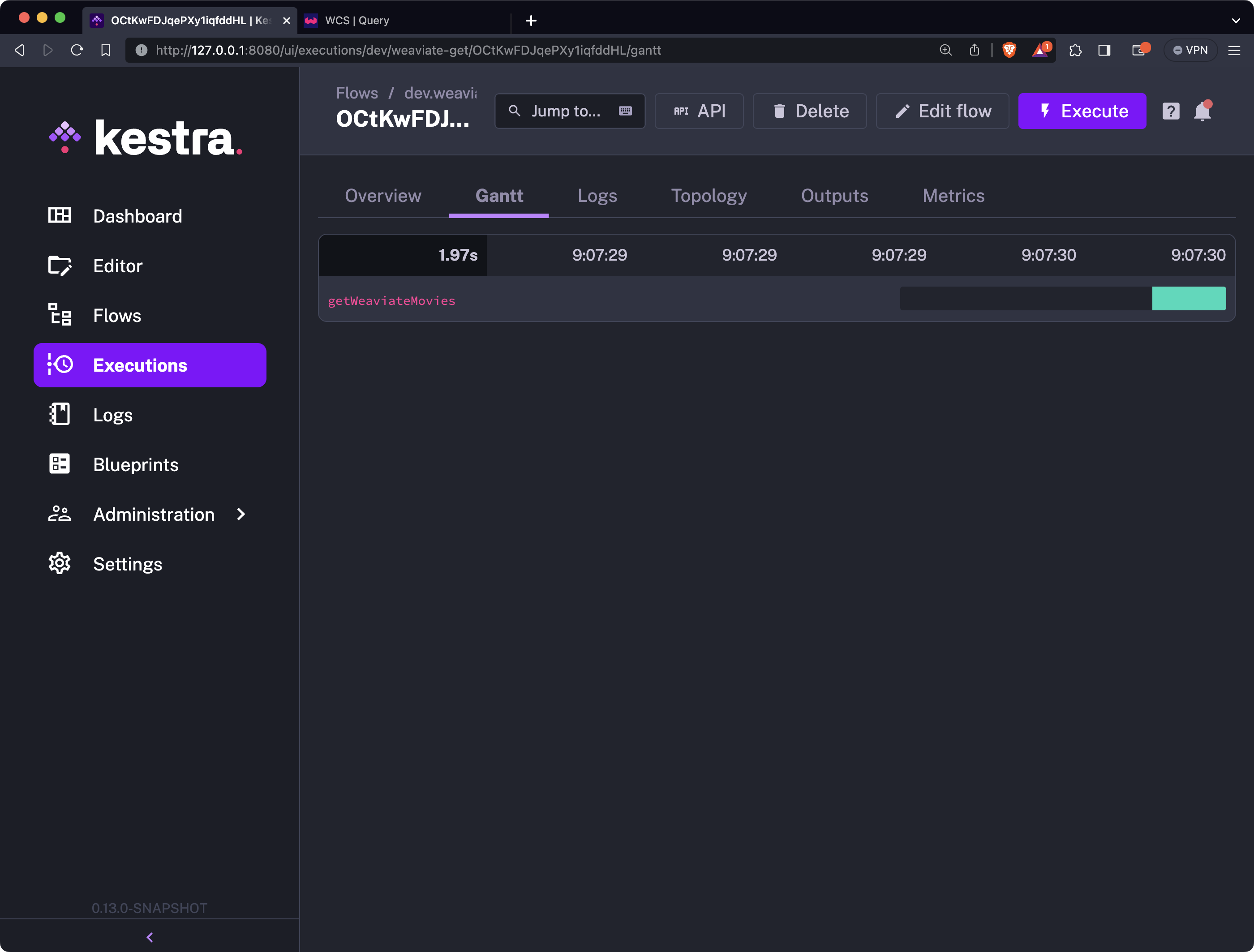
You can now save the flow and execute it. This is the output you’ll see in the Gantt view:
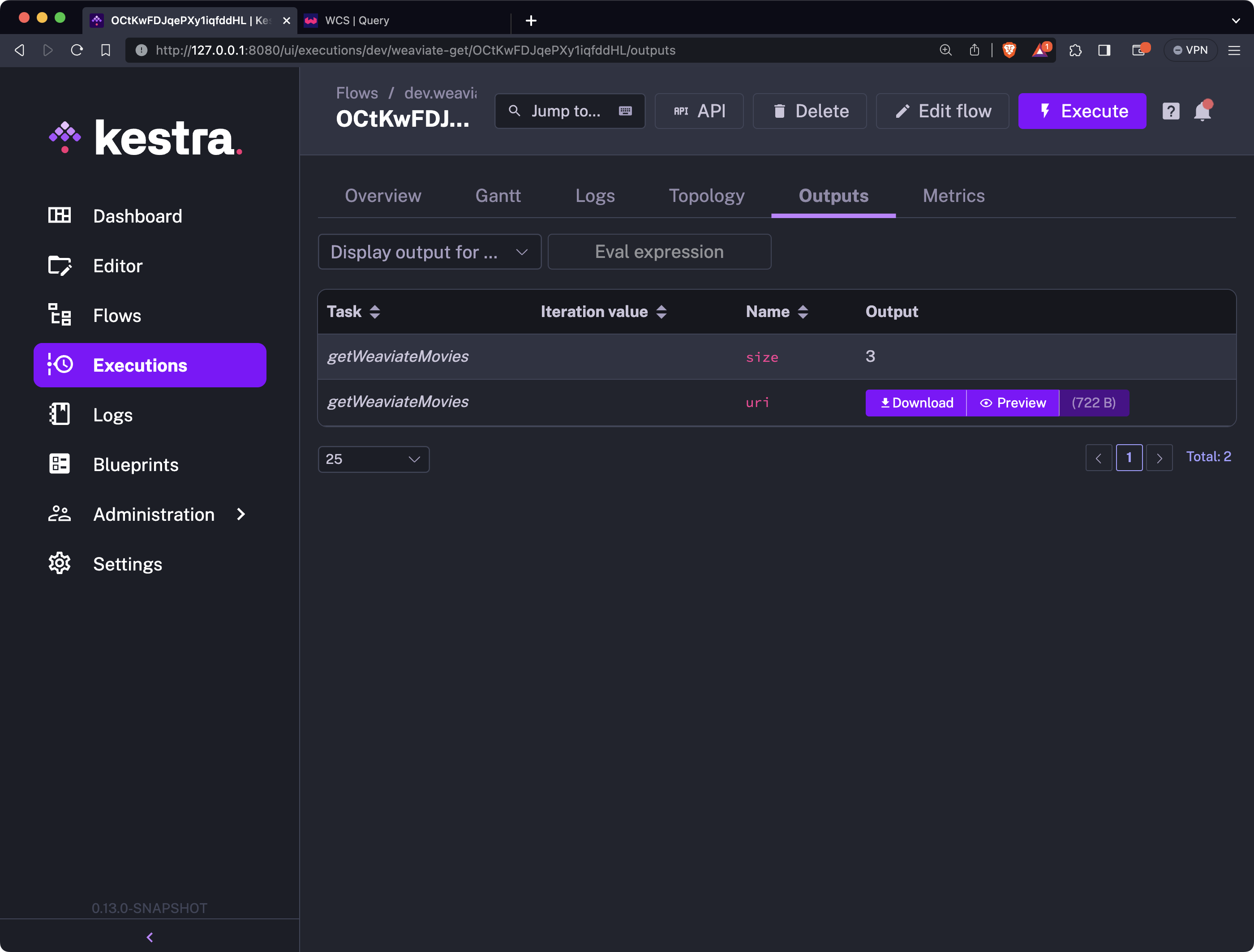
The results of the query are available in the Outputs tab. In there, you can either preview or download the results:
Here’s what you’ll see after clicking on the Preview button:
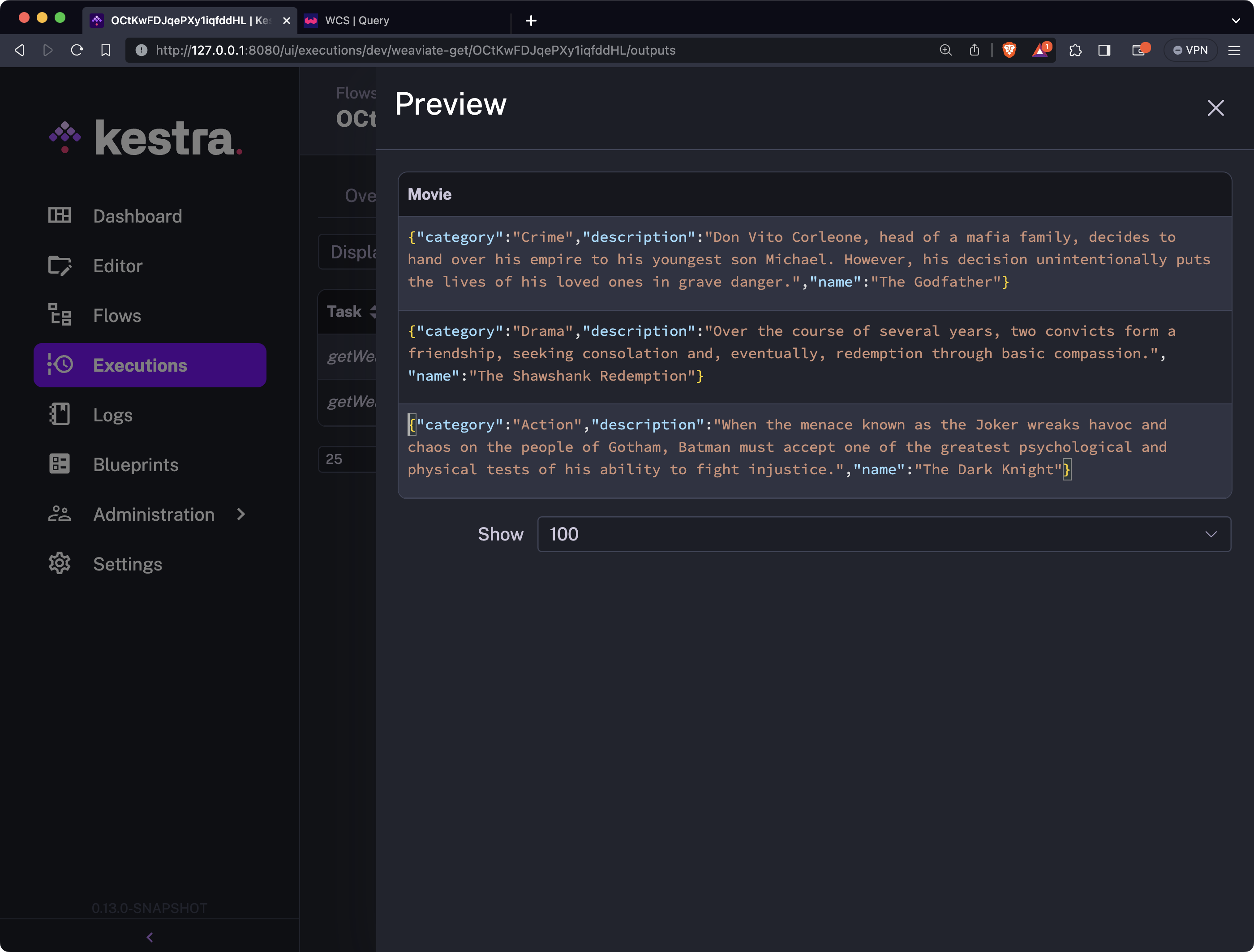
And that’s how easy it is to query a Weaviate vector database from Kestra. Next, let’s do a brief recap.
Vector databases are quickly becoming a must-know technology for a wide range of IT professionals - from software developers to data engineers and data scientists. Most modern applications have some AI features built in, which means a vector database is the most adequate place to store things such as embeddings for machine learning models.
Weaviate is one example of a well-implemented vector database, so we at Kestra wanted to give you a familiar-looking interface for communicating with it.
This article showed you how to do the most common operations on simple data objects, but you can do so much more for actual machine learning use cases. We recommend you go over their example use cases and demos list to see what’s possible and build end-to-end LLM-powered workflows using Kestra.
Subscribe to our newsletter below for more guides on modern orchestration, automation, and trends in data management, as well as new features in our platform.
Join the Slack community if you have any questions or need assistance. Follow us on Twitter for the latest news. Check the code in our GitHub repository and give us a star if you like the project.

Stay up to date with the latest features and changes to Kestra