Authors

Anna Geller
Anna Geller
We are excited to announce the release of Kestra 0.13.0, featuring two major additions: multi-tenancy and a full Visual Studio Code editor integrated into the Kestra UI. This new Editor allows you to write and manage custom scripts without having to worry about dependency management and deployments. The multi-tenancy feature helps isolate data and code across different environments, teams, projects, or customers, building upon the existing namespace-level isolation.
Highlights of this release include:
🔹 An embedded Visual Studio Code Editor
🔹 Namespace Files and the read() function, enabling the orchestration of custom scripts and microservices with modular components
🔹 Multi-tenancy in the Enterprise Edition, offering enhanced isolation and resource management
🔹 A new UI feature for customizing properties of the Executions table, improving the tabular view of executions
🔹 A revamped UI header with a global search bar for streamlined navigation
🔹 The ForEachItem task for efficient data processing in micro-batches
🔹 A flow-level concurrency setting to manage the number of concurrent executions and determine custom behavior upon limit breach
🔹 New notification plugins including OpsGenie (Atlassian), Sentry, PagerDuty, Zenduty, Discord, Twilio, WhatsApp, SendGrid, and GoogleChat
🔹 A broad array of additional plugins such as Ansible, Terraform, Weaviate, CloudQuery, Excel, Dremio, Arrow Flight, Modal, Dataform, SqlMesh, SQLite, and ClickHouse BulkInsert.
Additional highlights include:
🔹 A new logLevel property for all tasks, allowing you to manage the granularity level of logs captured by Kestra’s backend
🔹 Enhanced webhook filtering via conditions
🔹 Improved access to taskrun.value in WorkingDirectory tasks used as child tasks of other flowable tasks
🔹 Support for manual database migration processes and an option to disable automatic migrations, giving you more control over the database migration process in production environments.
Let’s explore these enhancements in detail.
Imagine working on orchestration pipelines would be as effortless as editing local files using your favorite IDE, without having to worry about dependency management, packaging, or deployments. We’re excited to introduce the new Kestra Editor, which makes that possible by bringing the Visual Studio Code IDE experience right into Kestra.
This feature not only makes your work more efficient but also brings your YAML definitions together with your scripts, microservices, custom queries, and other project files (called Namespace Files) into a single, streamlined interface.
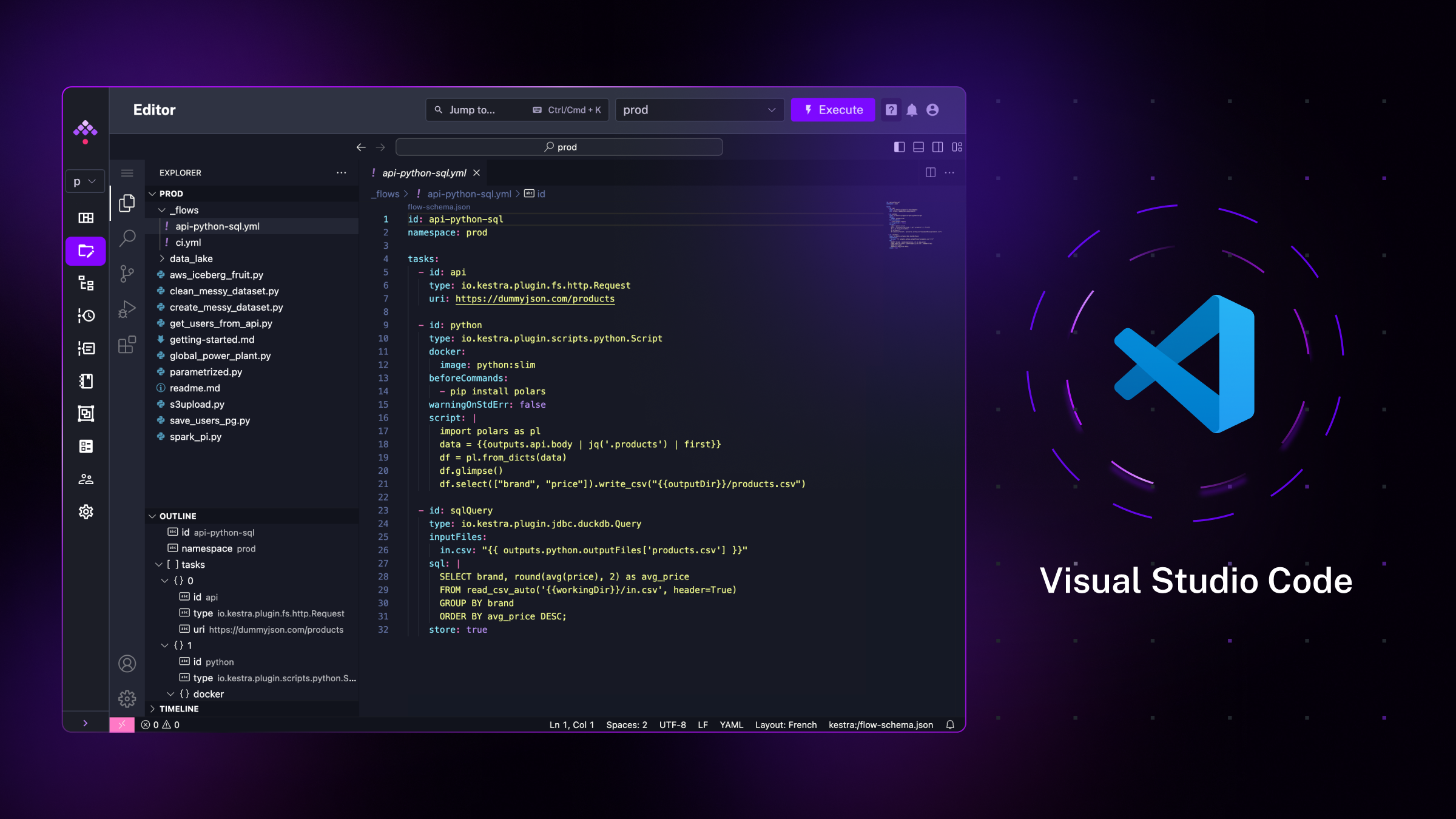
Kestra allows defining complex workflows in a straightforward and declarative manner using a human-readable YAML configuration. With the Kestra UI and the new Editor, a few lines of YAML is all it takes to orchestrate any process or application, eliminating the need to manage development environments or package code. This YAML configuration addresses:
Kestra’s YAML-based DSL (Domain Specific Language) is not only versatile but also intuitive, thanks to its built-in documentation, autocompletion, and syntax validation.
However, YAML is not intended to replace business logic expressed in your custom applications, microservices, scripts or queries. We believe in the importance of keeping your business logic and orchestration requirements separate through a well-defined API. This separation ensures that your code remains portable and platform-independent, giving you complete control over your applications, whether it’s in Python, SQL, R, Julia, Shell, PowerShell, Node.js, or any other language. With Kestra, there is no need to modify your existing code. Instead, you simply add a layer of YAML configuration on top of your code to orchestrate it.
The new editor is a significant step in bringing together your orchestration and business logic, while still respecting the separation of concerns between them. It allows you to easily view, add, and modify your custom scripts right next to your flow YAML definitions, all within a single, embedded IDE. This embedded IDE has built-in syntax highlighting, code autocompletion, and validation, streamlining the process of managing both orchestration and business logic.
Recognized as the most popular IDE five years in a row in the Stack Overflow Developer Survey, Visual Studio Code’s integration into Kestra offers an intuitive environment for writing complex business logic and orchestrating it efficiently. Our decision to embed VS Code aligns with our commitment to providing a familiar and intuitive toolset to our users.
Every script, query, or configuration file you add to the new embedded VS Code editor is managed in the backend as a Namespace File. You can think of Namespace Files as equivalent of a project in your local IDE or a copy of your Git repository. Namespace Files can hold Python modules, R or Node.js scripts, complex SQL queries, custom scripts, and many more. You can synchronize your Git repository with a specific namespace to orchestrate dbt data transformation jobs, Terraform or Ansible infrastructure, or any other project that contains code and configuration files.
Here are some of the most important advantages of the new editor:
ForEachItem task for scalable data processingIn our ongoing effort to simplify workflow automation and streamline data processing at scale, we’re thrilled to introduce a new task called ForEachItem. As the name suggests, this task allows you to iterate over a list of items and execute some action for each of them (or for each batch containing multiple items).
ForEachItem task helps to solveThis feature is particularly useful when you need to process millions of records from a database table or an API payload in a resilient and scalable way.
A common orchestration use case is to:
This use case is fairly easy to manage with a small number of items, but it becomes more challenging at scale. For example, imagine fetching millions of records from some external API with business-critical data such as order information. You need to process each record individually, but you also need to ensure that the process is reliable. You can’t just retry the entire operation if something fails as it might result in duplicate order processing. If only 20 out of 1 million records fail, you need to be able to troubleshoot and fix the issue without having to reprocess the entire list. This is where the ForEachItem task comes in handy. It allows you to process each item individually, while also providing the ability to troubleshoot and restart data processing for individual items that failed.
This task can also help to improve the scalability of your data pipelines. You can split large files that don’t fit in memory into micro-batches and process them in parallel across multiple workers or containers.

The ForEachItem task takes a list of items as input, and executes a subflow for each item in the list. The subflow can be executed in parallel or sequentially, depending on the subflow’s concurrency setting.
Here’s the syntax for implementing the ForEachItem task:
- id: each type: io.kestra.core.tasks.flows.ForEachItem items: "{{ inputs.file }}" # could be also an output variable e.g. {{ outputs.extract.uri }} batch: rows: 100 # split the file into batches of 100 items/rows/lines per batch partitions: 10 # split the file into 10 batches bytes: "1024MB" # split the file into batches of 1024MB namespace: your_subflow_namespace flowId: your_subflow_id inputs: your_input_name: "{{ taskrun.items }}" # items of the batch passed to the subflow's inputs revision: 1 # optional subflow's revision (default: latest) wait: true # wait for all subflow executions to complete before continuing transmitFailed: true # fail the task run if any subflow execution fails labels: # optional labels to pass to the subflow executions key: valueUsing this configuration, the task will split the file into batches based on your chosen strategy (either rows, partitions, or bytes). It will then execute the subflow for each batch, passing the batch of items to the subflow’s inputs. The subflow can then process each item (or batch) individually, and you can troubleshoot and restart individual items if something fails.
Note that the batch of items is passed to the subflow using inputs. In the example above, we use an input of FILE type named your_input_name, which accepts the URI of an internal storage file containing the batch of items. This way, you can trigger the subflow independently which is especially useful for testing and debugging purposes. Imagine how you can test that subflow first with a small file. Once you are confident that it works as expected, the ForEachItem task will help scale the process to millions of items.
Here is a full end-to-end example of how to use the ForEachItem task to process a list of items. The example uses a subflow with two tasks to show how you can read both, the file’s path and the file’s content.
Here is the subflow that will be invoked for each item in the list:
id: ordersnamespace: company.team
inputs:  - id: order    type: STRING
tasks:  - id: read_file    type: io.kestra.plugin.scripts.shell.Commands    runner: PROCESS    commands:      - cat "{{ inputs.order }}"
  - id: read_file_content    type: io.kestra.core.tasks.log.Log    message: "{{ read(inputs.order) }}"
Here is the parent flow that uses the ForEachItem task to iterate over a list of items and run the above subflow for each item (i.e. for each batch split into rows: 1 per iteration):
id: orders_parallelnamespace: company.team
tasks:  - id: extract    type: io.kestra.plugin.jdbc.duckdb.Query    sql: |      INSTALL httpfs;      LOAD httpfs;      SELECT *      FROM read_csv_auto('https://huggingface.co/datasets/kestra/datasets/raw/main/csv/orders.csv', header=True);    store: true
  - id: each    type: io.kestra.core.tasks.flows.ForEachItem    items: "{{ outputs.extract.uri }}"    batch:      rows: 1    namespace: company.team    flowId: orders    wait: true    transmitFailed: true    inputs:      order: "{{ taskrun.items }}"
Whether you’re dealing with large datasets or need to process items individually, ForEachItem offers a simple and resilient way to automate data processing at scale
For detailed information on how to use that task, refer to the ForEachItem task documentation.
At the core of any robust workflow management system is the ability to reliably manage execution and their underlying resources. In line with this, we’re introducing the flow-level concurrency setting. This flow-level property allows you to control the number of concurrent executions of a specific flow. By setting the limit key, you can define the maximum number of executions that can run simultaneously. This acts as a global concurrency limit for the particular flow, ensuring that the defined limit is respected across all executions, regardless of their initiation method — be it a regular schedule, event trigger, webhook, API call, or an ad-hoc run from the UI.
One of the primary challenges in workflow management is distributing work to ensure optimal resource utilization. For example, if your flow performs a resource-intensive operation, you may want to ensure that only a limited number of executions are running at any given time to avoid overloading the system. Often you also need to ensure that only a specific number of processes interact with a given database or API to limit the number of open database connections and avoid API request throttling. The concurrency limit allows you to queue additional executions above the allowed threshold to reduce the backpressure on the external system your flow is interacting with.
Similarly, when dealing with business-critical processes that can’t be duplicated, such as sending a notification or processing a payment, you need to ensure that there is at most only one running execution. This is also where the flow-level concurrency limit comes in handy. By setting the concurrency limit to 1, you can ensure that only one execution of the flow is running at any given time. Any additional execution attempts will be queued or cancelled, according to the behavior you define.
The concurrency property isn’t just about limiting concurrent executions; it’s also about how the system responds when this limit is reached. The behavior property allows you to automatically control the execution state when the defined limit is exceeded. This property is an Enum-type setting with three options: QUEUE, CANCEL, or FAIL.
QUEUE: Additional executions are queued until a running execution completes.CANCEL: Additional executions are immediately canceled.FAIL: Additional executions are marked as failed.This customization ensures that the system’s response aligns with your operational requirements.
To illustrate how you can use the concurrency property, consider a simple flow that limits its concurrent executions to 1:
id: concurrency_limited_flownamespace: company.team
concurrency:  behavior: QUEUE  limit: 1 # can be any integer >= 1
tasks:  - id: bash    type: io.kestra.plugin.scripts.shell.Commands    commands:      - sleep 10
When multiple executions are triggered, the concurrency property ensures they adhere to the defined limit and behavior. In this example, there will be only one execution of the flow running at any given time and all additional executions will be queued until the running execution completes.
The introduction of flow-level concurrency settings enables better resource management, reduces the risk of system overload, and ensures idempotency of critical processes.
logLevel task property for better log managementThe new logLevel task property, available on all tasks, allows you to control log granularity to be captured by Kestra’s backend to save log storage space. This is particularly useful to avoid DEBUG or TRACE-level logs to be stored in production environments, while allowing you to keep them in development environments.
The logLevel property, with its default setting to store all logs, can be adjusted to levels like INFO, ensuring that more detailed logs below this threshold, such as DEBUG and TRACE, are not persisted. This approach gives you more control about which logs should be stored and helps to reduce storage costs.
The UI header has been revamped to include a global search bar and a new navigation menu. Soon, the search bar will allow you to search for flows, tasks, and namespaces. For now, it serves as an omnipresent navigation tool, allowing you to quickly access the main UI pages from anywhere in the UI.
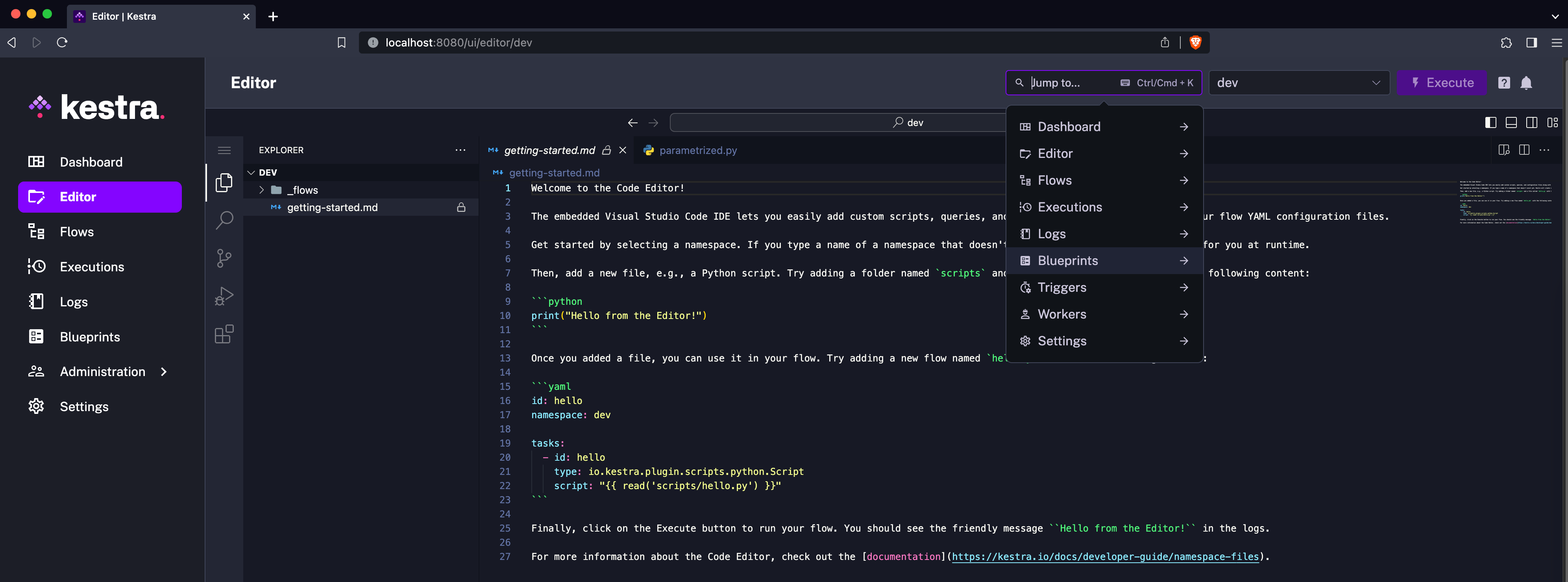
By default, the Executions table displays the execution ID, execution’s start and end date, the runtime duration, namespace, flow ID, execution labels and status, and the trigger that launched the execution.
The UI now allows you to fully customize this view by adding or removing columns, including new dedicated properties for inputs, flow’s revision used in that execution, the final task of the flow, and more.
This release introduces multi-tenancy in Kestra’s Enterprise Edition. This feature allows a single Kestra instance to support multiple tenants independently. For developers and platform administrators, this offers better resource isolation and management. End-users benefit from a more streamlined experience across various environments.
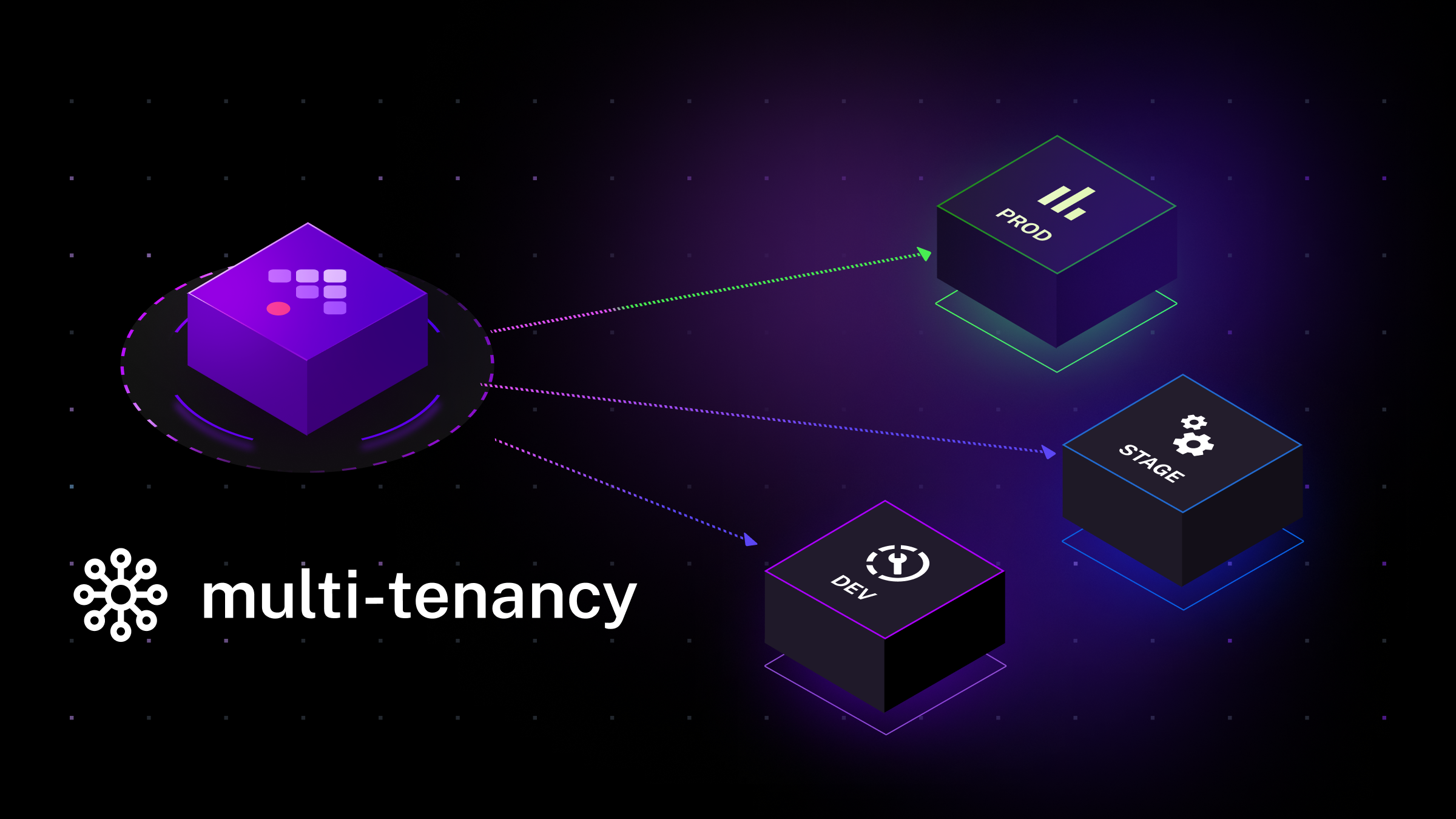
prod namespace, fully isolated from each other.Tenants can be managed in several ways. You can create and manage tenants via UI, using a CLI command, an API call, or using Kestra’s Terraform provider.
A critical note for administrators: users who create a tenant are automatically assigned administrative rights for that tenant.
A note to plugin authors: due to the multi-tenancy feature, some Java APIs of Kestra have changed, so you may need to adapt your plugin. Noticeable changes are the StorageInterface on which each method now takes a tenantId as a parameter (you can use the null tenant in tests) and the RunnerUtils that takes a tenantId to run a flow (also here, you can use null in tests). Check the following URL for an example of what is needed to retrieve the tenantId in the notifications plugin. If you struggle to make your custom plugin compatible with the new multi-tenancy feature, don’t hesitate to reach out to us via Slack, e.g. in a #contributors channel.
In existing Kestra instances, the default tenant (referred to as the null tenant) maintains backward compatibility when multi-tenancy is activated. For new Kestra instances, we recommend disabling the default tenant. This practice ensures that all tenants are clearly defined with their unique identifiers.
The addition of multi-tenancy in Kestra represents a major milestone in addressing complex enterprise-grade orchestration requirements with support for resource and data isolation across environments, teams, projects, and customers.
Due to multi-tenancy, all indexes will be rebuilt. When using the JDBC runner with a large database, database migration can take multiple hours. We recommend performing the migration manually before starting Kestra itself by using the new kestra sys database migrate command.
Additionally, all identifiers (i.e. the ID for tenants, namespaces, flows, triggers, inputs, variables, tasks and secrets) must start with an alphanumeric character. Existing flows that contain invalid identifier (e.g. a flow starting with _) will still be executable but no longer modifiable.
Kestra 0.13 brings a wide range of new notification plugins to send alerts and notifications to your team when a flow completes or fails.
We’ve also added plugins for a variety of other services and open-source tools.
To avoid overwhelming you with details, we’ll only list the new plugins in alphabetical order. For more information on how to use them, refer to the respective Plugin Documentation and Blueprints.
This post covered new features and enhancements added in Kestra 0.13.0, including multi-tenancy, concurrency limits, new ForEachItem task and the new embedded VS Code Editor. Which of them are your favorites? What should we add next? Your feedback is always appreciated.
If you have any questions, reach out via Slack or open a GitHub issue.
If you like the project, give us a GitHub star and join the community.

Stay up to date with the latest features and changes to Kestra