Authors

Will Russell
Will Russell
When you get started with a new tool, it can be overwhelming to know where to start and what to look at first. You probably already have some existing code that you’re looking to integrate without doing a ton of extra work.
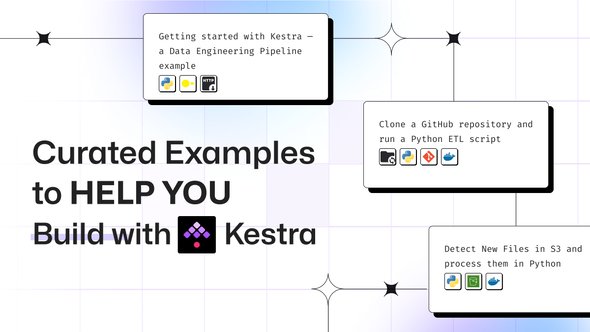
If you’re anything like me, the first thing I like to do when using a new tool for the first time is look for some examples that I can modify to suit my needs, which is why we’ve build a library of curated examples called Blueprints to enable this. We’ll walk through a number of our Blueprints that cover common scenarios to help you identify where you should start!
As a unified orchestrator, Kestra can handle almost any use case. With this in mind, we’re going to discuss some of the common building blocks to enable you to build something that fits your use case:
With all these combined, we can build powerful workflows. Let’s look at some Blueprints for each of these areas.
One of the main questions we get is, ‘how do I get my code into Kestra?’ Don’t worry, we’ve got you covered. We recently did an in-depth article on how to integrate your code directly into Kestra, including handling inputs, outputs and files to allow Kestra to work best with your code.
To accompany that, we’ve got a number of helpful Blueprints covering a variety of use cases.
Starting off, this flow demonstrates a data engineering pipeline utilizing Python. As each task generates outputs, we can access those in later tasks allowing everything to work in unison. This example works straight out of the box, so you can jump into Kestra and give it a go yourself.
id: data-engineering-pipelinenamespace: tutorialdescription: Data Engineering Pipelinesinputs:  - id: columns_to_keep    type: ARRAY    itemType: STRING    defaults:      - brand      - pricetasks:  - id: extract    type: io.kestra.plugin.core.http.Download    uri: https://dummyjson.com/products  - id: transform    type: io.kestra.plugin.scripts.python.Script    containerImage: python:3.11-alpine    inputFiles:      data.json: "{{ outputs.extract.uri }}"    outputFiles:      - "*.json"    env:      COLUMNS_TO_KEEP: "{{ inputs.columns_to_keep }}"    script: |      import json      import os
      columns_to_keep_str = os.getenv("COLUMNS_TO_KEEP")      columns_to_keep = json.loads(columns_to_keep_str)
      with open("data.json", "r") as file:          data = json.load(file)
      filtered_data = [          {column: product.get(column, "N/A") for column in columns_to_keep}          for product in data["products"]      ]
with open("products.json", "w") as file: json.dump(filtered_data, file, indent=4) - id: query type: io.kestra.plugin.jdbc.duckdb.Query inputFiles: products.json: "{{ outputs.transform.outputFiles['products.json'] }}" sql: | INSTALL json; LOAD json; SELECT brand, round(avg(price), 2) as avg_price FROM read_json_auto('{{ workingDir }}/products.json') GROUP BY brand ORDER BY avg_price DESC; store: trueIn this next example, we can see the power of Kestra being language agnostic coming into action. We’re able to utilize the Shell Commands task to give us an environment to run any language, as long as we install the required dependencies. In this scenario, we’re using a gcc container image to set up our Shell environment for C. Another neat thing with this example is the ability to dynamically set the dataset_url at execution without needing to touch the code directly.
id: shell-execute-codenamespace: company.team
inputs:  - id: dataset_url    type: STRING    defaults: https://huggingface.co/datasets/kestra/datasets/raw/main/csv/orders.csv
tasks:  - id: download_dataset    type: io.kestra.plugin.core.http.Download    uri: "{{ inputs.dataset_url }}"  - id: c_code    type: io.kestra.plugin.scripts.shell.Commands    taskRunner:      type: io.kestra.plugin.scripts.runner.docker.Docker    containerImage: gcc:latest    commands:      - gcc example.c      - ./a.out    inputFiles:      orders.csv: "{{ outputs.download_dataset.uri }}"      example.c: |        #include <stdio.h>        #include <stdlib.h>        #include <string.h>
        int main() {            FILE *file = fopen("orders.csv", "r");            if (!file) {                printf("Error opening file!\n");                return 1;            }
            char line[1024];            double total_revenue = 0.0;
            fgets(line, 1024, file);            while (fgets(line, 1024, file)) {                char *token = strtok(line, ",");                int i = 0;                double total = 0.0;
                while (token) {                    if (i == 6) {                        total = atof(token);                        total_revenue += total;                    }                    token = strtok(NULL, ",");                    i++;                }            }
            fclose(file);            printf("Total Revenue: $%.2f\n", total_revenue);
return 0; }Orchestrating your code is useful, but being able to sync that with your Git repository streamlines it even more. There are multiple ways to integrate with Git inside of Kestra:
Starting with Clone, we can clone our repository and then have other tasks access it as if we were using it on our local machine.
This example also uses the WorkingDirectory task to create an environment where we can write files and easily access them between tasks. Without this, we’d have to pass them between tasks as output files, which can become tedious for larger outputs, like a repository. This means we’re always using the most up to date code when we run this workflow.
id: git-pythonnamespace: company.team
tasks: - id: python_scripts type: io.kestra.plugin.core.flow.WorkingDirectory tasks: - id: clone_repository type: io.kestra.plugin.git.Clone url: https://github.com/kestra-io/scripts branch: main - id: python type: io.kestra.plugin.scripts.python.Commands warningOnStdErr: false taskRunner: type: io.kestra.plugin.scripts.runner.docker.Docker containerImage: ghcr.io/kestra-io/pydata:latest commands: - python etl/global_power_plant.pyThis example uses the SyncFlows and SyncNamespaceFiles to pull the content of our Git repository directly into Kestra, rather than isolated inside of a flow. This is useful for managing our Kestra instance, especially if we have separate dev and production instances. You could also swap the Schedule trigger for a Webhook trigger that triggers when new changes are in your main branch.
id: sync-from-gitnamespace: company.team
tasks:  - id: sync_flows    type: io.kestra.plugin.git.SyncFlows    gitDirectory: flows    targetNamespace: git    includeChildNamespaces: true    delete: true    url: https://github.com/kestra-io/flows    branch: main    username: git_username    password: "{{ secret('GITHUB_ACCESS_TOKEN') }}"    dryRun: true  - id: sync_namespace_files    type: io.kestra.plugin.git.SyncNamespaceFiles    namespace: prod    gitDirectory: _files    delete: true    url: https://github.com/kestra-io/flows    branch: main    username: git_username    password: "{{ secret('GITHUB_ACCESS_TOKEN') }}"    dryRun: true
triggers: - id: every_full_hour type: io.kestra.plugin.core.trigger.Schedule cron: "*/15 * * * *"Another common use case is integrating Kestra directly with the cloud. It’s no mystery that cloud providers can unlock tons of possibilities with their huge amount of compute power.
We have official plugins for AWS, Google Cloud and Azure which cover all aspects of the platforms. Let’s jump into a few different examples that allow you to integrate your code with them using Kestra.
Jumping right in, this workflow is event driven based on files arriving in an S3 bucket using the S3 Trigger. This is a great way to allow Kestra to make your existing code event driven.
id: s3-trigger-pythonnamespace: company.team
variables:  bucket: s3-bucket  region: eu-west-2
tasks:  - id: process_data    type: io.kestra.plugin.scripts.python.Commands    taskRunner:      type: io.kestra.plugin.scripts.runner.docker.Docker    containerImage: ghcr.io/kestra-io/kestrapy:latest    namespaceFiles:      enabled: true    inputFiles:      input.csv: "{{ read(trigger.objects[0].uri) }}"    outputFiles:      - data.csv    commands:      - python process_data.py
triggers: - id: watch type: io.kestra.plugin.aws.s3.Trigger interval: PT1S accessKeyId: "{{ secret('AWS_ACCESS_KEY_ID') }}" secretKeyId: "{{ secret('AWS_SECRET_KEY_ID') }}" region: "{{ vars.region }}" bucket: "{{ vars.bucket }}" filter: FILES action: MOVE moveTo: key: archive/ maxKeys: 1On the trend of event driven workflows, we can use Realtime triggers to allow our workflows to react to new messages with low latency.
In this example, we’re using the Google Cloud PubSub Realtime Trigger from the GCP plugin to listen for new messages in realtime, and setting that data in a Firestore database.
id: pubsub-realtime-triggernamespace: company.team
tasks:  - id: insert_into_firestore    type: io.kestra.plugin.gcp.firestore.Set    projectId: test-project-id    collection: orders    document:      order_id: "{{ trigger.data | jq('.order_id') | first }}"      customer_name: "{{ trigger.data | jq('.customer_name') | first }}"      customer_email: "{{ trigger.data | jq('.customer_email') | first }}"      product_id: "{{ trigger.data | jq('.product_id') | first }}"      price: "{{ trigger.data | jq('.price') | first }}"      quantity: "{{ trigger.data | jq('.quantity') | first }}"      total: "{{ trigger.data | jq('.total') | first }}"
triggers: - id: realtime_trigger type: io.kestra.plugin.gcp.pubsub.RealtimeTrigger projectId: test-project-id topic: orders subscription: kestra-subscription serdeType: JSONIn our last cloud example, we can easily execute our code directly on cloud resources using Task Runners.
This example uses the Azure Batch to execute our Python code, and then returns all outputs back to Kestra, enabling us to use more resources on demand.
id: azure-batch-runnernamespace: company.team
variables:  pool_id: poolId  container_name: containerName
tasks:  - id: scrape_environment_info    type: io.kestra.plugin.scripts.python.Commands    containerImage: ghcr.io/kestra-io/pydata:latest    taskRunner:      type: io.kestra.plugin.ee.azure.runner.Batch      account: "{{ secret('AZURE_ACCOUNT') }}"      accessKey: "{{ secret('AZURE_ACCESS_KEY') }}"      endpoint: "{{ secret('AZURE_ENDPOINT') }}"      poolId: "{{ vars.pool_id }}"      blobStorage:        containerName: "{{ vars.container_name }}"        connectionString: "{{ secret('AZURE_CONNECTION_STRING') }}"    commands:      - python {{ workingDir }}/main.py    namespaceFiles:      enabled: true    outputFiles:      - environment_info.json    inputFiles:      main.py: >        import platform        import socket        import sys        import json        from kestra import Kestra
        print("Hello from Azure Batch and kestra!")
        def print_environment_info():            print(f"Host's network name: {platform.node()}")            print(f"Python version: {platform.python_version()}")            print(f"Platform information (instance type): {platform.platform()}")            print(f"OS/Arch: {sys.platform}/{platform.machine()}")
            env_info = {                "host": platform.node(),                "platform": platform.platform(),                "OS": sys.platform,                "python_version": platform.python_version(),            }            Kestra.outputs(env_info)
            filename = 'environment_info.json'            with open(filename, 'w') as json_file:                json.dump(env_info, json_file, indent=4)
if __name__ == '__main__': print_environment_info()One of the benefits of Kestra is being able to integrate your code straight away, and build automated alerting around it. Let’s take a look at a few examples of alerting in Kestra.
With this simple workflow using the Slack plugin, we can easily add this to any of our workflows, and incorporate data generated by tasks using expressions.
id: slack-incoming-webhooknamespace: company.team
tasks: - id: slack type: io.kestra.plugin.slack.notifications.SlackIncomingWebhook url: "{{ secret('SLACK_WEBHOOK') }}" payload: > { "channel": "#alerts", "text": "Flow {{ flow.namespace }}.{{ flow.id }} started with execution {{ execution.id }}" }This next example is a System flow which are useful for maintaining our Kestra instance. Using a Flow Trigger, we can send automated messages to Discord every time a workflow finishes with FAILED or WARNING state. Useful to give you real time information at your finger tips.
id: failure-alert-discordnamespace: system
tasks:  - id: send_alert    type: io.kestra.plugin.discord.DiscordExecution    url: "{{ secret('DISCORD_WEBHOOK') }}"    executionId: "{{ trigger.executionId }}"
triggers: - id: on_failure type: io.kestra.plugin.core.trigger.Flow conditions: - type: io.kestra.plugin.core.condition.ExecutionStatus in: - FAILED - WARNINGThis is just the start of some of the areas you can explore in Kestra to integrate into your existing solution. I’d recommend checking out the full Blueprint library for over 200 curated examples. If you build any useful examples, feel free to contribute back by making a Pull Request on our GitHub repository!
If you like the project, give us a GitHub star ⭐️ and join the community.
If you have any questions, reach out via Slack or open a GitHub issue.

Stay up to date with the latest features and changes to Kestra