Authors

Anna Geller
Anna Geller
We’re excited to announce Kestra 0.17.0. The highlights of this release include:
WaitFor task that continuously executes a list of tasks until a specific condition is metCheck out the YouTube playlist that will guide you through the new features introduced in Kestra 0.17.0.
Let’s dive in!
We’re introducing a brand-new, lightning-fast Code Editor which significantly improves the development experience as compared to our previous VS Code-based solution. The new editor is now the default editor for both Namespace Files and Flows, offering a unified development experience.
Initially, the Namespace Files Editor was built on top of the FOSS version of VS Code to leverage its extensive ecosystem. However, this proved challenging for the following reasons:
The new Code Editor addresses all these pain points and offers a host of benefits:
In short, the new editor offers a fast, unified and user-friendly editing experience.
Along with the new Code Editor, we’ve added Autocompletion for all templated expressions in the editor. This feature will help you write flows faster by suggesting variables, inputs, outputs and other expressions as you type.
When you use the Subflow task, you’ll now also get autocompletion for subflows. Just add the subflow task, and start typing to see the suggestions for the namespace, flow ID and flow inputs.
Related to Autocompletion, we’ve added a fetchContext() function for debugging purposes. This new function will print the full Execution context, including all variables, inputs, outputs, and other execution metadata.
With the release of Kestra 0.17.0, we are also introducing a fully redesigned Version Control integration, offering more flexibility. Here are the new Git tasks:
PushFlows and SyncFlows tasks together to create a complete Git workflow: push your flows from a development environment to a Git repository and then sync them back to your Kestra environment after they’ve been reviewed and merged to a production branch.The PushFlows task allows you to easily commit and push your saved flows to a Git repository. Check the following documentation and the video demonstration below to learn more about how you can use this task to automate your Git workflow.
The SyncFlows task automatically checks for changes in your Git branch and deploys them to your Kestra namespace(s), keeping your Kestra environment in sync with your Git repository.
It eliminates the need for CI/CD pipelines — you can use it to sync flows from Git to Kestra on a regular cadence (e.g. an hourly or daily Schedule trigger) or whenever changes are merged into a specified Git branch (e.g. a Webhook trigger).
Example: Scheduled Sync
Sync flows from a Git repository to a Kestra git namespace every hour:
id: sync_flows_from_gitnamespace: release
tasks:  - id: git    type: io.kestra.plugin.git.SyncFlows    gitDirectory: flows    targetNamespace: git    includeChildNamespaces: true # optional; by default, it's set to false to allow explicit definition    delete: true # optional; by default, it's set to false to avoid destructive behavior    url: https://github.com/anna-geller/flows    branch: develop    username: anna-geller    password: "{{ secret('GITHUB_ACCESS_TOKEN') }}"    dryRun: false
triggers:  - id: hourly    type: io.kestra.plugin.core.trigger.Schedule    cron: "0 * * * *"
The PushNamespaceFiles and SyncNamespaceFiles tasks work analogically to the PushFlows and SyncFlows tasks, but applied to namespace files. Watch the videos below to see how you can use these tasks to manage your namespace files with Git.
These new tasks will supercharge your Git workflows, making it easier to version control your flows and namespace files.
Kestra 0.17.0 introduces a concept of Realtime Event Triggers allowing you to react to events as they happen with millisecond latency.
Kestra has a concept of triggers that can listen to external events and start a workflow execution when the event occurs. Most of these triggers poll external systems for new events at regular intervals e.g. every second. This works well for data processing use cases. However, business-critical workflows often require reacting to events as they happen with millisecond latency and this is where Realtime Triggers come into play.
Realtime triggers listen to events in real time and start a workflow execution as soon as:
With this new feature, you can orchestrate business-critical processes and microservices in real time. Visit the Realtime Trigger documentation to learn more and check the video below to see it in action:
The Pause task now supports onResume inputs, allowing you to pause a workflow execution and resume it later with custom input values. This is particularly useful for human-in-the-loop processes where you need to collect additional information from a user before proceeding with the workflow.
An increasingly common use case for the manual approval processes is in AI applications where human intervention is required to validate the AI’s output. The video below demonstrates how you can automatically pause a workflow execution until the user resumes it with custom input values.
Check the Pause and Resume guide to learn more about how to use the Pause task in Manual Approval workflows.
WaitFor orchestration patternMany workflows require performing some action until a certain condition is met, or waiting for a specific condition to be met before proceeding with the next tasks. Common use cases include:
To accommodate these use cases, Kestra 0.17.0 introduces the WaitFor task that will run a list of tasks repeatedly (every checkFrequency interval) until the expected condition is met. This task will create a separate task run attempt within each loop iteration and will mark the Execution as Paused during the “wait” period (the time between loop iterations).
Let’s see it in action!
The following example demonstrates a simple task that will check for a condition every 10 milliseconds until the counter reaches 10. The Log task will print the current iteration value to the console.
id: simple_counternamespace: company.team
tasks:  - id: loop_until_10    type: io.kestra.plugin.core.flow.WaitFor    condition: "{{ outputs.loop_until_10.iterationCount < 10 }}"    tasks:      - id: log_iteration        type: io.kestra.plugin.core.log.Log        message: "Current iteration: {{ outputs.loop_until_10.iterationCount }}"    checkFrequency:      interval: PT0.01S      maxDuration: PT30S
Below is a more complex example where the WaitFor task polls an external API for a job status. The workflow will repeatedly call the API every second until the job status is finished. The Log task will print a message when the job is finished.
id: job_statusnamespace: company.team
tasks:  - id: block_until_finished    type: io.kestra.plugin.core.flow.WaitFor    # replace with the actual condition e.g. {{ outputs.poll.body.status != 'finished' }}    condition: "{{ outputs.poll.code != 200 }}"    tasks:      - id: poll        type: io.kestra.plugin.core.http.Request        uri: https://kestra.io/api/mock        method: GET        contentType: application/json    checkFrequency:      interval: PT1S      maxDuration: PT90S
- id: continue type: io.kestra.plugin.core.log.Log message: the job finished, continuing downstream tasks!We’ve revamped the Guided Tour to help new users get started with Kestra. The new onboarding flow now allows you to choose the use case you’re interested in and guides you through the process of creating and running your first flow! 🚀
Check out the new Getting Started experience in the following video demo:
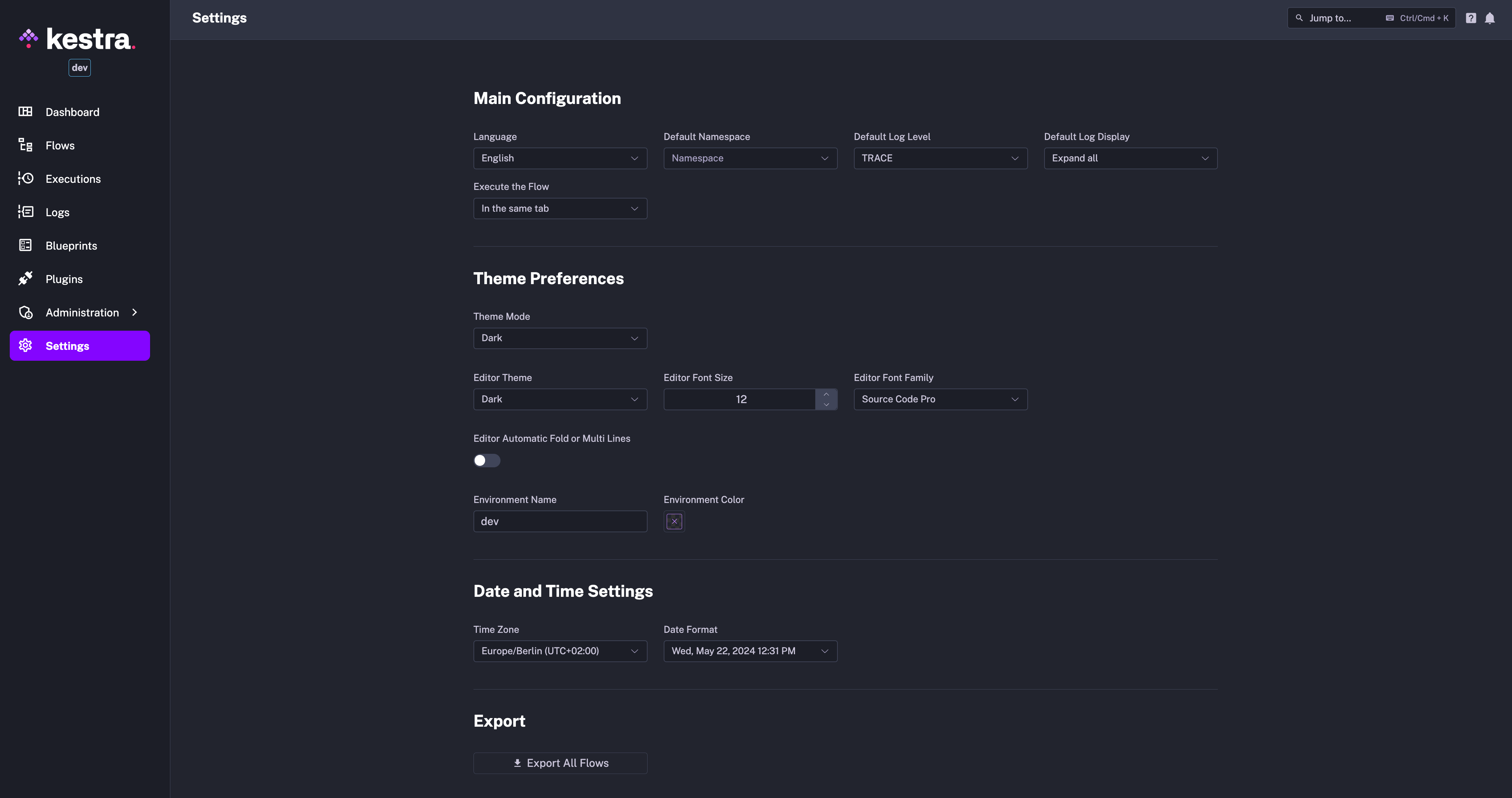
The Settings page has a new structure to make it easier to navigate and find the settings you need. The settings are now grouped into Theme Preferences, Date and Time Preferences as well as the Main Configuration settings.
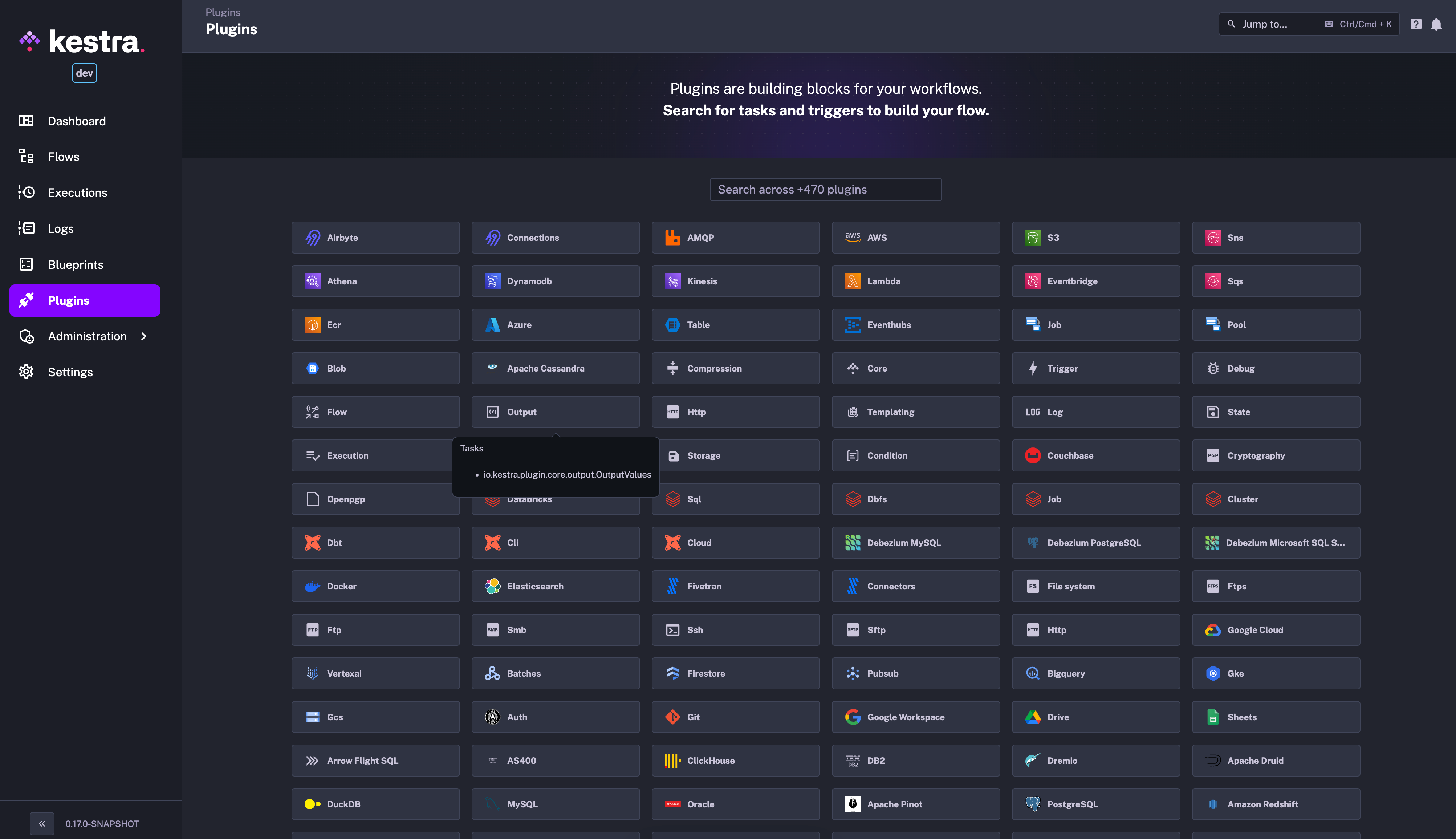
The new plugin catalog shows all plugins available in your Kestra instance. You can search for any plugin category e.g. AWS, as well as for a specific plugin subgroup e.g. S3. Once you click on a plugin, you’ll be redirected to a full documentation page with all the details you need to start using it.
Kestra now runs on Java 21. If you use Standalone Server, make sure to update your Java version to 21 before upgrading to Kestra 0.17.0 and beyond.
So far, the JSON input type allowed you to pass an array of objects. However, the contents of the array could be of any type and the only way to add validation to them would be to use nested inputs.
Kestra 0.17.0 adds a new ARRAY input type that allows you to specify the type of the array elements using the itemType property.
This enhancement is particularly useful when you want the end user triggering the workflow to provide multiple values of a specific type, e.g. a list of integers, strings, booleans, datetimes, etc. You can provide the default values as a JSON array or as a YAML list — both are supported.
id: array_demonamespace: company.team
inputs:  - id: my_numbers_json_list    type: ARRAY    itemType: INT    defaults: [1, 2, 3]
  - id: my_numbers_yaml_list    type: ARRAY    itemType: INT    defaults:      - 1      - 2      - 3
tasks:  - id: print_status    type: io.kestra.plugin.core.log.Log    message: received inputs {{ inputs }}
For more details on the ARRAY input type, check out the Inputs documentation.
We’ve refactored several core abstractions to ensure consistent and intuitive naming. Many core tasks, triggers and conditions have been renamed. For example:
taskDefaults are now pluginDefaults to highlight that you can set default values for all plugins (including triggers, task runners and more), not just tasksAll of these are non-breaking changes as we leverage aliases for backward compatibility. You will see a friendly warning in the UI code editor if you use the old names.
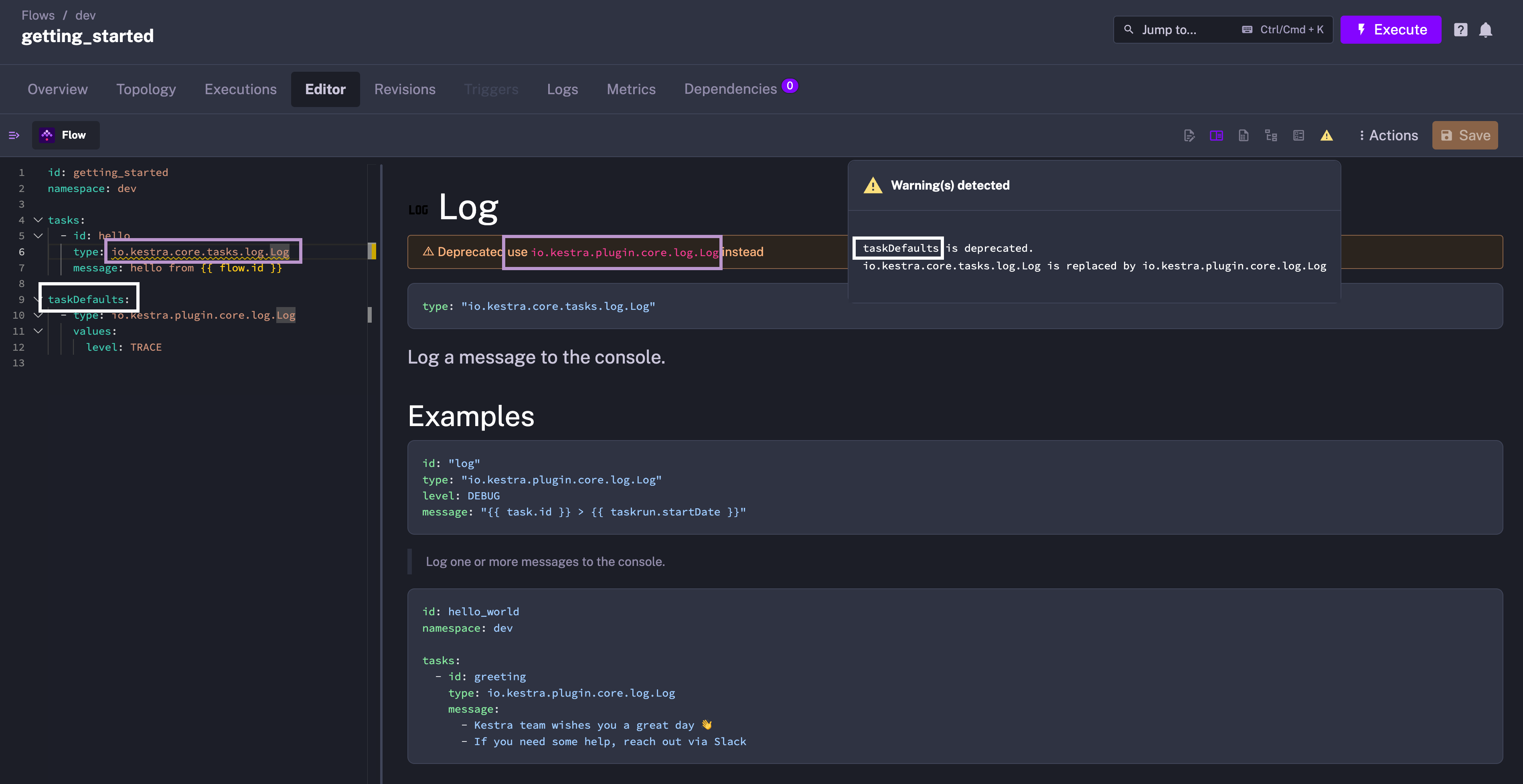
It’s worth taking a couple of minutes to rename those in your flows to future-proof your code.
Check the Renamed Plugins Migration Guide for a full list of renamed tasks, triggers and conditions.
Before this release, we serialized JSON objects with a NON_DEFAULT strategy, meaning that only properties without default values were included in the serialized JSON document. This was done to save space in the database and optimize network bandwidth. However, this wasn’t user-friendly. Kestra 0.17.0 changed the serialization strategy to improve handling of null values and empty JSON objects.
Let’s look at an example to make it more concrete:
id: my_flownamespace: company.team
inputs:  - id: my_string    type: STRING    defaults: null    required: false
tasks:  - id: print_input    type: io.kestra.core.tasks.log.Log    message: "{{ inputs.my_string }}" # workaround until 0.17.0: "{{ inputs.my_string ?? null }}"
Running the above workflow in Kestra < 0.17.0 would result in the following error:
Missing variable: 'inputs' on '{{ inputs.my_string }}' at line 1Root attribute [inputs] does not exist or can not be accessed and strict variables is set to true. ({{ inputs.my_string }}:1)The my_string input was not serialized. In Kestra 0.17.0, the expression {{ inputs.my_string }} will no longer generate an error and will resolve to null, even without passing a default value:
id: my_flownamespace: copmany.team
inputs:  - id: my_string    type: STRING    required: false
tasks:  - id: print_input    type: io.kestra.plugin.core.log.Log    message: "{{ inputs.my_string }}"
Note that the type of the Log task has been changed from io.kestra.core.tasks.log.Log to io.kestra.plugin.core.log.Log as part of the renaming process mentioned in the previous section.
Flow trigger now has outputs of a flow attached to the trigger object: {{ trigger.outputs }}. This means that outputs generated by a certain flow can be consumed by many other flows at the same time, allowing a fan-out event-based processing pattern.
This task is useful when you need to output multiple values from a task. It’s especially helpful when you need to apply some complex Pebble transformations before passing the values to other tasks.
id: output_values_demonamespace: company.team
inputs:  - id: user    type: STRING    description: Enter your name
tasks:  - id: first_task    type: io.kestra.plugin.core.output.OutputValues    values:      output1: "{{ 'thrilled and excited' | title }}"      output2: "{{ 'you' | capitalize }}"
- id: hello_world type: io.kestra.plugin.core.log.Log message: | Welcome to kestra, {{ inputs.user }}! We are {{ outputs.first_task.values.output1}} to have {{ outputs.first_task.values.output2}} here!startsWith()There is a new Pebble filter called startsWith() that returns true if the input string starts with the specified prefix. This filter is useful for string comparisons and conditional logic in your workflows.
id: starts_with_demonamespace: company.team
inputs:  - id: myvalue    type: STRING    defaults: "hello world!"
tasks:  - id: log_true    type: io.kestra.plugin.core.log.Log    message: "{{ inputs.myvalue | startsWith('hello') }}"
- id: log_false type: io.kestra.plugin.core.log.Log message: "{{ inputs.myvalue | startsWith('Hello') }}"You can now configure a default role that will be assumed by new users joining your Kestra instance or tenant. To do that, you need to define the default role in the security section of your configuration file as follows:
kestra: security: default-role: name: Editor description: Default Editor role permissions: FLOW: ["CREATE", "READ", "UPDATE", "DELETE"] EXECUTION: - CREATE - READ - UPDATE - DELETEThe permissions property is a map with a Permission as a key (e.g. FLOW, EXECUTION, NAMESPACE, SECRET, etc.) and a list of allowed Actions (CREATE, READ, UPDATE, DELETE) as a value.
If the default role doesn’t exist yet, it will be created automatically when you start Kestra. From then on, the default role will be assigned to new users joining your Kestra instance or tenant.
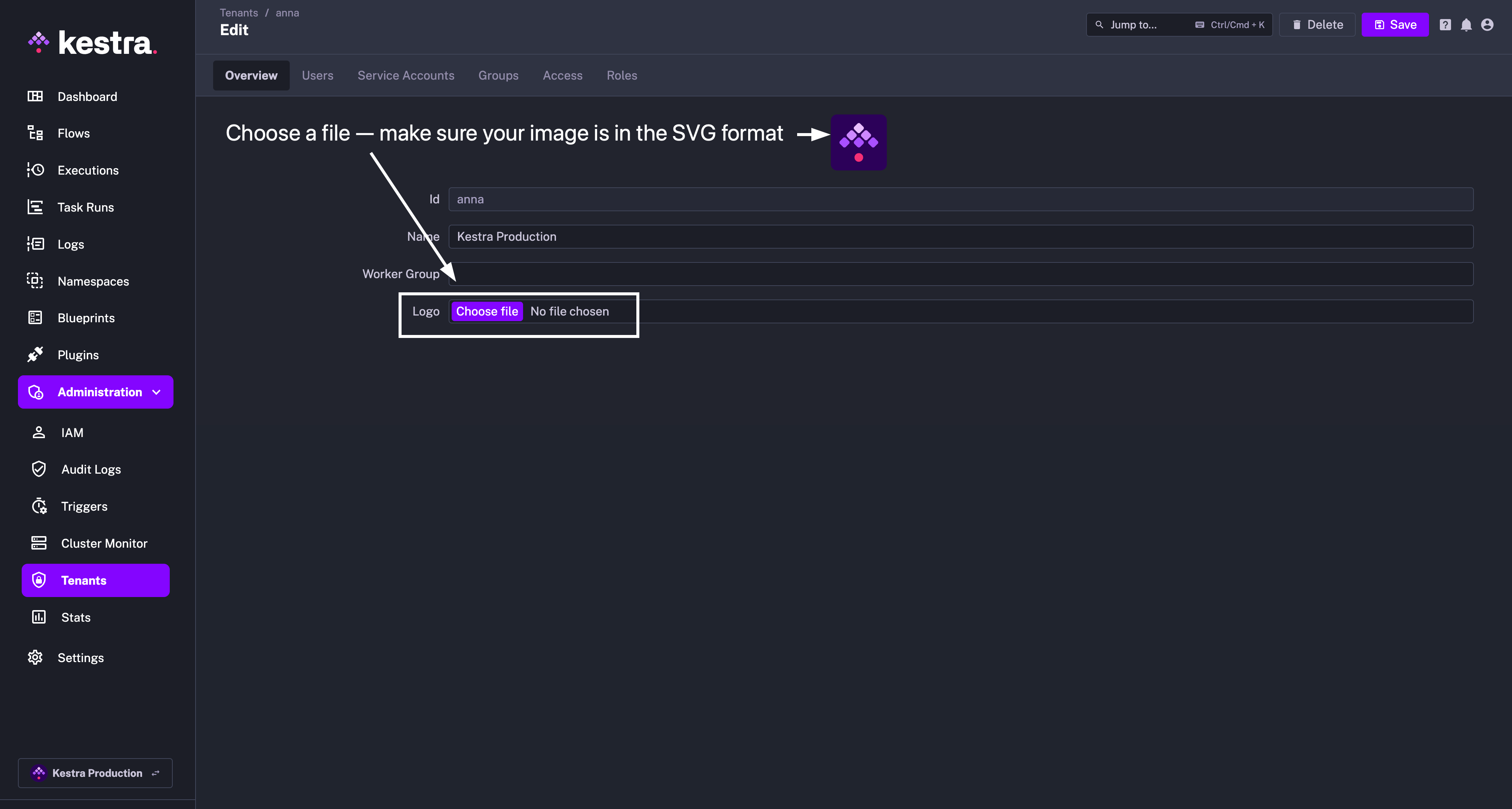
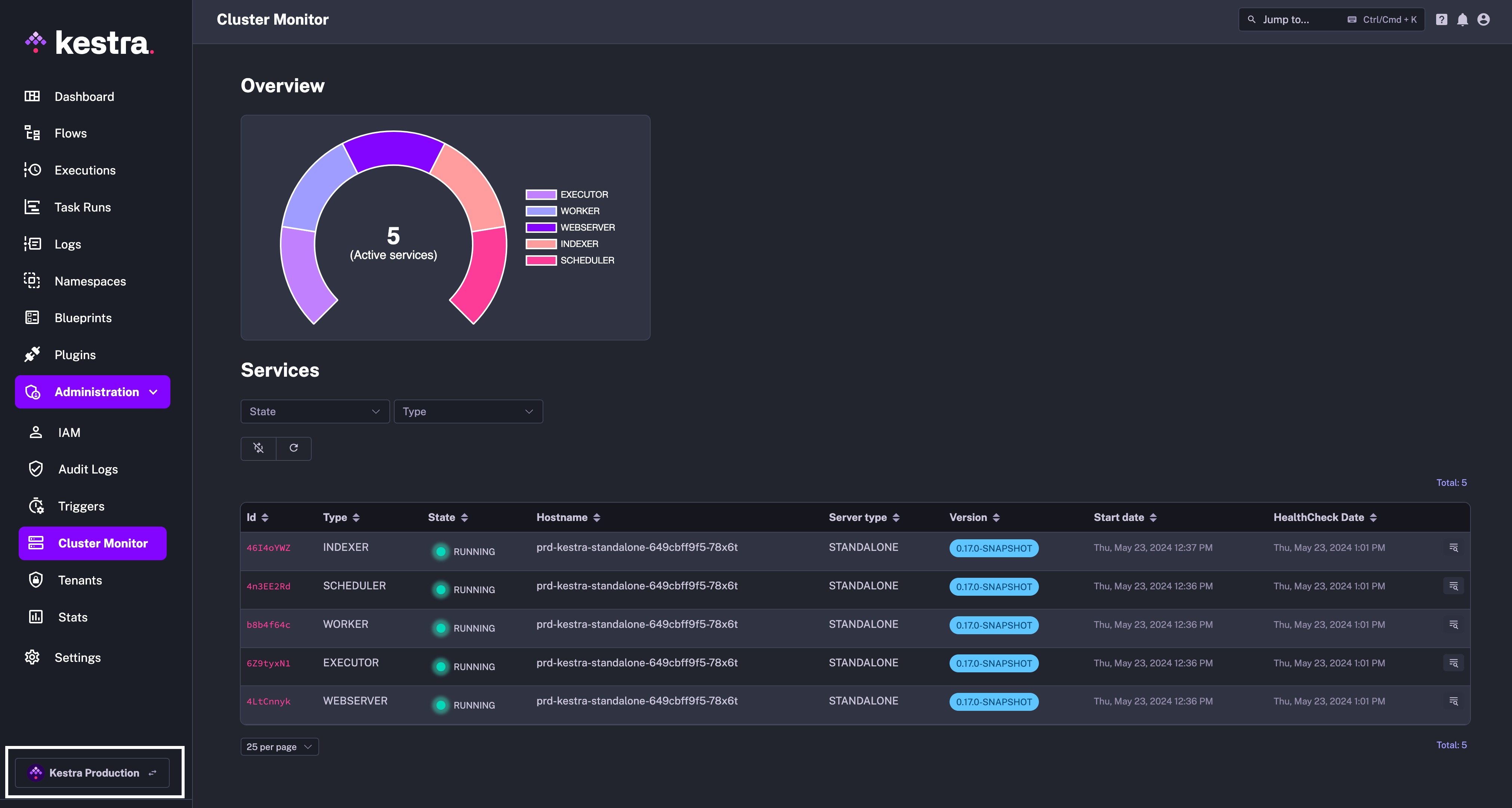
You can now customize the tenant dropdown with a custom logo. This is especially useful if you’re running a multi-tenant Kestra instance with one tenant per customer, company or environment.
To upload a custom logo, go to the Tenants page and navigate to the Tenant for which you want to add a new icon. Click on the Edit button and upload the logo in the Logo field.
Here is how it looks like on the Cluster Dashboard page:
We’ve added a new feature that allows you to explicitly declare which namespaces are allowed to trigger flows and other resources for any given namespace.
When you navigate to any Namespace and go to the Edit tab, you can explicitly configure which namespaces are allowed to access it. By default, all namespaces are allowed. However, you can restrict that access if you want only specific namespaces (or no namespace at all) to trigger its corresponding resources.
Check the Allowed Namespaces documentation for more details.
You can now execute a flow from the Executions page. Thanks to this change, you can allow external partners or users to Execute some workflows without granting them access to read the workflow information (i.e. only EXECUTION CREATE permission is required, you no longer need the FLOW READ permission).
Apart from many Realtime Triggers, we’ve made several improvements to our plugins, including:
Script task:id: process_filesnamespace: company.team
tasks: - id: download type: io.kestra.plugin.aws.s3.Downloads accessKeyId: abc123 secretKeyId: xyz987 region: us-east-1 bucket: kestra-us prefix: sales/ action: NONE
- id: transform inputFiles: "{{ outputs.download.objects }}" type: io.kestra.plugin.scripts.shell.Commands taskRunner: type: io.kestra.plugin.core.runner.Process commands: - ls -R .Task runners, introduced in Kestra 0.16.0, have been further improved in Kestra 0.17.0. Here are some of the enhancements:
completionCheckInterval by default set to 5 seconds. This interval defines how often the task runner checks for the completion of the Batch job. You can adjust this interval if you need more frequent checks for the completion of the Batch job, or if you need to set it to a higher value to reduce the number of API calls (e.g. in case of rate limits).timeout property defined in a Kestra task is propagated to a timeout of a cloud container (AWS/Azure/Google Batch Script Runners) issue.We’ve deprecated LocalFiles and outputDir in Kestra 0.17.0. Here is why:
{{ outputDir }} expression has been deprecated due to overlapping functionality available through the outputFiles property which is more flexible.LocalFiles feature was initially introduced to allow injecting additional files into the script task’s WorkingDirectory. However, this feature was confusing as there is nothing local about these files, and with the introduction of inputFiles to the WorkingDirectory, it became redundant. We recommend using the inputFiles property instead of LocalFiles to inject files into the script task’s WorkingDirectory. The example below demonstrates how to do that:id: apiJSONtoMongoDBnamespace: company.team
tasks:- id: wdir type: io.kestra.plugin.core.flow.WorkingDirectory outputFiles: - output.json inputFiles: query.sql: | SELECT sum(total) as total, avg(quantity) as avg_quantity FROM sales; tasks: - id: inlineScript type: io.kestra.plugin.scripts.python.Script taskRunner: type: io.kestra.plugin.scripts.runner.docker.Docker containerImage: python:3.11-slim beforeCommands: - pip install requests kestra > /dev/null warningOnStdErr: false script: | import requests import json from kestra import Kestra
with open('query.sql', 'r') as input_file: sql = input_file.read()
response = requests.get('https://api.github.com') data = response.json()
with open('output.json', 'w') as output_file: json.dump(data, output_file)
Kestra.outputs({'receivedSQL': sql, 'status': response.status_code})
- id: loadToMongoDB type: io.kestra.plugin.mongodb.Load connection: uri: mongodb://host.docker.internal:27017/ database: local collection: github from: "{{ outputs.wdir.uris['output.json'] }}"This post covered new features and enhancements added in Kestra 0.17.0. Which of them are your favorites? What should we add next? Your feedback is always appreciated.
If you have any questions, reach out via Slack or open a GitHub issue.
If you like the project, give us a GitHub star and join the community.

Stay up to date with the latest features and changes to Kestra