Pass Kestra Expressions to Scripts via Namespace Files
For the complete documentation index, see llms.txt. For a full content snapshot, see llms-full.txt. Append.mdto anykestra.io/docs/*URL for plain Markdown.
Learn how to pass expressions to Namespace Files.
Use expressions with namespace files
You can write scripts inline in your flow and include expressions within them. The following example shows a flow that contains an expression in the inline script:
yamlid: expressions_inline
namespace: company.team

inputs:
  - id: uri
    type: URI
    defaults: https://www.google.com/

tasks:
  - id: inline_script
    type: io.kestra.plugin.scripts.python.Script
    taskRunner:
      type: io.kestra.plugin.scripts.runner.docker.Docker
    containerImage: ghcr.io/kestra-io/pydata:latest
    script: |
      import requests

      url = "{{ inputs.uri }}"
      response = requests.get(url)

      if response.status_code == 200:
          print(response.text)
      else:
          print(f"Failed to retrieve the webpage. Status code: {response.status_code}")
This approach is convenient for scripts specific to a flow, but it does not allow the use of separate files for your code. Using separate files has several benefits:
- Multiple files can be used, which is common in larger projects.
- Long code blocks are easier to maintain when separated from the workflow.
- Files can be written and tested locally, then synced to Kestra through Git.
- The same files can be reused across multiple flows, avoiding code duplication.
You cannot directly use expressions inside Namespace Files, as they will not be rendered or executed outside of Kestra. With that being said, you can use the combination of the render() and read() functions in script tasks like in the following example (see the render() function migration guide):
yamlid: expression_render_example
namespace: company.team

inputs:
  - id: param1
    type: STRING
    defaults: myInput

tasks:
  - id: hello
    type: io.kestra.plugin.scripts.python.Script
    script: "{{ render(read('main.py')) }}"
With a Python namespace file using:
pythonprint("Here is my input displayed using expression in the python script: {{ inputs.param1 }}")The expressions will be rendered in the logs. However, while possible, this is not necessarily best practice, as the script would only work inside Kestra. The following two methods are recommended best practice for passing expressions to your code:
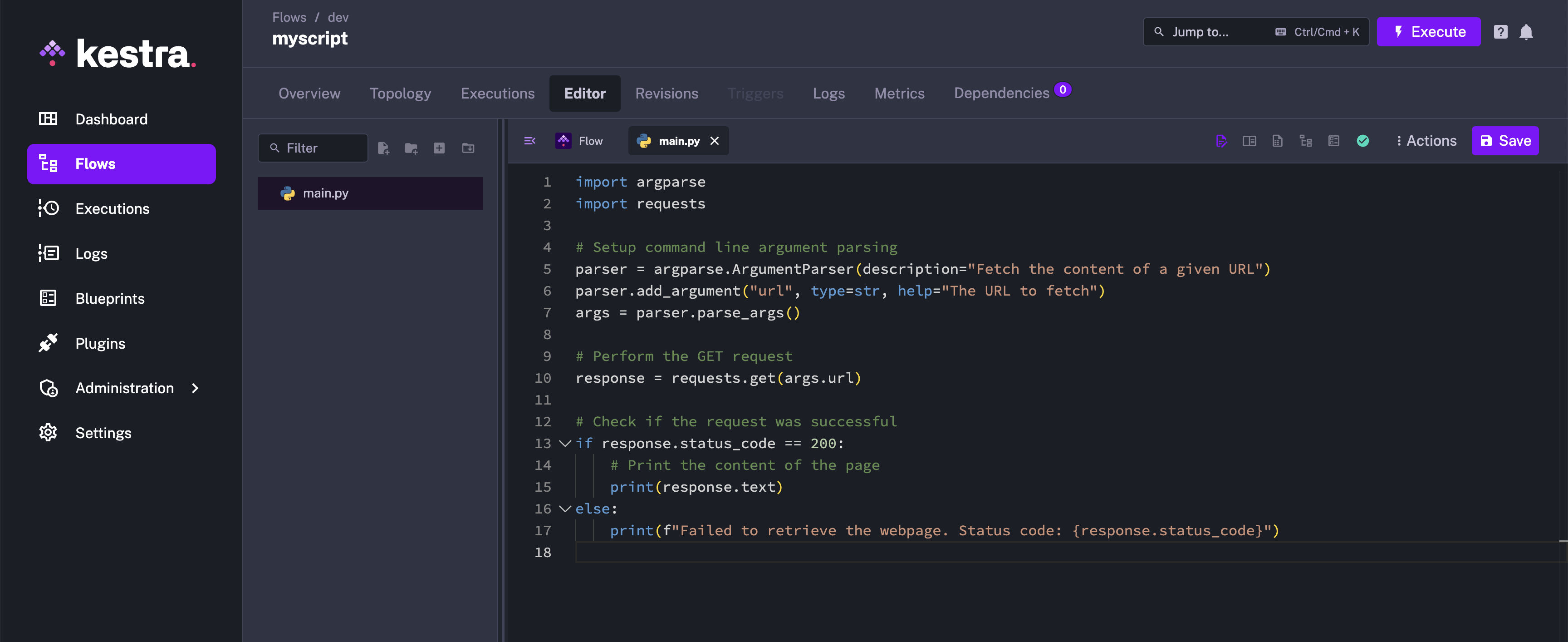
In either case, you need to add your code as a Namespace File. You can do this using the Editor or by importing it directly.
Using namespace files with environment variables
You can pass inputs as environment variables using expressions.
The following example uses the input uri and passes it to the task code as an environment variable so the Python code can access it:
yamlid: expressions_env_vars
namespace: company.team

inputs:
  - id: uri
    type: URI
    defaults: https://www.google.com/

tasks:
  - id: code
    type: io.kestra.plugin.scripts.python.Commands
    namespaceFiles:
      enabled: true
    taskRunner:
      type: io.kestra.plugin.scripts.runner.docker.Docker
    containerImage: ghcr.io/kestra-io/pydata:latest
    commands:
      - python main.py
    env:
      URI: "{{ inputs.uri }}"
Inside the Python code, use os.environ to retrieve the environment variable:
pythonimport requests
import os

## Perform the GET request
response = requests.get(os.environ['URI'])

## Check if the request was successful
if response.status_code == 200:
    print(response.text)
else:
    print(f"Failed to retrieve the webpage. Status code: {response.status_code}")
This method keeps the code in a separate file while avoiding the maintenance challenges of long inline scripts.
Using namespace files with CLI arguments
You can also pass arguments directly to your code during execution. In Python, the argparse module can be used to handle these arguments.
First, modify your code to accept arguments as follows:
pythonimport argparse
import requests

## Set up command-line argument parsing
parser = argparse.ArgumentParser(description="Fetch the content of a given URL")
parser.add_argument("url", type=str, help="The URL to fetch")
args = parser.parse_args()

## Perform the GET request
response = requests.get(args.url)

## Check if the request was successful
if response.status_code == 200:
    print(response.text)
else:
    print(f"Failed to retrieve the webpage. Status code: {response.status_code}")
Next, pass the arguments to your code using expressions. The expressions will be rendered, and the evaluated values passed to the script via argparse:
yamlid: expressions_argparse
namespace: company.team

inputs:
  - id: uri
    type: URI
    defaults: https://www.google.com/

tasks:
  - id: hello
    type: io.kestra.plugin.scripts.python.Commands
    namespaceFiles:
      enabled: true
    taskRunner:
      type: io.kestra.plugin.scripts.runner.docker.Docker
    containerImage: ghcr.io/kestra-io/pydata:latest
    commands:
      - python main.py "{{ inputs.uri }}"
This method makes the code slightly longer due to the argument-handling logic, but it offers better reusability. The same script can be used in multiple flows without duplicating code.