Automate Flows with Schedules, Events & API Triggers
For the complete documentation index, see llms.txt. For a full content snapshot, see llms-full.txt. Append.mdto anykestra.io/docs/*URL for plain Markdown.
Triggers automatically start your flow based on events or a schedule.
Automate Flows with Triggers
A trigger can be a scheduled date, the arrival of a new file, a new message in a queue, the completion of another flow's execution and much more.
Defining triggers
Like inputs and tasks, use the triggers keyword in the flow to define a list of triggers. You can have several triggers attached to a flow. The trigger definition is similar to a task definition — it contains an id, a type, and additional properties specific to the trigger type.
To get started, take a look at the flow below. The schedule_trigger defines a cron expression to run every day at 10 AM. The Schedule trigger is great for nightly jobs and other static schedule-oriented workflows. However, Kestra does not limit you to schedule-based orchestration.
The workflow below also includes a flow_trigger that automatically starts the getting_started flow whenever the first_flow defined in the conditions finishes executing. In other words, a flow can be triggered by time-based schedules, by events, or by several triggers at once. For example, you can react to a change in a Google Sheet, a new file in an S3 bucket, a PostgreSQL database query result, or even when an email is received in real time.
yamlid: getting_started
namespace: company.team

tasks:
  - id: hello_world
    type: io.kestra.plugin.core.log.Log
    message: Hello World!

triggers:
  - id: schedule_trigger
    type: io.kestra.plugin.core.trigger.Schedule
    cron: 0 10 * * *

  - id: flow_trigger
    type: io.kestra.plugin.core.trigger.Flow
    conditions:
      - type: io.kestra.plugin.core.condition.ExecutionFlow
        namespace: company.team
        flowId: first_flow
Schedules default to UTC. To use a different time zone, set the timezone property on the Schedule trigger (for example, America/New_York).
Add a trigger to your flow
Building on the example flow from the previous pages, we can add one of the above triggers to the flow. For example, take the following and ensure our flow runs every Monday at 10 AM to get the latest product data.
yamltriggers:
  - id: every_monday_at_10_am
    type: io.kestra.plugin.core.trigger.Schedule
    cron: 0 10 * * 1
The getting_started flow now runs every Monday at 10 AM, starting the week with the latest product data.
yamlid: getting_started
namespace: company.team

triggers:
  - id: every_monday_at_10_am
    type: io.kestra.plugin.core.trigger.Schedule
    cron: 0 10 * * 1

inputs:
  - id: api_url
    type: STRING
    defaults: https://dummyjson.com/products

tasks:
  - id: api
    type: io.kestra.plugin.core.http.Request
    uri: "{{ inputs.api_url }}"

  - id: transform
    type: io.kestra.plugin.scripts.python.Script
    containerImage: python:slim
    beforeCommands:
      - pip install polars
    outputFiles:
      - "products.csv"
    script: |
      import polars as pl
      data = {{ outputs.api.body | jq('.products') | first }}
      df = pl.from_dicts(data)
      df.glimpse()
      df.select(["brand", "price"]).write_csv("products.csv")

  - id: sql_query
    type: io.kestra.plugin.jdbc.duckdb.Query
    inputFiles:
      in.csv: "{{ outputs.transform.outputFiles['products.csv'] }}"
    sql: |
      SELECT brand, round(avg(price), 2) as avg_price
      FROM read_csv_auto('{{ workingDir }}/in.csv', header=True)
      GROUP BY brand
      ORDER BY avg_price DESC;
    store: true
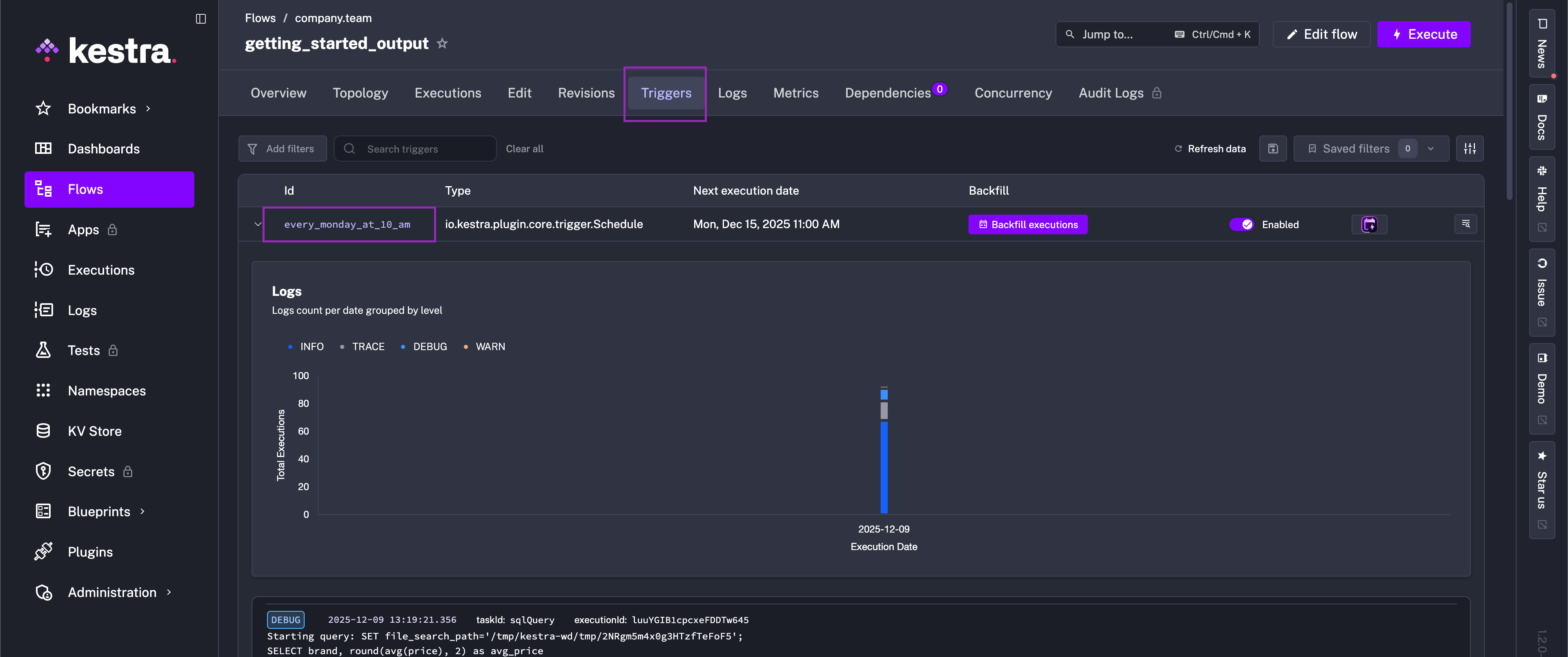
With a trigger added to a flow, you can now see the trigger's details in the flow's Triggers tab.
To learn more about Triggers, check out the full Triggers documentation. Next up, we'll check out Flowable tasks – ways to loop, condition, and parallelize tasks.