Clone, Edit, Test, and Push dbt Models from Kestra
For the complete documentation index, see llms.txt. For a full content snapshot, see llms-full.txt. Append.mdto anykestra.io/docs/*URL for plain Markdown.
Edit dbt code from Kestra's Code Editor
Kestra's built-in Code Editor allows you to manage dbt projects by cloning the Git repository with the dbt code and uploading it to your Kestra namespace. You can make changes to the dbt models directly from the Kestra UI, test them as part of an end-to-end workflow, and push the changes to the desired Git branch when you are ready.
Clone a dbt project from Git
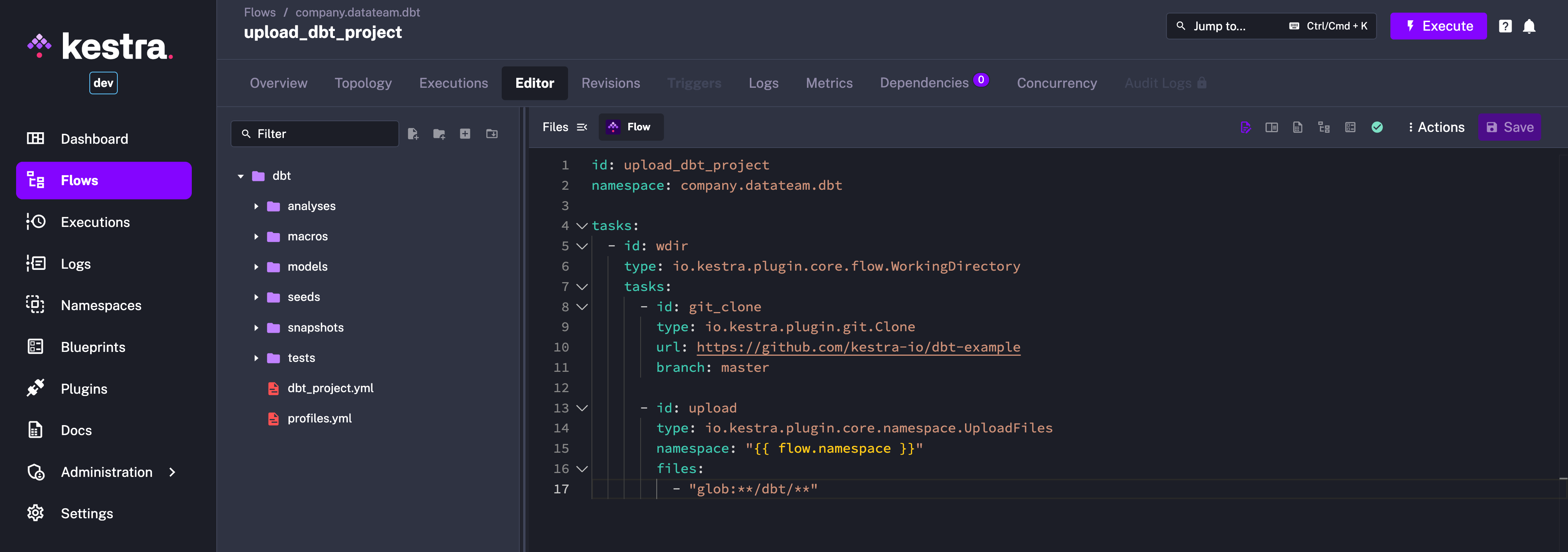
This flow pulls a dbt project from Git and uploads it to Kestra as Namespace Files:
yamlid: upload_dbt_project
namespace: company.datateam.dbt

tasks:
  - id: wdir
    type: io.kestra.plugin.core.flow.WorkingDirectory
    tasks:
      - id: git_clone
        type: io.kestra.plugin.git.Clone
        url: https://github.com/kestra-io/dbt-example
        branch: master

      - id: upload
        type: io.kestra.plugin.core.namespace.UploadFiles
        namespace: "{{ flow.namespace }}"
        files:
          - "glob:**/dbt/**"
You can use this flow as an initial setup:
- Add this flow within Kestra UI
- Save it
- Execute that flow
- Click on the
Filessidebar in the code editor to view the uploaded dbt files.
Run dbt CLI commands
Create a flow that runs dbt CLI commands:
yamlid: dbt_build
namespace: company.datateam.dbt

inputs:
  - id: dbt_command
    type: SELECT
    allowCustomValue: true
    defaults: dbt build --project-dir dbt --profiles-dir dbt --no-partial-parse --target prod
    values:
      - dbt build --project-dir dbt --profiles-dir dbt --no-partial-parse --target prod
      - dbt build --project-dir dbt --profiles-dir dbt --no-partial-parse --target prod --select state:modified+ --defer --state ./target --target-path ./dev

tasks:
  - id: dbt
    type: io.kestra.plugin.dbt.cli.DbtCLI
    namespaceFiles:
      enabled: true
    containerImage: ghcr.io/kestra-io/dbt-duckdb:latest
    projectDir: dbt
    commands:
      - "{{ inputs.dbt_command }}"
    loadManifest:
      key: manifest.json
      namespace: "{{ flow.namespace }}"
    storeManifest:
      key: manifest.json
      namespace: "{{ flow.namespace }}"
    taskRunner:
      type: io.kestra.plugin.scripts.runner.docker.Docker
The namespaceFiles property lets you run dbt commands on the files uploaded to the namespace. This allows you to test the dbt models without having to build the entire project every time.
Execute the flow using the default value for the dbt_command input.
Edit dbt files
You can now open the dbt files in the Code Editor and make changes as needed. For example, add a new model my_third_dbt_model.sql:
sqlselect *
from {{ ref('my_first_dbt_model') }}
where id = 2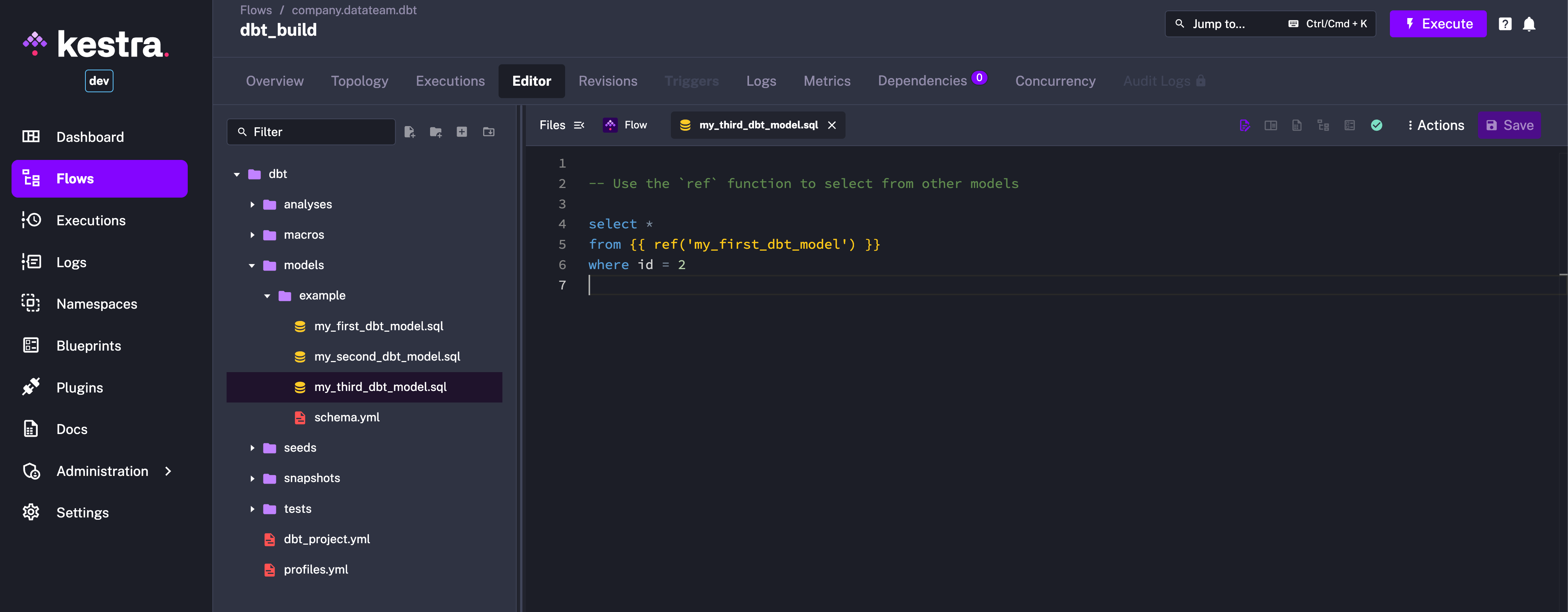
When you now run the flow using the second dropdown value for the dbt_command input, only the new model will be built. This allows you to test the changes quickly and iterate faster.
Push changes to Git
Once you are satisfied with the changes, you can push them to the same Git repository to your desired Git branch using the PushNamespaceFiles.
yamlid: push_dbt_to_git
namespace: company.datateam.dbt

inputs:
  - id: commit_message
    type: STRING
    defaults: "Changes to dbt from Kestra"

tasks:
  - id: commit_and_push
    type: io.kestra.plugin.git.PushNamespaceFiles
    namespace: "{{ flow.namespace }}"
    username: git_username
    password: "{{ secret('GITHUB_ACCESS_TOKEN') }}"
    url: https://github.com/git_username/scripts
    branch: dev
    gitDirectory: dbt
    commitMessage: "{{ inputs.commit_message }}"
Adjust the url, branch, and gitDirectory properties to match your dbt Git repository structure. If the branch does not exist, it will be created. If you want to test this step more incrementally, you can set the dryRun property to true to validate the changes before committing them to Git.