Authenticate Users via Okta OpenID Connect
For the complete documentation index, see llms.txt. For a full content snapshot, see llms-full.txt. Append.mdto anykestra.io/docs/*URL for plain Markdown.
Available on:Enterprise EditionCloud
Authenticate Kestra users with their Okta credentials using OpenID Connect.
Prerequisites
- An Okta Developer Account or Organization with administrative access.
For more details, refer to the Okta OIDC setup documentation.
Step 1: Create an App Integration
Log in to your Okta account and select Applications from the left side menu.
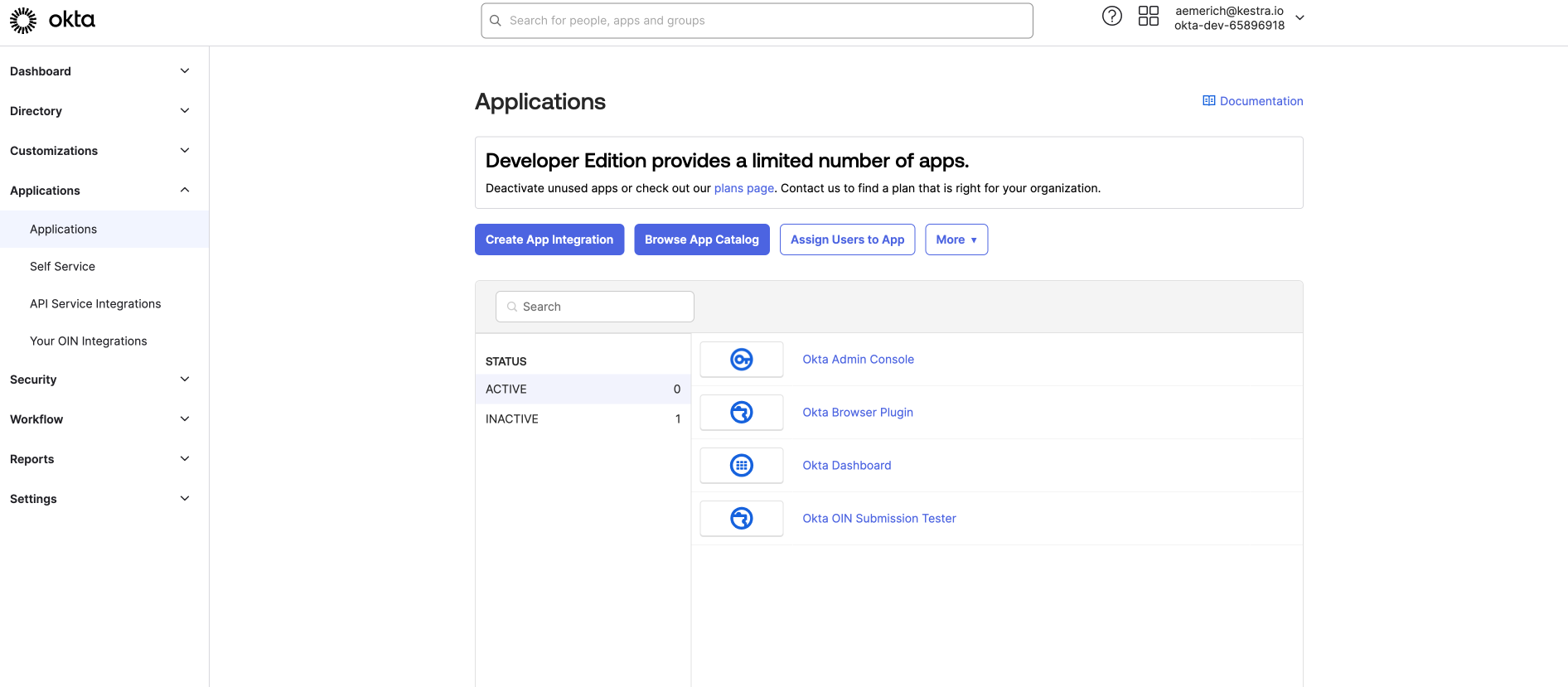
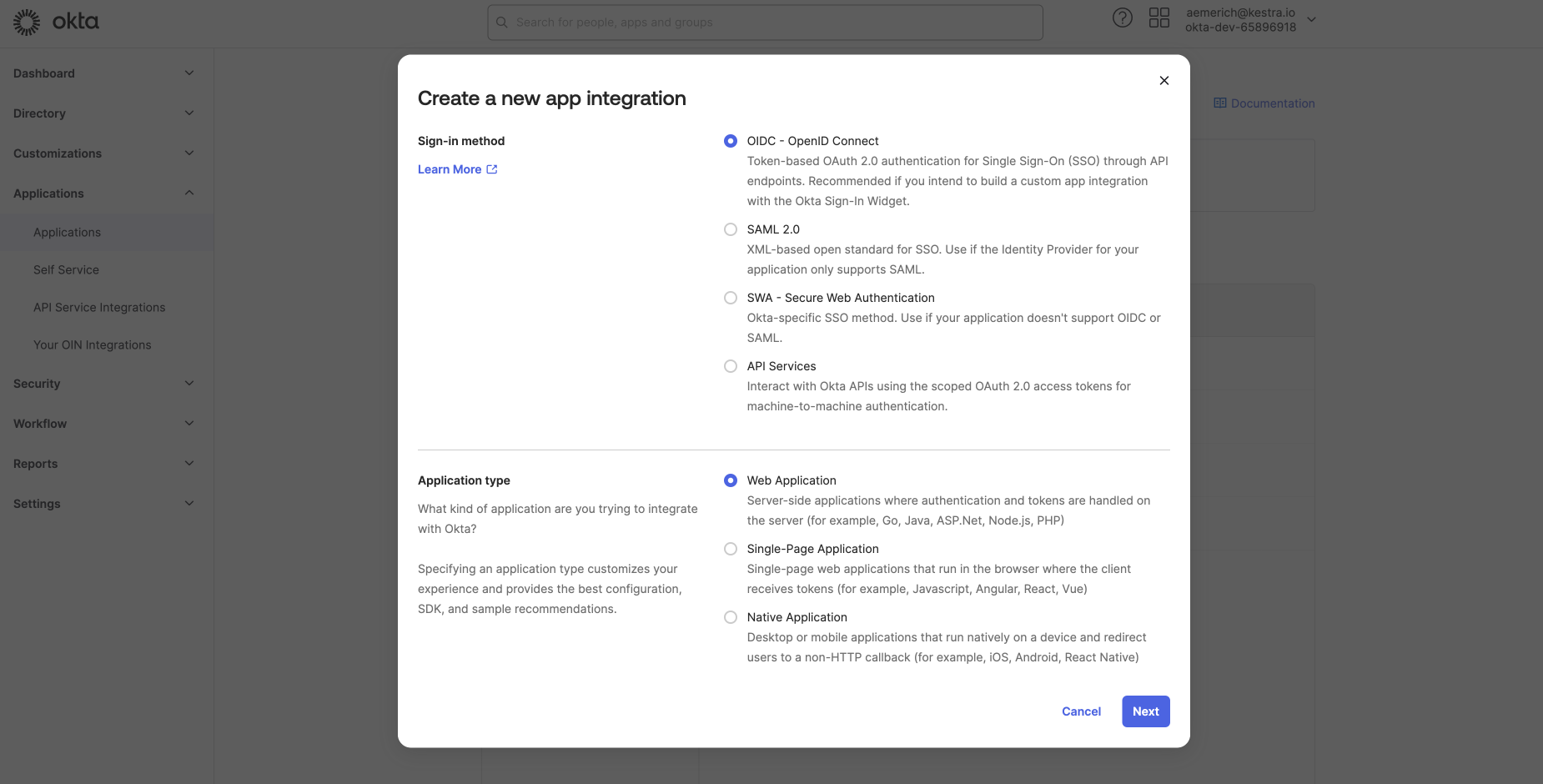
Next, select Create App Integration, select OIDC - OpenID Connect as the sign-in method and Web Application as the application type. Select Next to configure the general settings of the new web app integration.
Step 2: Configure the web app integration
In General Settings, give your App integration a name and select Authorization Code as the grant type. Open Advanced Settings to configure additional grants — Okta supports direct-auth API grants such as OTP, OOB, MFA OTP, and MFA OOB.
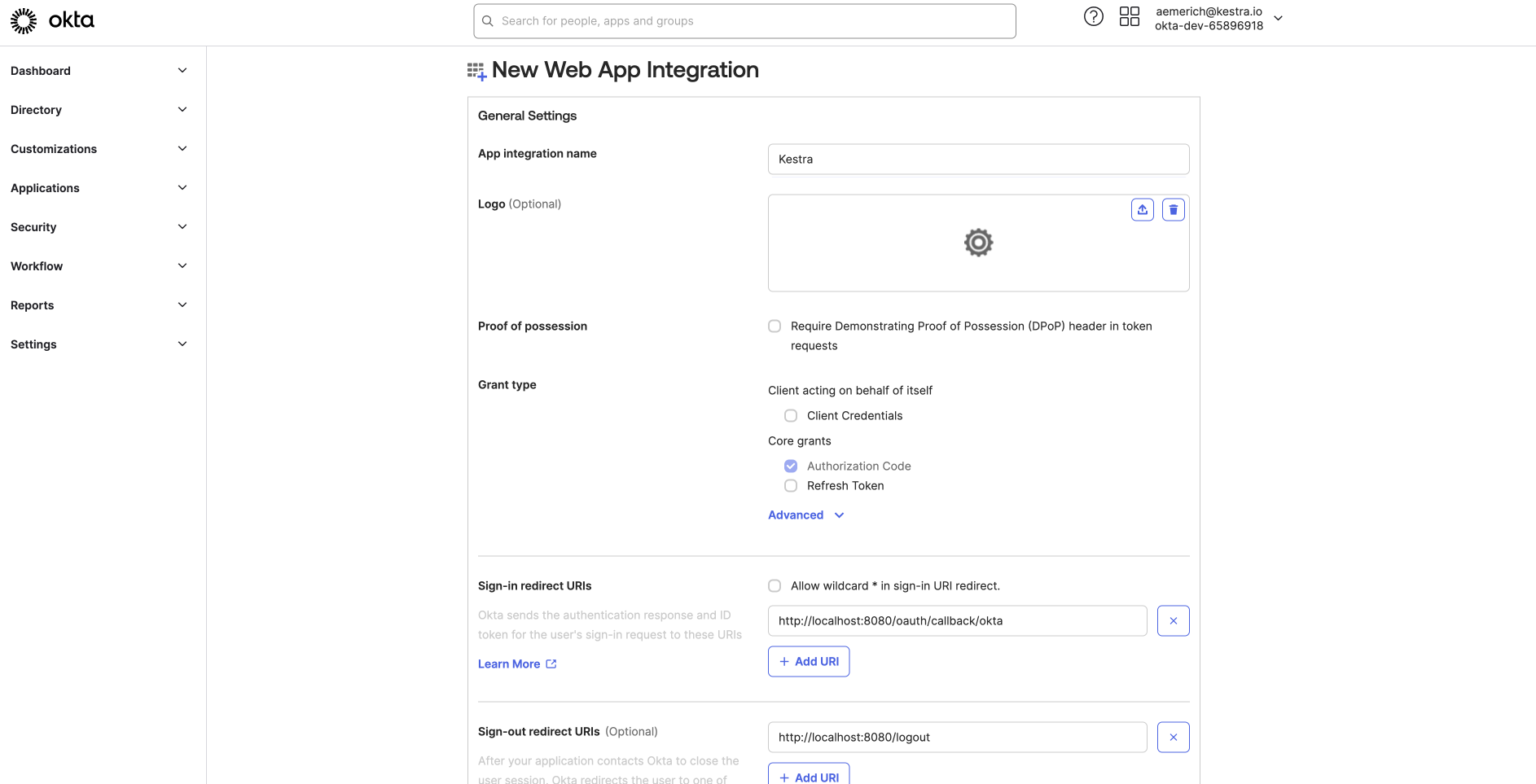
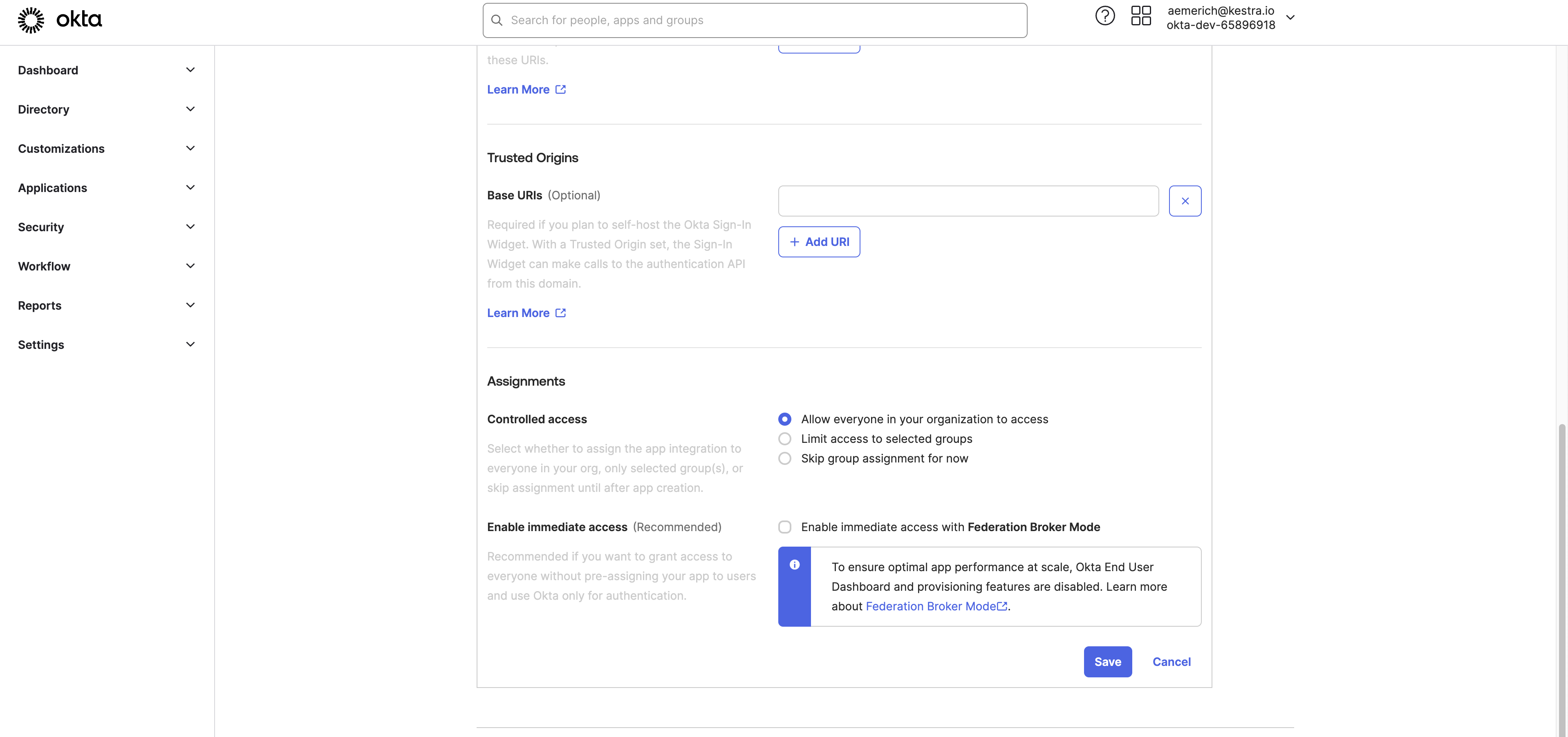
Set the Sign-in redirect URI to http://localhost:8080/oauth/callback/okta and the Sign-out redirect URI to http://localhost:8080/logout (adjust to match your environment). Configure optional Trusted Origins and Assignments as needed.
Set access to Everyone or to a more restricted group. Uncheck Enable immediate access with Federation Broker Mode to control app access manually. Click Save.
Step 3: Add a test user (optional)
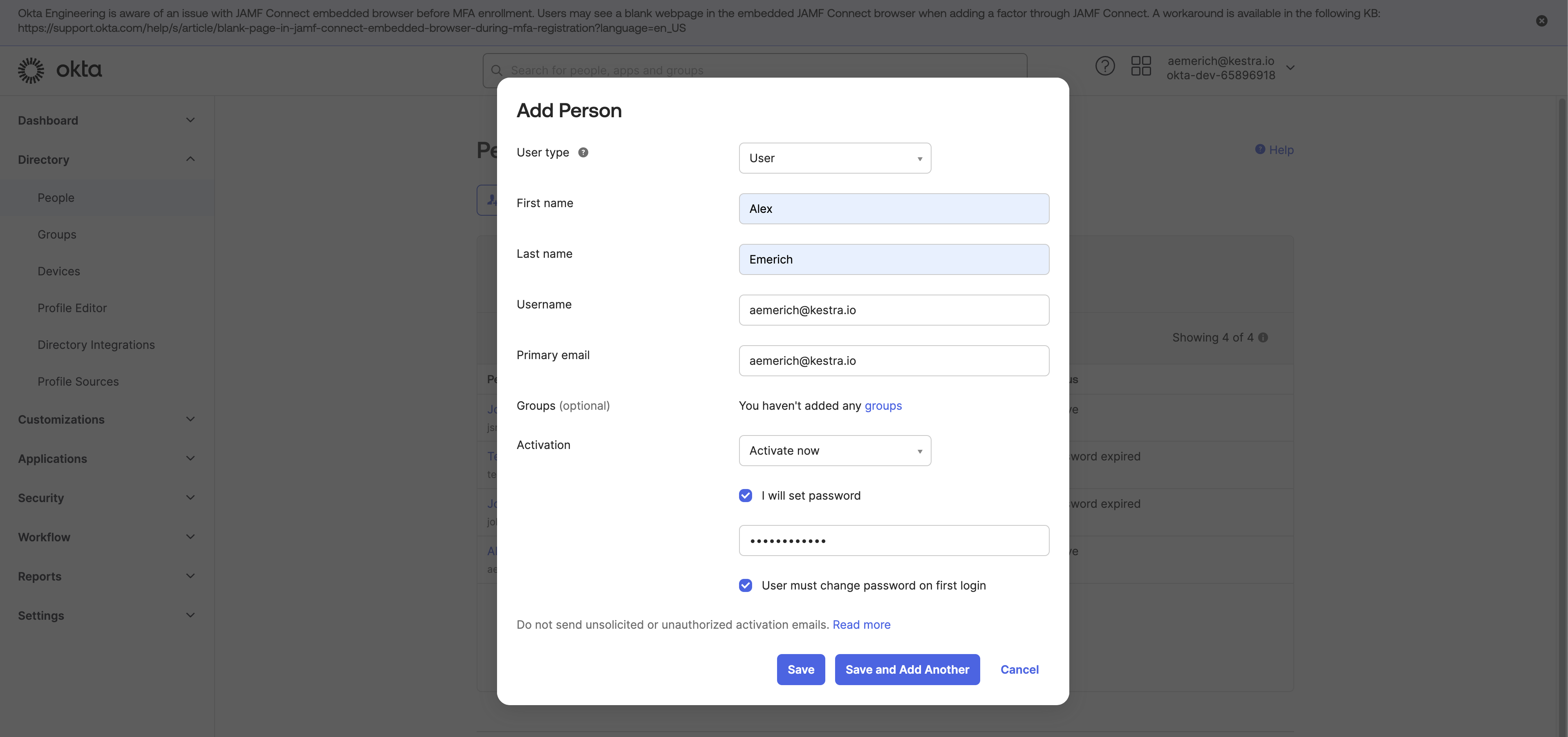
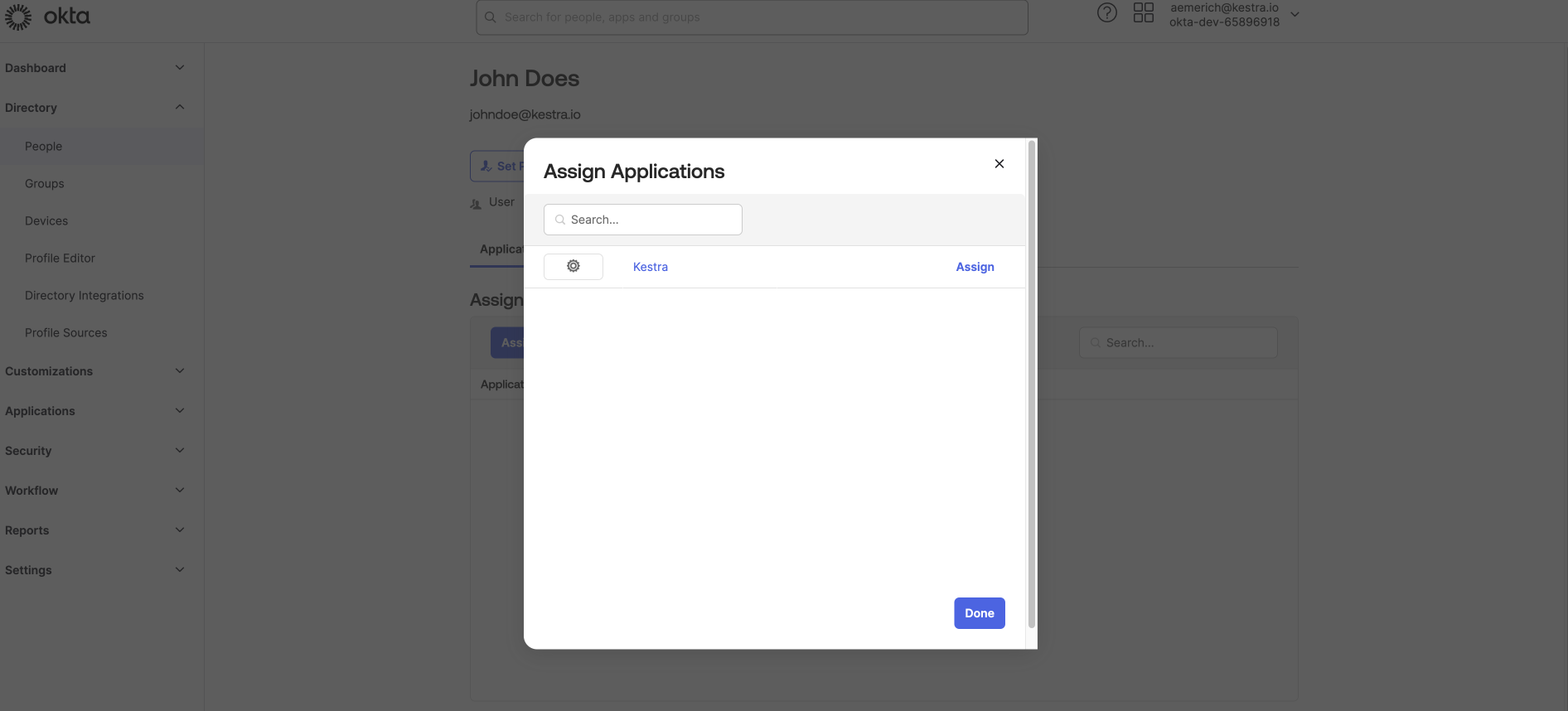
To verify the integration before enabling it for all users, add a test user in Directory → People → Add Person. Assign the Kestra application to that user from the user’s Applications tab.
Step 4: Connect to Kestra
After saving, Okta redirects you to your integration, where you can find your Client ID and Client Secret.
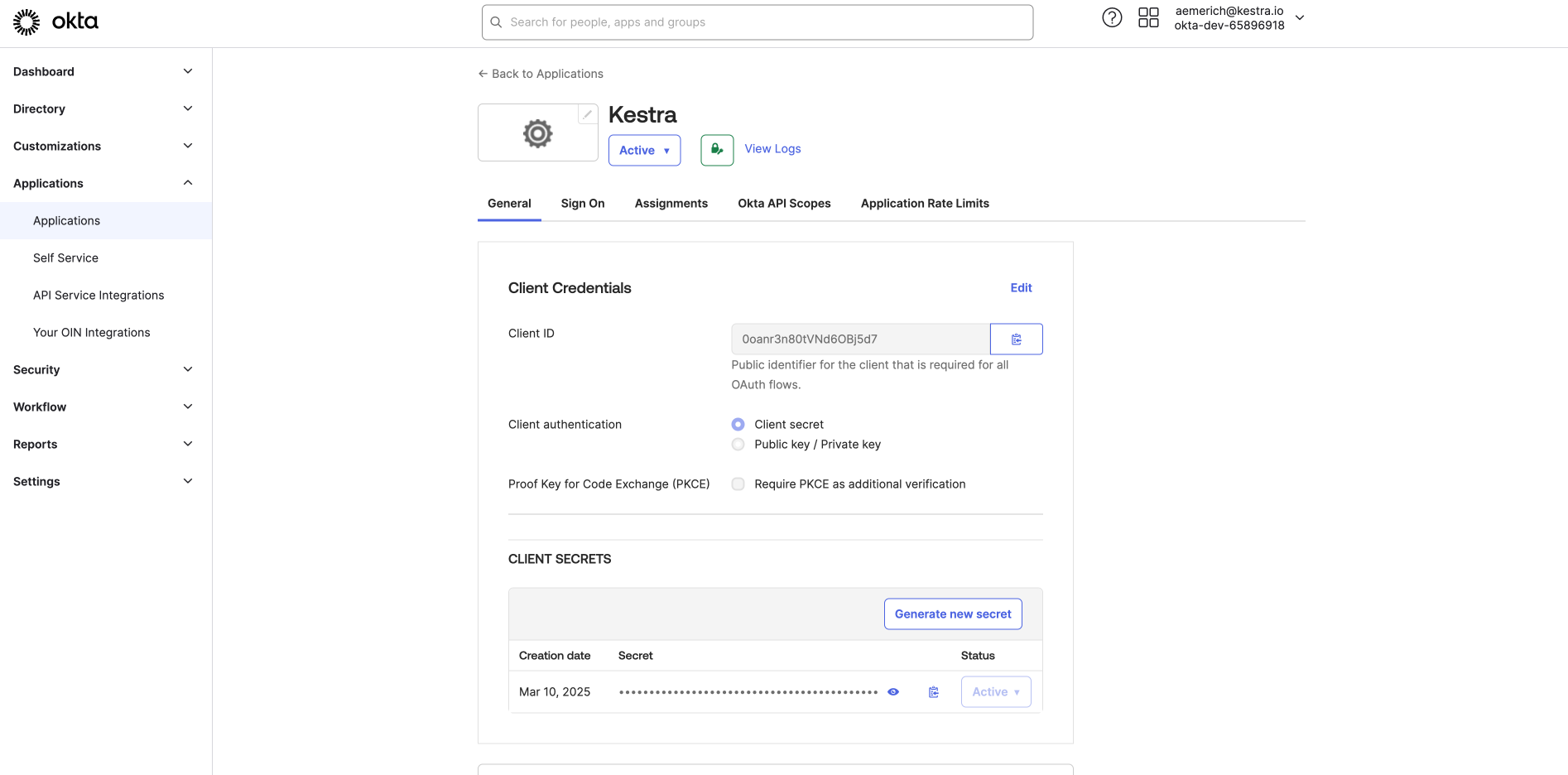
After copying your Client ID and Client Secret, switch to the Sign On tab. Under OpenID Connect ID Token, change the issuer from Dynamic to your Okta URL. Click Save and copy the URL for use in your Kestra Security and Secrets configuration.
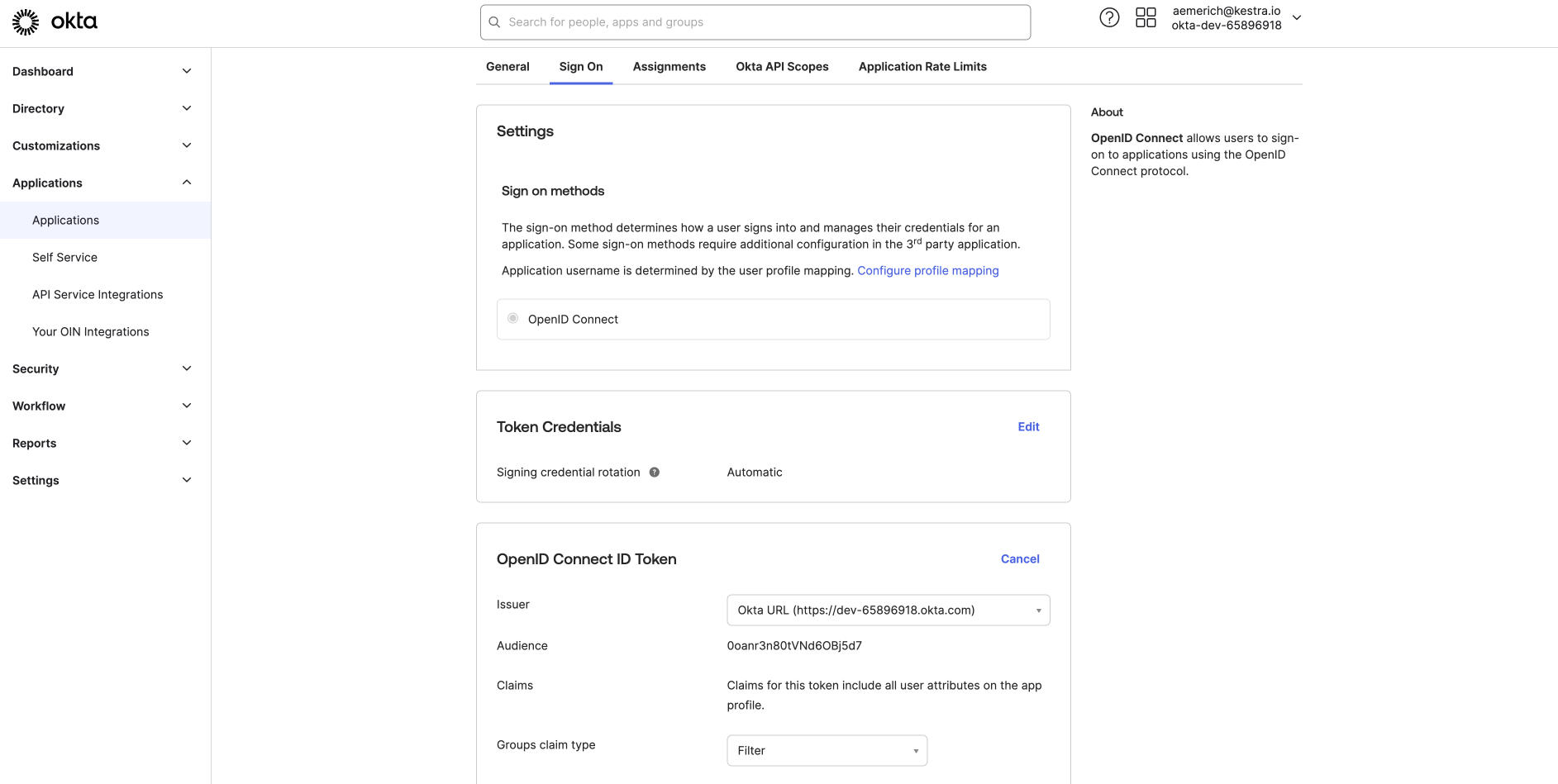
Add the following configuration to enable Okta as an OIDC provider:
micronaut: security: oauth2: enabled: true clients: okta: client-id: "{{ clientId }}" client-secret: "{{ clientSecret }}" openid: issuer: 'https://<your-domain-id>.okta.com'- Replace
clientIdandclientSecretwith the values copied from the Okta App integration. - Replace
issuerwith your issuer URL from the application’s sign-on settings. - Restart Kestra to apply the changes and log in.
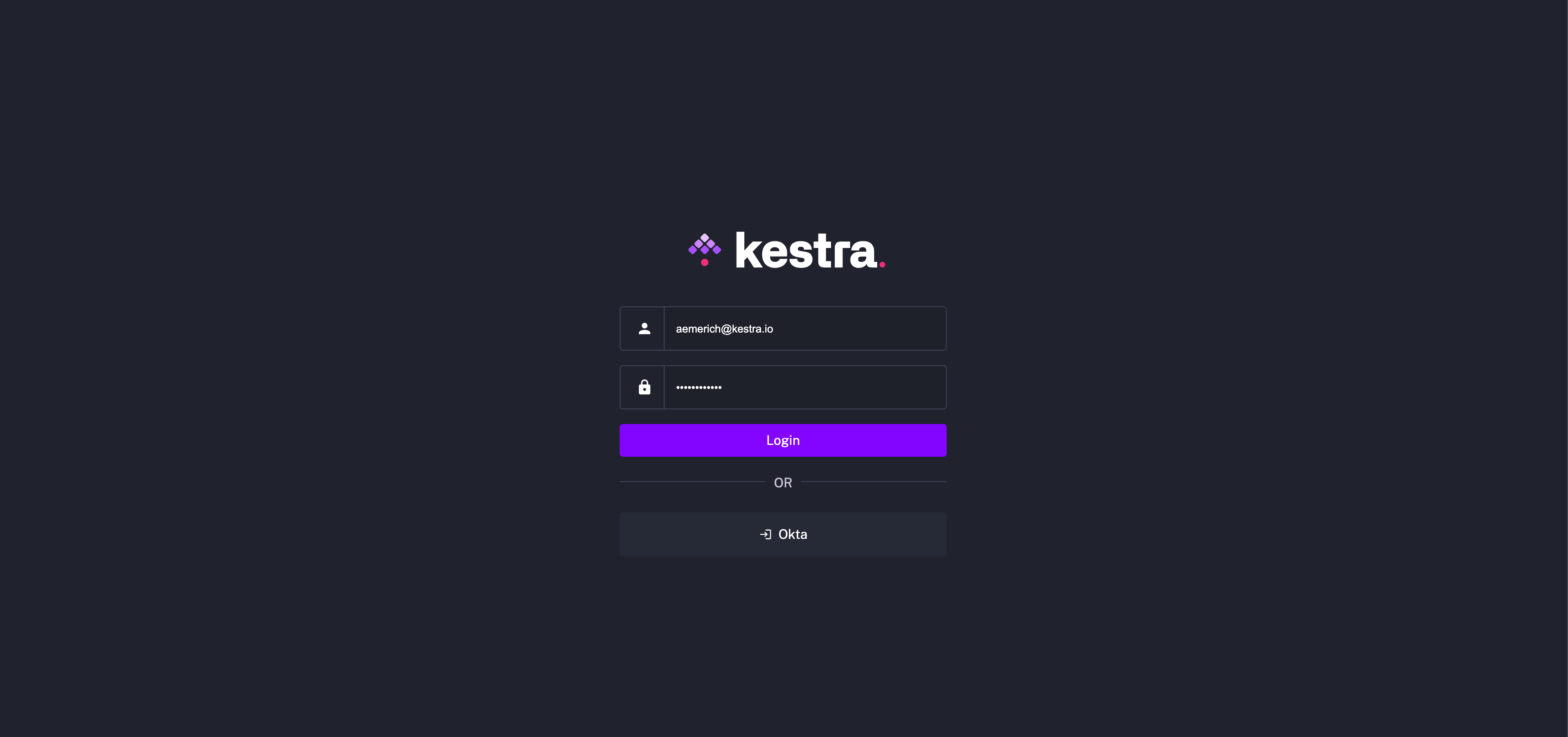
On restart, Okta appears as an available login method.
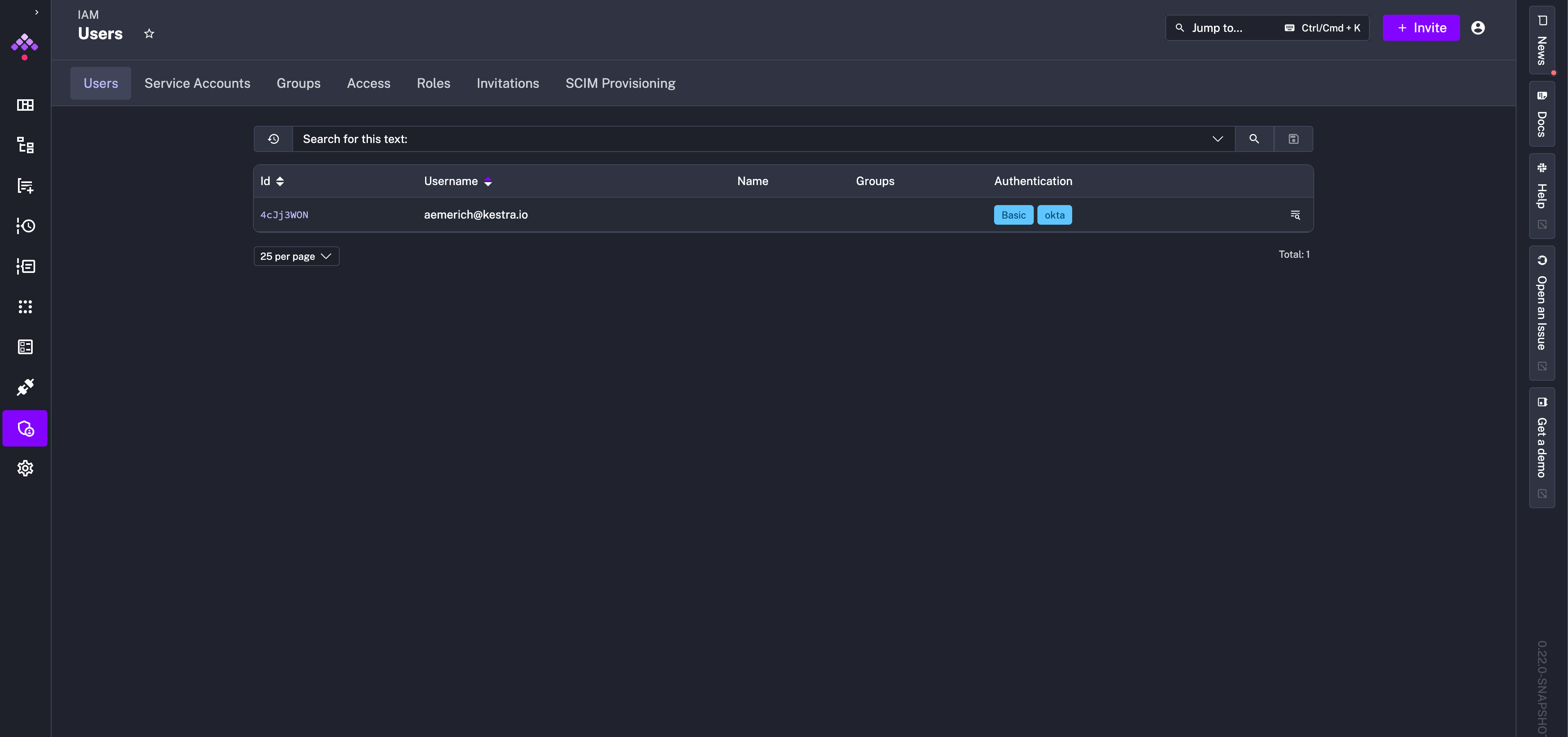
After logging in, go to IAM → Users to confirm the user shows both login methods in the Login & API Tokens column.
Configure a default role for SSO users
SSO users need a default role for initial access in Kestra. Add the following to kestra.security:
kestra: security: defaultRole: name: default_admin_role description: "Default Admin Role" permissions: FLOW: - VIEW - LIST - CREATE - UPDATE - DELETE - EXECUTE - DISABLE - ENABLE - VALIDATE - EXPORT - IMPORT EXECUTION: - VIEW - LIST - UPDATE - DELETE - RESTART - KILL - REPLAY - PAUSE - RESUME - CHANGE_LABELS - ACCESS_LOGS - ACCESS_OUTPUTS - ACCESS_FILES - EXPORT - UNQUEUE - FORCE_RUN - FOLLOW NAMESPACE: - VIEW - LIST - CREATE - UPDATE - DELETE - MANAGE_FILES SECRET: ["VIEW", "LIST", "UPDATE", "DELETE"] KVSTORE: ["VIEW", "LIST", "CREATE", "UPDATE", "DELETE"] BLUEPRINT: ["VIEW", "LIST", "CREATE", "UPDATE", "DELETE"] ROLE: ["VIEW", "LIST", "CREATE", "UPDATE", "DELETE"] GROUP: ["VIEW", "LIST", "CREATE", "UPDATE", "DELETE", "MANAGE_MEMBERS"] USER: ["VIEW", "LIST", "CREATE", "UPDATE", "DELETE", "MANAGE_GROUP_MEMBERSHIP"] BINDING: ["VIEW", "LIST", "CREATE", "DELETE"] AUDITLOG: ["VIEW", "LIST", "EXPORT"] ee: tenants: enabled: true defaultTenant: falsePlace defaultRole under kestra.security, not under micronaut.security. The example above grants broad access — adjust the action lists to match the permissions your users actually need in production.
Was this page helpful?