Edit, Validate, and Run Flows in JetBrains IDEs
For the complete documentation index, see llms.txt. For a full content snapshot, see llms-full.txt. Append.mdto anykestra.io/docs/*URL for plain Markdown.
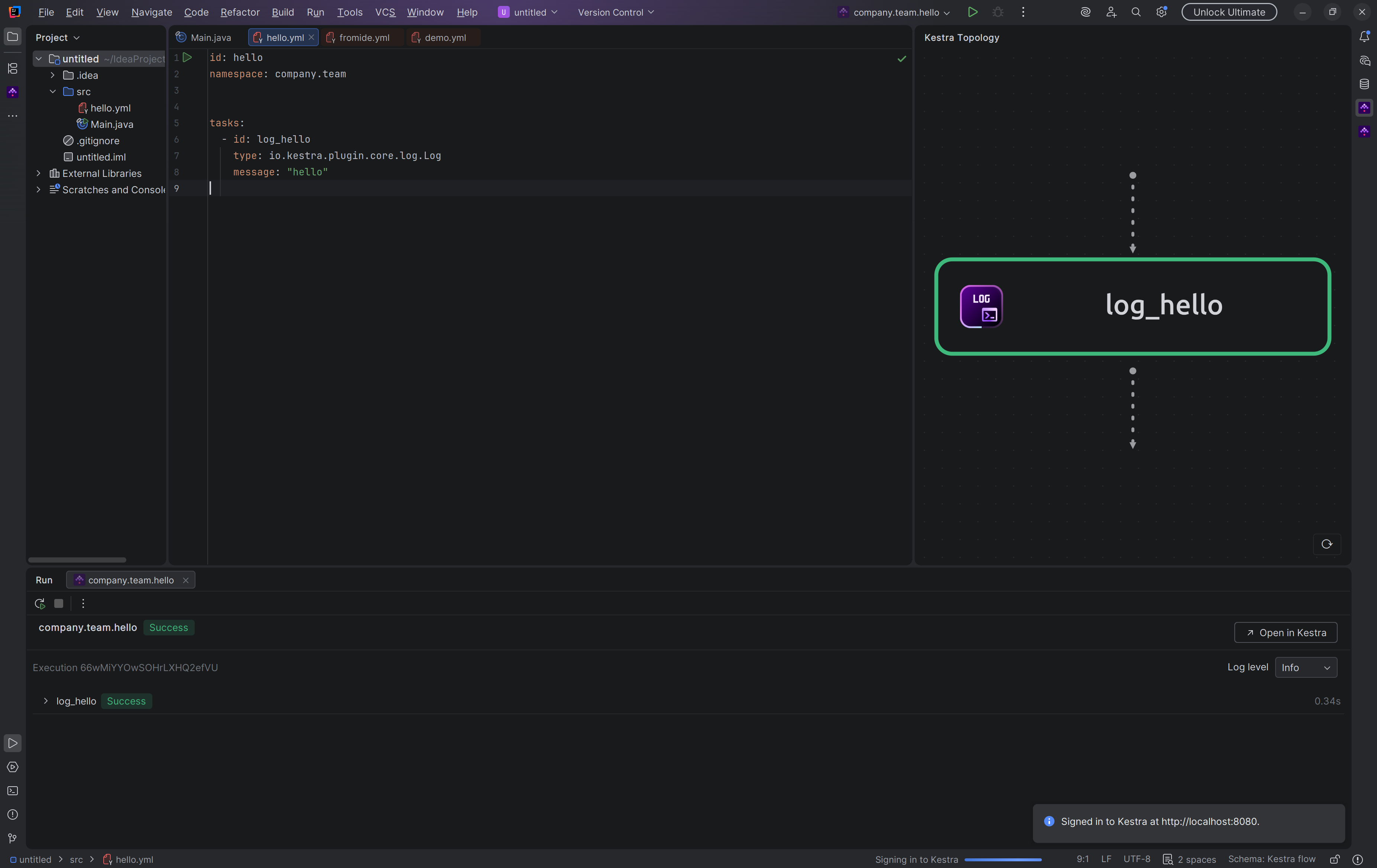
The Kestra plugin for JetBrains IDEs connects IntelliJ IDEA, PyCharm, WebStorm, GoLand, and other IntelliJ Platform IDEs to a Kestra instance. It gives you instance-aware completion, live validation, a topology preview, and lets you run flows from the editor.
Prerequisites
- A JetBrains IDE, version 2024.3 or later. Free editions work too: the plugin only needs the bundled YAML support.
- A running Kestra instance reachable from your machine, version 1.x or 2.x.
{{ }}completion from the instance needs Kestra 2.0 or later.
Installation
Install the plugin from the JetBrains Marketplace: open Settings | Plugins | Marketplace, search for Kestra, click Install, and restart the IDE. Updates arrive through the IDE.
Setup
Open Settings | Tools | Kestra and set the instance URL, for example http://localhost:8080. For a multi-tenant instance, also set the Tenant. On an Enterprise Edition instance, signing in fills the tenant for you. These settings apply to every project.
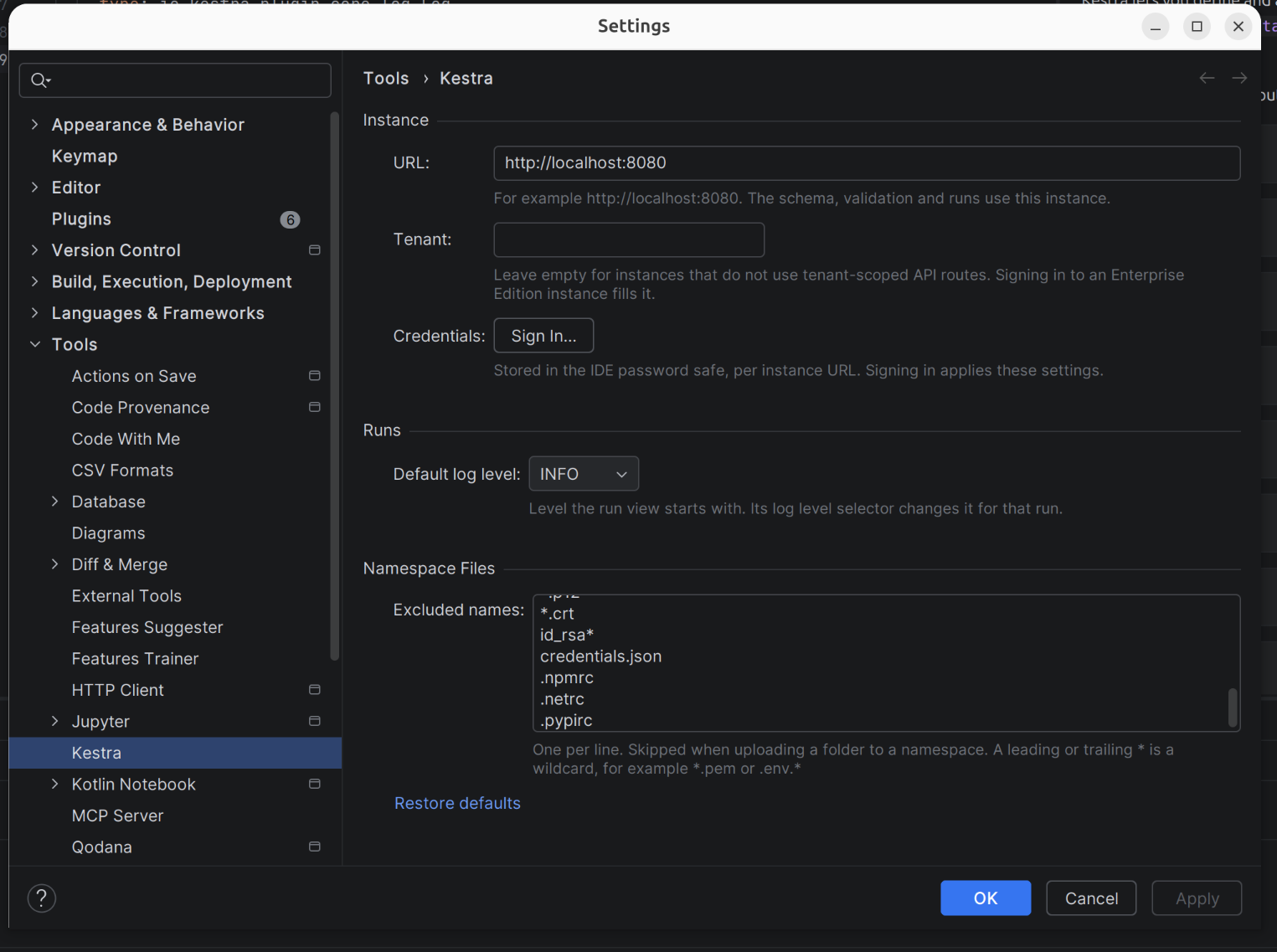
On Kestra Cloud, your tenant ID is the path segment right after app.kestra.io/ in the URL. On self-hosted multi-tenant instances, your administrator sets the tenant ID.
The plugin uses the IDE’s proxy settings (Settings | Appearance & Behavior | System Settings | HTTP Proxy) and the certificates the IDE trusts (Settings | Tools | Server Certificates). An instance behind an internal certificate authority works once you accept its certificate there.
Authentication
On a secured instance, click Sign In… on the settings page or in Tools | Kestra. The plugin accepts three credential types:
- Basic auth: your Kestra username and password.
- API token: an Enterprise Edition API token, sent as a Bearer token.
- JWT session token: a legacy token taken from a browser session.
Credentials are stored in the IDE password safe, per instance URL. Tools | Kestra | Sign Out clears them. When the instance refuses a request, a notification offers to sign in.
To check the connection, open a flow file and start typing a task type: the task types installed on your instance appear in the completion list.
Features
All Kestra actions are in the Tools | Kestra menu. The flow actions are also in the editor’s context menu.
Schema and completion
The plugin downloads the flow schema from the configured instance, so completion and structural validation match the plugin versions installed there, not a generic all-plugins schema. Once a task declares its type, only that plugin’s properties are suggested.
The schema is cached per instance. It is downloaded again when the URL changes or after you sign in. Run Tools | Kestra | Download Kestra Schema to force a refresh, for example after installing a plugin on the instance.
The schema applies to any YAML file detected as a flow (it defines id, namespace, and either tasks or triggers), and to YAML files under a _flows directory.
Live validation
While a flow file is open, the plugin sends its content to the instance’s validate endpoint. The errors and warnings it returns appear on the lines they concern and in the Problems tool window.
Pebble expressions
Inside {{ }}, completion opens on {{, . and |, and on demand with the usual completion shortcut. It suggests variables (inputs, outputs, vars, execution…) and their members, task outputs, secrets, KV pairs, and namespace files, then functions after a name and filters after |.
On Kestra 2.0 and later, the instance computes what this exact flow can reference, including nested task outputs. On Kestra 1.x, and for flows that don’t parse yet, the plugin falls back to a built-in list.
Run from the IDE
Click the ▶ icon next to the flow’s id, or select Run in the editor’s context menu. The plugin:
- Validates the flow against the instance.
- Deploys the current editor content, saved or not.
- Asks for the flow’s inputs, if it declares any.
- Starts an execution and follows it in the Run tool window.
The Run tool window shows:
- A header with the execution state, Copy logs, and Open in Kestra, which opens the execution in the Kestra UI.
- The run’s progress and any validation or deployment errors.
- One section per task run, with its state and duration. Click a section to show its logs. A failed task opens automatically.
The Log level selector filters the displayed logs. Its initial value is Settings | Tools | Kestra | Default log level. Stop kills the execution on the instance.
Each run is saved as a Kestra flow run configuration, so you can start it again from the toolbar.
To deploy a flow without running it, use Save Flow to Kestra in the editor’s context menu or in Tools | Kestra.
Topology preview
Select Show Flow Topology in the editor’s context menu or in Tools | Kestra to open the Kestra Topology tool window. It draws the graph that the instance generates for the flow in the editor, with plugin icons, and follows the editor as you type or switch files.
- Click a task to move the cursor to its definition.
- Click ⟳ to switch between a vertical and a horizontal layout.
- While the flow runs from the IDE, each task is outlined with its live state.
The preview uses the IDE’s embedded browser (JCEF), which every JetBrains IDE ships with.
Documentation
Run Tools | Kestra | Open Kestra Documentation to open the Kestra Documentation tool window. It works like the docs tab of the Kestra UI: search the docs, browse plugins and their tasks, and read pages that match the version of the connected instance.
While the tool window is visible, placing the cursor on a task, trigger, or condition shows that plugin’s documentation (properties, examples, and outputs) as installed on the instance. Links open in your browser.
Namespace files
Open a namespace with Tools | Kestra | Open Namespace…, or with + in the Kestra Namespaces tool window. The namespace appears as a folder backed by the instance: browse, open, create, rename, and delete its files from the tool window, or upload local files into one of its folders.
There is no local copy. Files are read from the instance when you open them, and each save is uploaded in the background. If the instance refuses a save, a notification shows the reason with a Retry action. Namespaces you open are reopened with the project.
The _flows folder holds the namespace’s flows as <id>.yml files, with the same completion, validation, run, and topology as any flow file:
- Saving a file updates the flow, after the instance validates it.
- Creating a
.ymlfile creates a flow from a template. - Deleting a file deletes the flow.
- Renaming isn’t supported, because a flow’s file name is its
id.
An opened file stays bound to the instance it was read from. If you switch to another instance in the settings, saving it is refused rather than written to the new instance.
To push local files to a namespace:
- Upload to Kestra Namespace…, in the Project view’s context menu or in Tools | Kestra, uploads the selected files and folders. A single file goes to the exact path you enter. A multi-selection goes under a base path, each folder keeping its name. Open files are uploaded with their unsaved changes. If the namespace doesn’t exist, the plugin offers to create it.
- Sync Folder to Kestra Namespace… uploads every file of a folder. Files at the same remote path are overwritten. Files that exist only on the instance are kept.
Both actions skip the names listed in Settings | Tools | Kestra | Excluded names. If the instance refuses an upload, the action stops and shows the reason.
Settings reference
All settings are in Settings | Tools | Kestra.
| Setting | Default | Description |
|---|---|---|
| URL | — | URL of the Kestra instance, for example http://localhost:8080. |
| Tenant | — | Tenant ID for multi-tenant instances. Leave empty for single-tenant deployments. |
| Credentials | — | Sign In… sets the credentials for the instance URL. |
| Default log level | INFO | Initial log level shown in the Run tool window. Options: TRACE, DEBUG, INFO, WARN, ERROR. |
| Excluded names | .git, .vscode, .idea, node_modules, .DS_Store, .env, .env.*, .envrc, *.pem, *.key, *.p8, *.pfx, *.p12, *.crt, id_rsa*, credentials.json, .npmrc, .netrc, .pypirc | File and folder names skipped when uploading or syncing to a namespace. Matched per name; a leading or trailing * is a wildcard. Restore defaults resets the list. |
Troubleshooting
Completion is missing or the schema doesn’t load
Check the URL in Settings | Tools | Kestra, then run Tools | Kestra | Download Kestra Schema to download the schema again and see whether an error is reported. Also check that the file is detected as a flow: it must define id, namespace, and tasks or triggers, or live under a _flows directory.
Sign in fails or the instance rejects requests
Check that the credential type matches your instance. Open source instances accept only basic auth. Enterprise Edition instances also accept API tokens: generate one from your user profile in the Kestra UI.
Requests fail with a certificate error
The instance uses a certificate the IDE doesn’t trust. Accept it in Settings | Tools | Server Certificates.
The topology or documentation tool window is empty
Both use the IDE’s embedded browser (JCEF). Check that your IDE runtime includes it. If the flow YAML isn’t valid yet, the topology keeps the last valid graph until the flow parses again.
Next steps
- VS Code extension: the same features for VS Code.
- Flows: flow structure, tasks, triggers, and inputs.
- Blueprints: ready-to-use flow examples to copy into the editor.
- Version control with Git: push flows to a Git repository from Kestra and integrate with CI/CD pipelines.
Was this page helpful?